

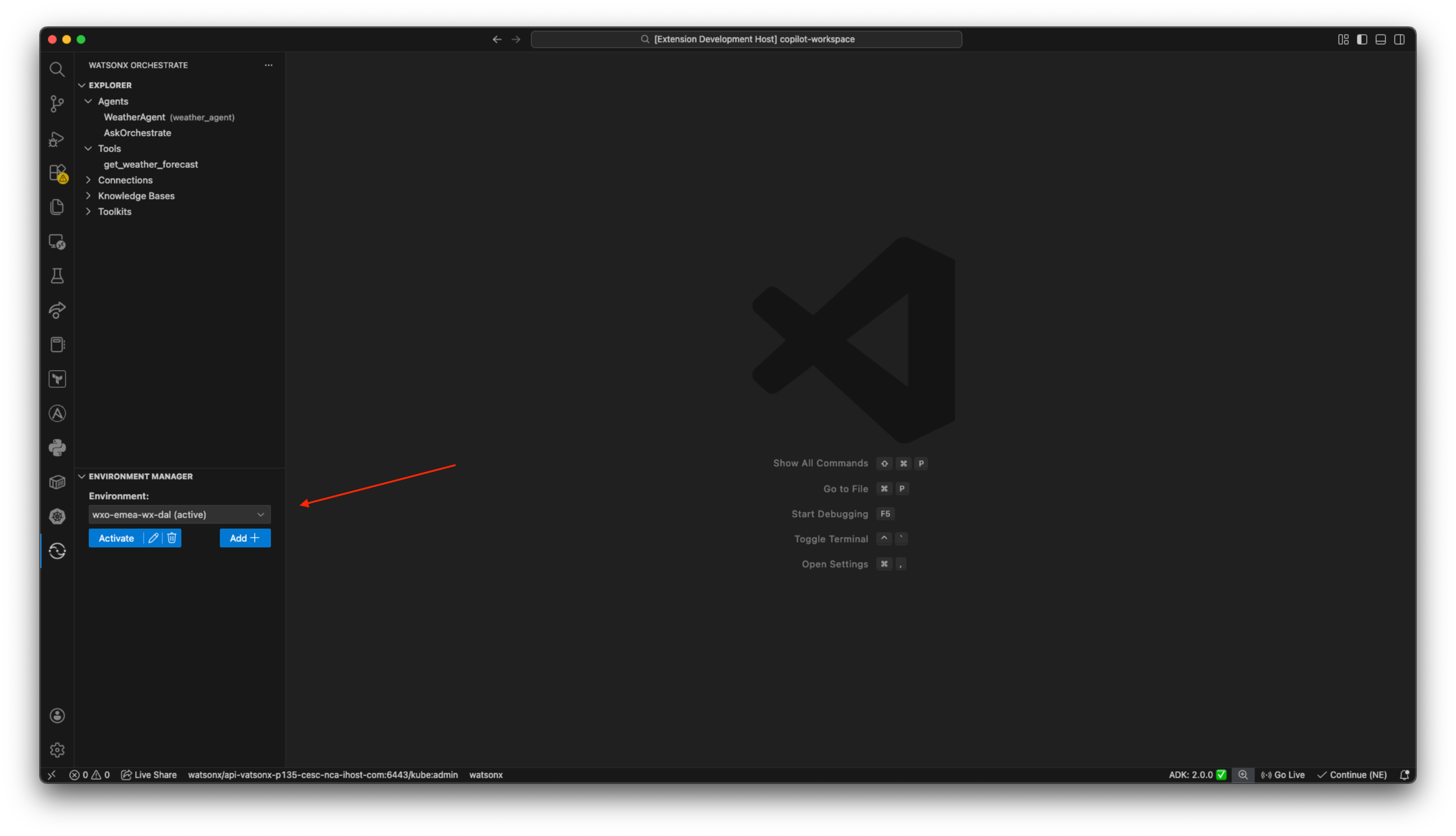
Add an Orchestrate instance
Prerequisites
To setup the enviroment switcher, you must have the following prerequisites:- You must install the Orchestrate copilot VS Code extension. For more information, see Installing Orchestrate copilot VS Code extension
1
Adding an Orchestrate instance
- In VS Code, click the Orchestrate icon
 on the left menu bar.
 - Click Add +.
- In Name, type the name of the instance.
- In URL, paste the
WO_INSTANCE. - Click Submit.
- In the Environment drop-down, select your instance.
- Copy the
WO_API_KEY. - Click Activate.
- Paste the
WO_API_KEYin the top search bar and press Enter. - Your embedded web chat is now active.
2
Downloading the agent definition
- Go to Explorer > Agents.
- Click AskOrchestrate.
- The definition of your agent downloads as a .yaml file.
3
Opening the web chat in a new window
- Press Command + Shift + P (Mac) or Control + Shift + P (Windows).
- Type Chat in the top search bar.
- Select watsonx Orchestrate: Chat with Current Agent File.
- A warning message appears, click Yes.
Activating your local environment
1
Configure the .env file
- You must configure the .env file procedure. For more information, see Configuring .env file.
2
Create the .env file for your VS Code project
- You must create the .env file of your VS Code project. For more information, see Add an Orchestrate instance.
3
Activate and start local enviroment
- Click your local environment in the Environment switcher.
- Click Activate.
- Click Start server.