Documentation Index
Fetch the complete documentation index at: https://developer.watson-orchestrate.ibm.com/llms.txt
Use this file to discover all available pages before exploring further.
What is the documentation MCP Server?
The watsonx Orchestrate Documentation MCP Server acts as a second standalone MCP server that exposes a tool for searching watsonx Orchestrate documentation.
This feature becomes powerful when you combine it with the main watsonx Orchestrate MCP server and an MCP Client
With this setup, agentic MCP clients check documentation to learn up-to-date information about resource types, spec file structure, and other idiosyncrasies of the watsonx Orchestrate platform.
Connecting to the Orchestrate Documentation MCP Server
The watsonx Orchestrate Documentation MCP Server runs as a remote MCP server using streamablehttp at this address: https://developer.watson-orchestrate.ibm.com/mcp.
watsonx Orchestrate
Claude Desktop
GitHub Copilot
Cursor
MCP Inspector
For more informations on importing remote MCP servers into watsonx Orchestrate, see Importing remote MCP toolkits.orchestrate toolkits import --kind mcp --name wxo-docs --description "Documentation MCP Server" --url https://developer.watson-orchestrate.ibm.com/mcp --transport http
Remote MCP support is available only for premium accounts in Claude Desktop. For more information, see Connecting to a Remote MCP Server in their documentation.
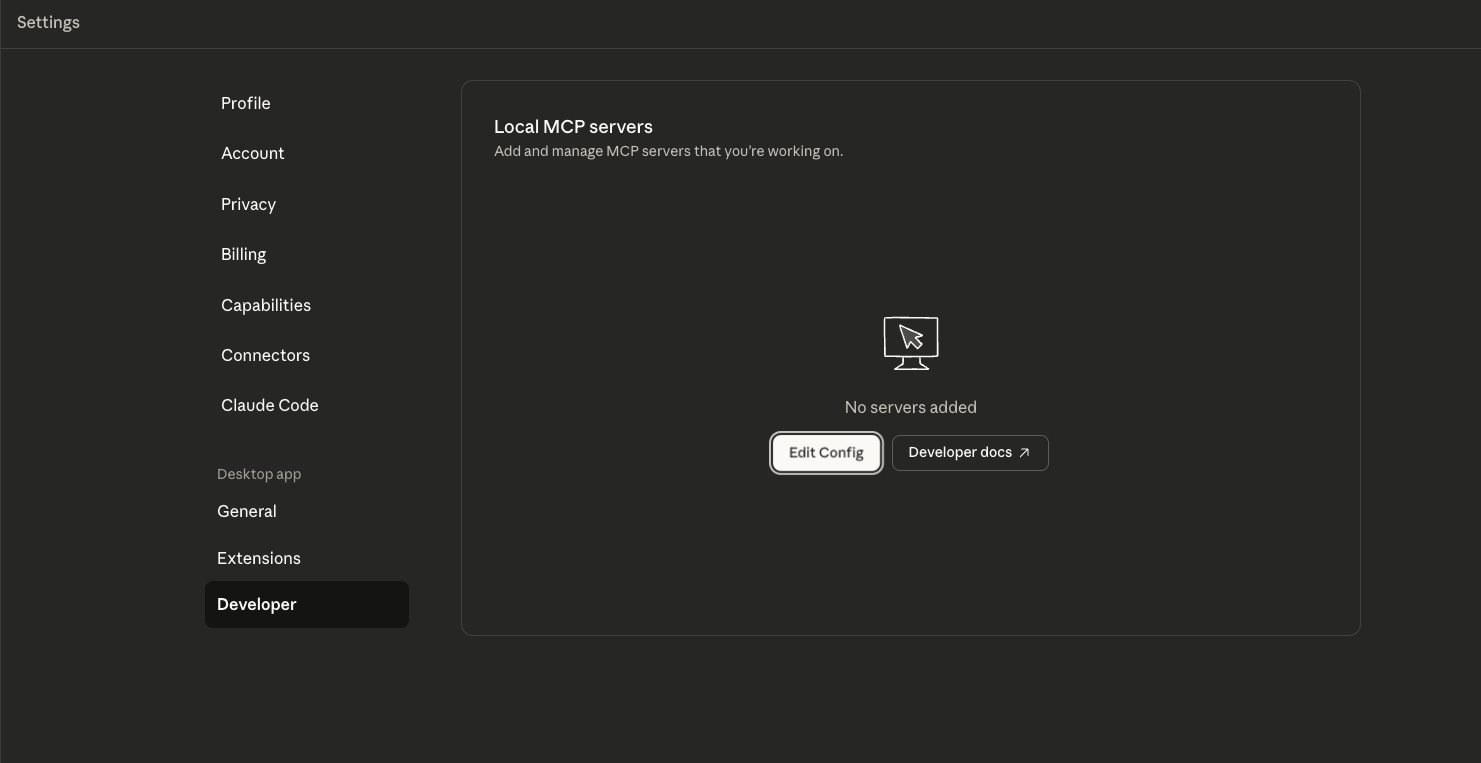
Without premium you can use a tool like MCP-Proxy to run the use STDIO to talk to the server.Open the Settings Developer
Edit the `claude_desktop_config.json` file
Click Edit Config to navigate to where the claude_desktop_config.json file is on disk.
Open the file in any text editor.
Add the MCP Server
Paste the following into the file:{
"mcpServers":{
"wxo-docs":{
"command":"uvx",
"args":[
"mcp-proxy",
"--transport",
"streamablehttp",
"https://developer.watson-orchestrate.ibm.com/mcp"
]
}
}
}
Create file `.vscode/mcp.json`
Create a new file in your workspace called .vscode/mcp.json.
Add MCP Server configuration
{
"servers": {
"wxo-docs": {
"type": "http",
"url": "https://developer.watson-orchestrate.ibm.com/mcp"
}
}
}
List VSCode MCP Servers
Press Ctrl+P, type >MCP: List Servers, and select wxo-mcp.
Start the Server
Click the start server option.
Create file `.cursor/mcp.json`
Create a new file in your workspace called .cursor/mcp.json.
Add MCP Server configuration
{
"servers": {
"wxo-docs": {
"type": "http",
"url": "https://developer.watson-orchestrate.ibm.com/mcp"
}
}
}
List Cursor MCP Servers
Press Ctrl+P, type >MCP: List Servers, and select wxo-mcp.
Start the Server
Click the start server option.
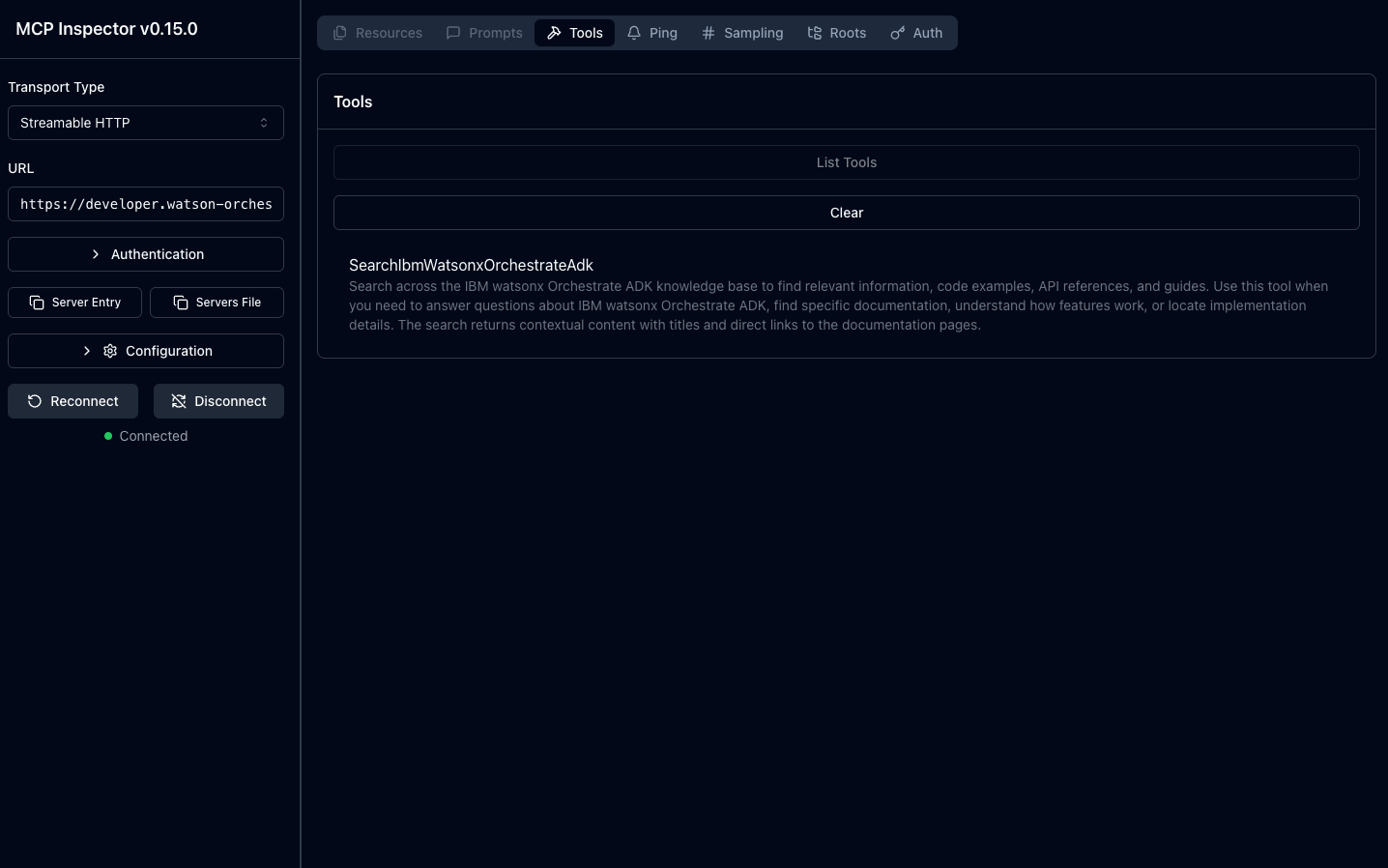
Start MCP Inspector Server
npx @modelcontextprotocol/inspector
Entry the MCP Server details
- Set transport to
Steamable HTTP
- Set the URL to
https://developer.watson-orchestrate.ibm.com/mcp
- Click Connect