

- Your agent is built with any agentic framework.
- You prefer not to add a watsonx Orchestrate-specific SDK dependency.
- You want a high-level view of requests and responses, without per-call detail such as LLM calls or tool calls.
ibm-watsonx-orchestrate-sdk observability decorators to instrument a LangGraph-based agent, see Exporting observability traces with the Observability SDK.
How it works
The following diagram shows the data flow from your agent to the Analytics dashboard:- Initialize a
TracerProviderwith aResourcethat describes your service. - Configure an
OTLPSpanExporterwith the watsonx Orchestrate trace ingestion URL and anAuthorizationheader containing a bearer token obtained from the IAM or MCSP token endpoint. - Create spans manually by using
tracer.start_as_current_span(...). Nest spans to reflect the logical steps of the agent run. The outermost span is the root span and represents the entire agent run. Child spans represent individual steps. - Attach a
BatchSpanProcessorand callforce_flush()at the end of the run to drain the buffer before the process exits.
Prerequisites
Complete the following setup before you instrument your agent:-
Register your agent in watsonx Orchestrate to create an agent entry and obtain a valid Agent ID. Use one of the following CLI methods:
-
YAML import: For any agent type, create an agent configuration file with
kind: externaland run:For details on authoring the configuration file, see Connect to external agents.BASH -
Agent discovery: For A2A-compatible agents that publish an agent card, run:
For details, see Import external agents from a URL.BASH
-
YAML import: For any agent type, create an agent configuration file with
- Copy the Agent ID from the registered agent.
-
Copy the Tenant ID for your instance. The Tenant ID has the format
<account-id>_<instance-id>. Obtain it in one of the following ways:- From the instance CRN in Profile > About.
- From the browser DevTools console, run
WO_Metato retrieve its properties.
- Obtain an API key and the corresponding IAM or MCSP token URL that is authorized to call the trace ingestion endpoint. For more information, see Authenticating to the API.
-
Note the instance URL for your watsonx Orchestrate instance. This URL is the base URL of the ingestion endpoint and has the format
https://api.watson-orchestrate.ibm.com/instances/<instance-id>. For more information, see Getting the API endpoint.
Procedure
Installing dependencies
Install the standard OpenTelemetry packages listed in the following table. No watsonx Orchestrate-specific package is required.
BASH
Setting environment variables
Set the following environment variables in the process that runs your external agent. You can define them in a shell script, a Kubernetes Secret, or a CI/CD variable store.The variables that are required depend on the authentication method you use.
TENANT_ID, AGENT_ID, ENVIRONMENT_NAME, OTEL_RESOURCE_ATTRIBUTES, and OTEL_EXPORT_URL are required for all methods.The following example shell scripts show how to set variables for each authentication method.
- IBM Cloud IAM
- MCSP v2
Endpoint:
https://iam.cloud.ibm.comBASH
OTEL_RESOURCE_ATTRIBUTES is a standard OpenTelemetry environment variable that the SDK reads automatically. It adds tenant.id and deployment.environment to every span so that the ingestion endpoint routes the trace to the correct tenant.The code in the next step also calls Resource.create(RESOURCE_ATTRIBUTES) with a Python dictionary that sets service.name, service.version, and application. The SDK merges both sets of attributes so that all of them appear on every span.Defining resource and span attributes
Define the service identity and the per-run attributes that watsonx Orchestrate requires to associate each span with the correct agent and conversation.The SDK merges Set the attributes that are returned by
RESOURCE_ATTRIBUTES with the attributes defined in OTEL_RESOURCE_ATTRIBUTES in the previous step, so both the service identity and tenant routing attributes appear on every span.Python
build_span_attributes() on the root span of every agent run:Authenticating and configuring the exporter
The authentication method is selected at runtime based on the environment variables that are set. The following methods are supported:
The following code implements all methods and dispatches to the correct one automatically.
Python
Token lifetime
IAM and MCSP bearer tokens are short-lived. The token functions above fetch the token once at startup. This is sufficient for short-lived scripts or request handlers that complete within the token lifetime. When a token expires, the ingestion endpoint returns401 Unauthorized. For long-running processes, catch this response, re-fetch the token, rebuild the exporter with the new token, and retry the request.Result
After the script completes and flushes successfully, the conversation and its nested spans are visible in watsonx Orchestrate under Analyze > [Agent name] > Overview and Conversations.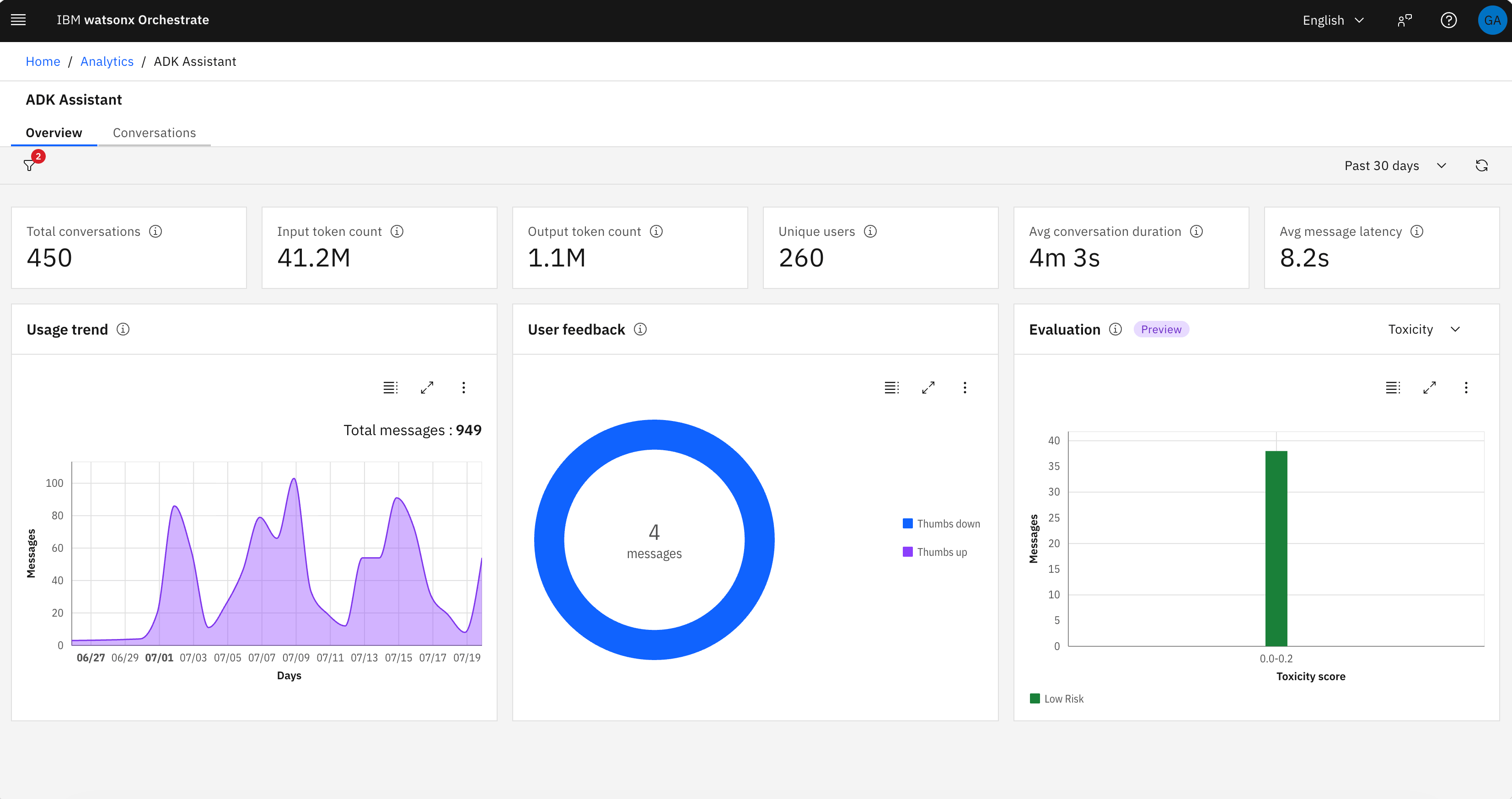
Troubleshooting
Verifying trace ingestion
If traces do not appear on the Analytics page, use the Get Traces API to confirm whether the ingestion endpoint received them. If the API returns your traces, ingestion was successful. If the Get Traces API returns an empty list, the spans were not received. Check the following items:401 Unauthorized: The bearer token has expired. Fetch a new token and rebuild the exporter as described in Authenticating and configuring the exporter.- Spans missing after process exit:
force_flush()was not called. TheBatchSpanProcessorbackground thread may not have flushed all pending spans before the process exited. Ensureforce_flush()is called at the end of every run. - Wrong endpoint: Confirm that
OTEL_EXPORT_URLpoints to the correct instance URL. The correct format ishttps://api.watson-orchestrate.ibm.com/instances/<instance-id>/v1/orchestrate/inject/traces. - Missing resource attributes: Confirm that
OTEL_RESOURCE_ATTRIBUTESincludes bothtenant.idanddeployment.environment. Without these attributes, the ingestion endpoint cannot route the trace to the correct tenant.