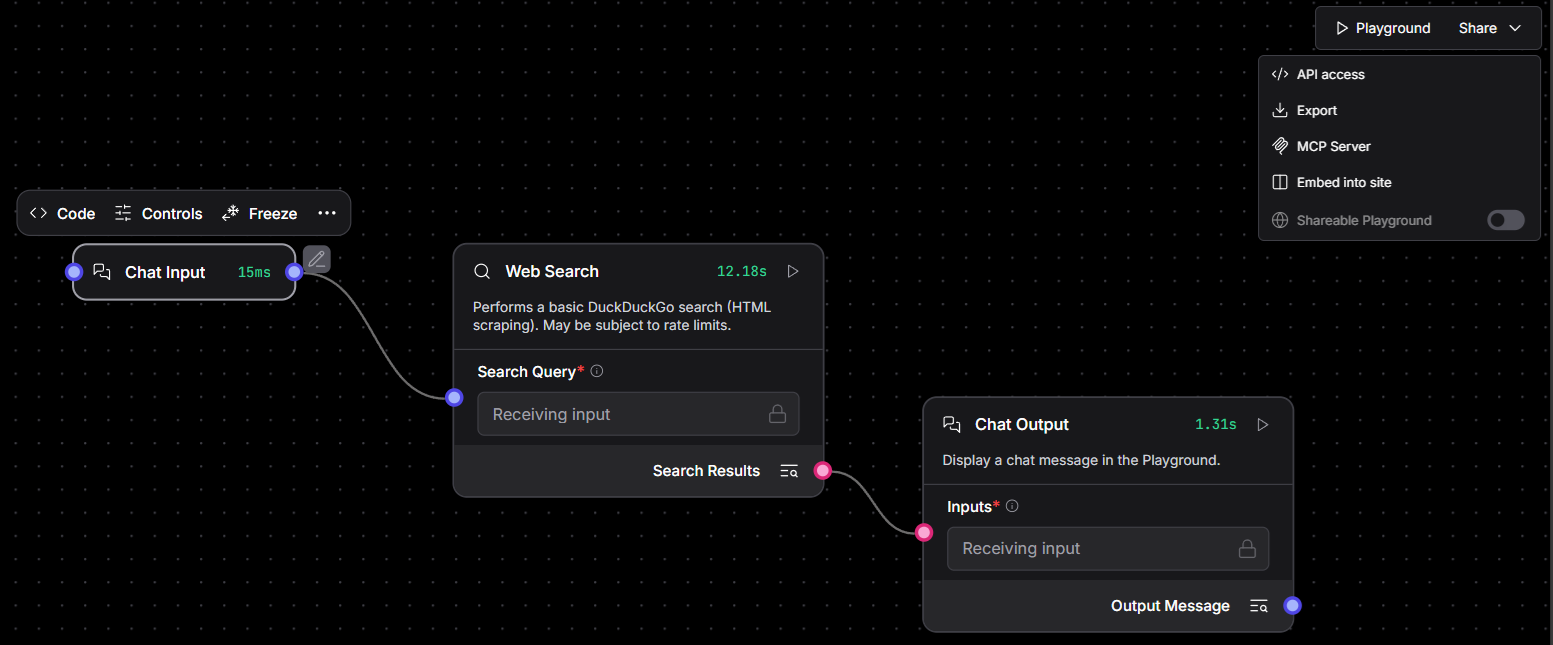
Langflow is a powerful tool that enables developers to visually design, test, and deploy AI applications using a drag-and-drop interface.Langflow comes bundled with the watsonx Orchestrate ADK. Any Langflow flow you create with Langflow can be imported into your watsonx Orchestrate environment and used as tools by your agents.Follow these steps to author Langflow tools:
1
Create and share a Langflow flow
Start by building your Langflow flow in Langflow. Use global variables to define dynamic values and customize behavior.Once your Langflow flow is ready, share it so it can be used in watsonx Orchestrate.
Bind global variables to watsonx Orchestrate connections
During Langflow flow creation, you might configure global variables to support dynamic behavior. To ensure your Langflow flow works correctly in watsonx Orchestrate, bind these variables to the appropriate connections.For more information, see Binding global variables to connections.
3
Import your Langflow flow into watsonx Orchestrate
Optional: Manage your Langflow tool on watsonx Orchestrate
After importing your Langflow tool into watsonx Orchestrate, you can manage it using ADK CLI commands just like any other tool type. Use the CLI to list, update, delete, or export the Langflow JSON used to build the tool. For more information, see Managing tools.
5
Add your Langflow tool to an agent
In your agent file, configure the Langflow tool in the tools schema to make it available to your agent.
If you’re using watsonx Orchestrate Developer Edition, you can run the Langflow UI alongside Orchestrate services by adding the --with-langflow flag to the orchestrate server start command. For more information, see watsonx Orchestrate Developer Edition.
BASH
orchestrate server start -e <your-env-file> --with-langflow