Documentation Index
Fetch the complete documentation index at: https://developer.watson-orchestrate.ibm.com/llms.txt
Use this file to discover all available pages before exploring further.
To use the MCP Server, connect it to an MCP Client. The sections below show how to do that for several popular MCP Clients. If your client isn’t listed, check its documentation for connection instructions.
STDIO Transport
Claude Desktop
GitHub Copilot
Cursor
MCP Inspector
🚧 watsonx Orchestrate
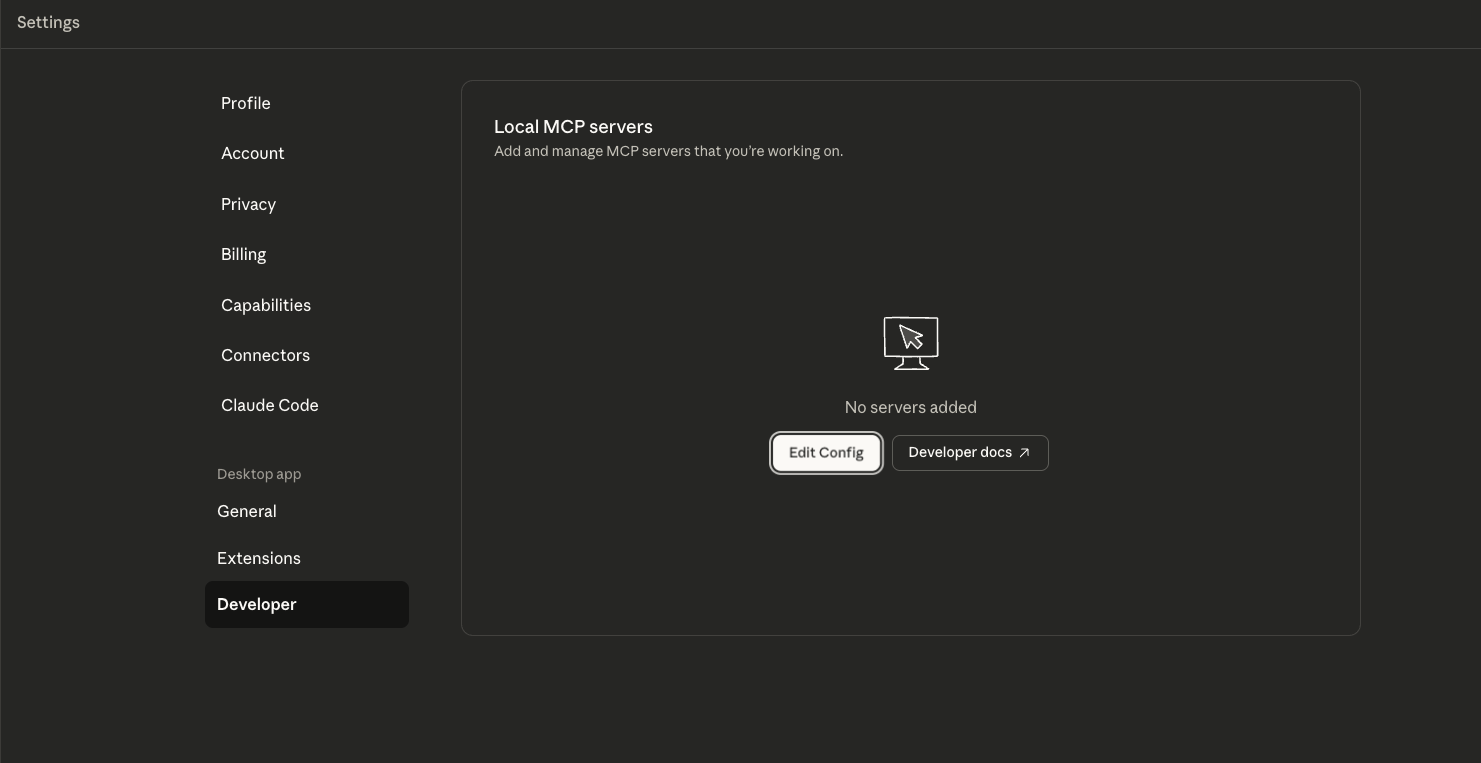
Open the Settings Developer
Edit the `claude_desktop_config.json` file
Click “Edit Config” to navigate to where the claude_desktop_config.json file is on disk.
Open the file in any text editor.
Add the MCP Server
Paste the following into the file:{
"mcpServers":{
"wxo-mcp":{
"command":"uvx",
"args":[
"--with",
"ibm-watsonx-orchestrate==1.13.0",
"ibm-watsonx-orchestrate-mcp-server"
],
"env":{
"WXO_MCP_WORKING_DIRECTORY":"sample/working/directory"
},
"wxo-docs":{
"command":"uvx",
"args":[
"mcp-proxy",
"--transport",
"streamablehttp",
"https://developer.watson-orchestrate.ibm.com/mcp"
]
}
}
}
}
Create file `.vscode/mcp.json`
Create a new file in your workspace called .vscode/mcp.json
Add MCP Server configuration
{
"servers": {
"wxo-mcp": {
"command": "uvx",
"args": [
"--with",
"ibm-watsonx-orchestrate==1.13.0",
"ibm-watsonx-orchestrate-mcp-server"
],
"env": {
"WXO_MCP_WORKING_DIRECTORY":"sample/working/directory"
}
},
"wxo-docs": {
"command": "uvx",
"args": [
"mcp-proxy",
"--transport",
"streamablehttp",
"https://developer.watson-orchestrate.ibm.com/mcp"
],
}
}
}
List VSCode MCP Servers
Press Ctrl+P, type >MCP: List Servers, and select wxo-mcp.
Start the Server
Click the start server option.
Create file `.cursor/mcp.json`
Create a new file in your workspace called .cursor/mcp.json
Add MCP Server configuration
{
"servers": {
"wxo-mcp": {
"command": "uvx",
"args": [
"--with",
"ibm-watsonx-orchestrate==1.13.0",
"ibm-watsonx-orchestrate-mcp-server"
],
"env": {
"WXO_MCP_WORKING_DIRECTORY":"sample/working/directory"
}
},
"wxo-docs": {
"command": "uvx",
"args": [
"mcp-proxy",
"--transport",
"streamablehttp",
"https://developer.watson-orchestrate.ibm.com/mcp"
],
}
}
}
List Cursor MCP Servers
Press Ctrl+P, type >MCP: List Servers, and select wxo-mcp.
Start the Server
Click the start server option.
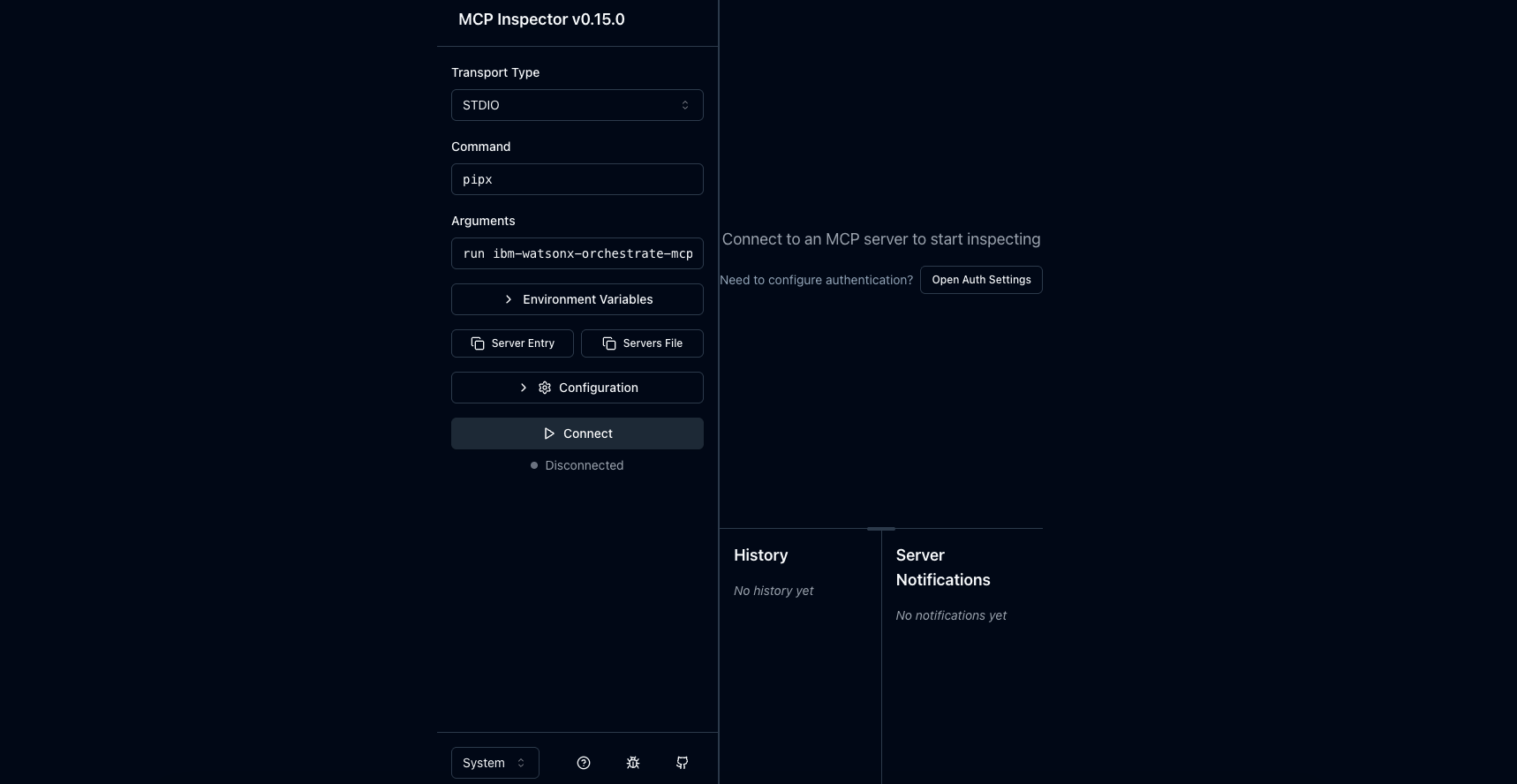
Start MCP Inspector Server
npx @modelcontextprotocol/inspector
Entry the MCP Server details
- Set transport to
STDIO
- Command:
pipx
- Argurments:
run ibm-watsonx-orchestrate-mcp-server
- Set any required environment variables
- Click Connect
Work in ProgressSTDIO support is currently limited for the watsonx Orchestrate MCP Server when running in watsonx Orchestrate. This is due to watsonx Orchestrate’s secure execution architecture preventing the use of configuration files that the Orchestrate ADK relies on for connecting to instances.
Remote Transports (SSE/HTTP STREAMABLE)
Remote transports let you connect clients to already running instances of the watsonx Orchestrate MCP Server. Use this setup to share a single instance across multiple clients or to connect a remote client to a server running on your local machine.
watsonx Orchestrate
Claude Desktop
GitHub Copilot
Cursor
MCP Inspector
For more details on importing remote MCP servers into Orchestrate, see Importing remote MCP toolkits. orchestrate toolkits import --kind mcp --name <toolkit-name> --description <toolkit-description> --url <toolkit-url> --transport <protocol-for-remote-mcp> --tools <tools> --app-id <connection>
Currently Remote MCP is only supported by premium accounts in Claude Desktop. See their docs on Connecting to a Remote MCP Server Create file `.vscode/mcp.json`
Create a new file in your workspace called .vscode/mcp.json
Add MCP Server configuration
{
"servers": {
"wxo-mcp": {
"type": "http", // transport either "http" or "sse"
"url": <mcp server url>
},
"wxo-docs": {
"type": "http",
"url": "https://developer.watson-orchestrate.ibm.com/mcp"
}
}
}
List VSCode MCP Servers
Press Ctrl+P, type >MCP: List Servers, and select wxo-mcp.
Start the Server
Click the start server option.
Create file `.cursor/mcp.json`
Create a new file in your workspace called .cursor/mcp.json
Add MCP Server configuration
{
"servers": {
"wxo-mcp": {
"type": "http", // transport either "http" or "sse"
"url": <mcp server url>
},
"wxo-docs": {
"type": "http",
"url": "https://developer.watson-orchestrate.ibm.com/mcp"
}
}
}
List Cursor MCP Servers
Press Ctrl+P, type >MCP: List Servers, and select wxo-mcp.
Start the Server
Click the start server option.
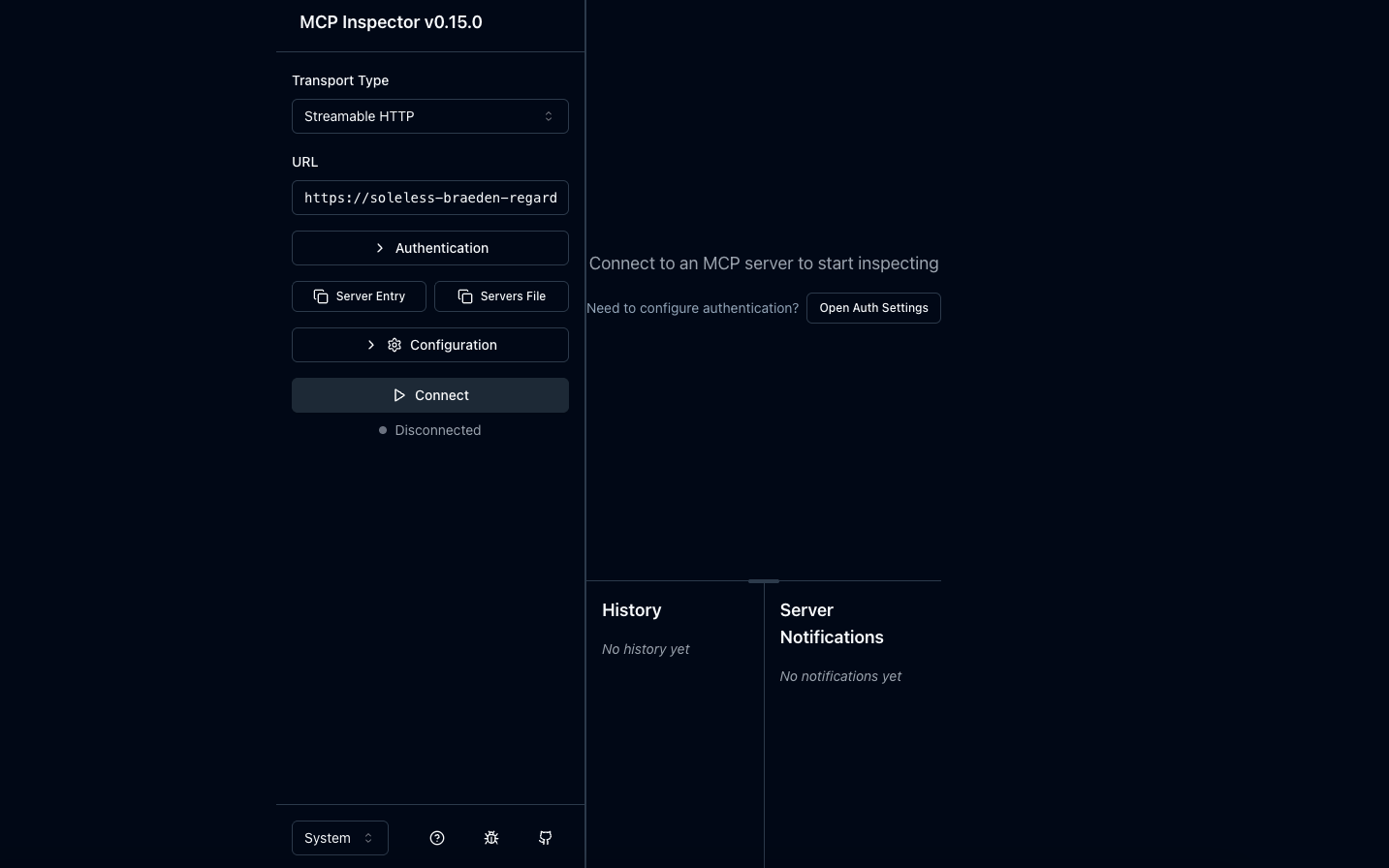
Start MCP Inspector Server
npx @modelcontextprotocol/inspector
Entry the MCP Server details
- Set transport to
SSE or Steamable HTTP
- Set the URL to your watsonx Orchestrate MCP Server
- Click Connect