In this tutorial, you learn how to use Langflow flows in your watsonx Orchestrate agents.To follow this tutorial, make sure you have access to a watsonx Orchestrate environment that supports Langflow integration.Follow these steps to use watsonx Orchestrate with Langflow:
1
Set up your environment
Create a folder named watsonx_orchestrate_and_langflow to store all agents and tools.
The environment name is flexible—you can choose whatever you prefer. The service instance URL and environment type, however, must match your specific setup. For more information, see Getting credentials for your environments.
Note:
To use watsonx Orchestrate Developer Edition as your environment, install it first. Then, start it using the --with-langflow flag to enable Langflow integration. For more information, see Installing watsonx Orchestrate Developer Edition.
3
Create a Langflow flow
Langflow flows convert into tools for watsonx Orchestrate. You create a flow in the Langflow visual editor and export it as JSON to import as a tool. You can access the Langflow visual editor as a standalone tool or through watsonx Orchestrate Developer Edition, which runs on port 7861.For this tutorial, use the following prebuilt Langflow flow. It extracts actionable tasks from unstructured text such as meeting notes, transcripts, or chat logs. It identifies who needs to do what and by when, using pattern-based heuristics.Copy the following JSON code block and save it as transcripts_action_item_extractor.json in your tools folder.
transcripts_action_item_extractor.json
{ "data": { "edges": [ { "animated": false, "className": "", "data": { "sourceHandle": { "dataType": "ChatInput", "id": "ChatInput-0jIqY", "name": "message", "output_types": [ "Message" ] }, "targetHandle": { "fieldName": "input_text", "id": "ActionItemExtractor-wFCst", "inputTypes": [ "Message", "Data", "Text" ], "type": "other" } }, "id": "xy-edge__ChatInput-0jIqY{œdataTypeœ:œChatInputœ,œidœ:œChatInput-0jIqYœ,œnameœ:œmessageœ,œoutput_typesœ:[œMessageœ]}-ActionItemExtractor-wFCst{œfieldNameœ:œinput_textœ,œidœ:œActionItemExtractor-wFCstœ,œinputTypesœ:[œMessageœ,œDataœ,œTextœ],œtypeœ:œotherœ}", "selected": false, "source": "ChatInput-0jIqY", "sourceHandle": "{œdataTypeœ:œChatInputœ,œidœ:œChatInput-0jIqYœ,œnameœ:œmessageœ,œoutput_typesœ:[œMessageœ]}", "target": "ActionItemExtractor-wFCst", "targetHandle": "{œfieldNameœ:œinput_textœ,œidœ:œActionItemExtractor-wFCstœ,œinputTypesœ:[œMessageœ,œDataœ,œTextœ],œtypeœ:œotherœ}" }, { "animated": false, "className": "", "data": { "sourceHandle": { "dataType": "ActionItemExtractor", "id": "ActionItemExtractor-wFCst", "name": "message", "output_types": [ "Message" ] }, "targetHandle": { "fieldName": "input_value", "id": "ChatOutput-foQFW", "inputTypes": [ "Data", "DataFrame", "Message" ], "type": "other" } }, "id": "xy-edge__ActionItemExtractor-wFCst{œdataTypeœ:œActionItemExtractorœ,œidœ:œActionItemExtractor-wFCstœ,œnameœ:œmessageœ,œoutput_typesœ:[œMessageœ]}-ChatOutput-foQFW{œfieldNameœ:œinput_valueœ,œidœ:œChatOutput-foQFWœ,œinputTypesœ:[œDataœ,œDataFrameœ,œMessageœ],œtypeœ:œotherœ}", "selected": false, "source": "ActionItemExtractor-wFCst", "sourceHandle": "{œdataTypeœ:œActionItemExtractorœ,œidœ:œActionItemExtractor-wFCstœ,œnameœ:œmessageœ,œoutput_typesœ:[œMessageœ]}", "target": "ChatOutput-foQFW", "targetHandle": "{œfieldNameœ:œinput_valueœ,œidœ:œChatOutput-foQFWœ,œinputTypesœ:[œDataœ,œDataFrameœ,œMessageœ],œtypeœ:œotherœ}" } ], "nodes": [ { "data": { "id": "ChatOutput-foQFW", "node": { "base_classes": [ "Message" ], "beta": false, "conditional_paths": [], "custom_fields": {}, "description": "Display a chat message in the Playground.", "display_name": "Chat Output", "documentation": "https://docs.langflow.org/components-io#chat-output", "edited": false, "field_order": [ "input_value", "should_store_message", "sender", "sender_name", "session_id", "data_template", "background_color", "chat_icon", "text_color", "clean_data" ], "frozen": false, "icon": "MessagesSquare", "legacy": false, "lf_version": "1.5.0.post2", "metadata": {}, "minimized": true, "output_types": [], "outputs": [ { "allows_loop": false, "cache": true, "display_name": "Output Message", "group_outputs": false, "method": "message_response", "name": "message", "selected": "Message", "tool_mode": true, "types": [ "Message" ], "value": "__UNDEFINED__" } ], "pinned": false, "template": { "_type": "Component", "background_color": { "_input_type": "MessageTextInput", "advanced": true, "display_name": "Background Color", "dynamic": false, "info": "The background color of the icon.", "input_types": [ "Message" ], "list": false, "list_add_label": "Add More", "load_from_db": false, "name": "background_color", "placeholder": "", "required": false, "show": true, "title_case": false, "tool_mode": false, "trace_as_input": true, "trace_as_metadata": true, "type": "str", "value": "" }, "chat_icon": { "_input_type": "MessageTextInput", "advanced": true, "display_name": "Icon", "dynamic": false, "info": "The icon of the message.", "input_types": [ "Message" ], "list": false, "list_add_label": "Add More", "load_from_db": false, "name": "chat_icon", "placeholder": "", "required": false, "show": true, "title_case": false, "tool_mode": false, "trace_as_input": true, "trace_as_metadata": true, "type": "str", "value": "" }, "clean_data": { "_input_type": "BoolInput", "advanced": true, "display_name": "Basic Clean Data", "dynamic": false, "info": "Whether to clean the data", "list": false, "list_add_label": "Add More", "name": "clean_data", "placeholder": "", "required": false, "show": true, "title_case": false, "tool_mode": false, "trace_as_metadata": true, "type": "bool", "value": true }, "code": { "advanced": true, "dynamic": true, "fileTypes": [], "file_path": "", "info": "", "list": false, "load_from_db": false, "multiline": true, "name": "code", "password": false, "placeholder": "", "required": true, "show": true, "title_case": false, "type": "code", "value": "from collections.abc import Generator\nfrom typing import Any\n\nimport orjson\nfrom fastapi.encoders import jsonable_encoder\n\nfrom langflow.base.io.chat import ChatComponent\nfrom langflow.helpers.data import safe_convert\nfrom langflow.inputs.inputs import BoolInput, DropdownInput, HandleInput, MessageTextInput\nfrom langflow.schema.data import Data\nfrom langflow.schema.dataframe import DataFrame\nfrom langflow.schema.message import Message\nfrom langflow.schema.properties import Source\nfrom langflow.template.field.base import Output\nfrom langflow.utils.constants import (\n MESSAGE_SENDER_AI,\n MESSAGE_SENDER_NAME_AI,\n MESSAGE_SENDER_USER,\n)\n\n\nclass ChatOutput(ChatComponent):\n display_name = \"Chat Output\"\n description = \"Display a chat message in the Playground.\"\n documentation: str = \"https://docs.langflow.org/components-io#chat-output\"\n icon = \"MessagesSquare\"\n name = \"ChatOutput\"\n minimized = True\n\n inputs = [\n HandleInput(\n name=\"input_value\",\n display_name=\"Inputs\",\n info=\"Message to be passed as output.\",\n input_types=[\"Data\", \"DataFrame\", \"Message\"],\n required=True,\n ),\n BoolInput(\n name=\"should_store_message\",\n display_name=\"Store Messages\",\n info=\"Store the message in the history.\",\n value=True,\n advanced=True,\n ),\n DropdownInput(\n name=\"sender\",\n display_name=\"Sender Type\",\n options=[MESSAGE_SENDER_AI, MESSAGE_SENDER_USER],\n value=MESSAGE_SENDER_AI,\n advanced=True,\n info=\"Type of sender.\",\n ),\n MessageTextInput(\n name=\"sender_name\",\n display_name=\"Sender Name\",\n info=\"Name of the sender.\",\n value=MESSAGE_SENDER_NAME_AI,\n advanced=True,\n ),\n MessageTextInput(\n name=\"session_id\",\n display_name=\"Session ID\",\n info=\"The session ID of the chat. If empty, the current session ID parameter will be used.\",\n advanced=True,\n ),\n MessageTextInput(\n name=\"data_template\",\n display_name=\"Data Template\",\n value=\"{text}\",\n advanced=True,\n info=\"Template to convert Data to Text. If left empty, it will be dynamically set to the Data's text key.\",\n ),\n MessageTextInput(\n name=\"background_color\",\n display_name=\"Background Color\",\n info=\"The background color of the icon.\",\n advanced=True,\n ),\n MessageTextInput(\n name=\"chat_icon\",\n display_name=\"Icon\",\n info=\"The icon of the message.\",\n advanced=True,\n ),\n MessageTextInput(\n name=\"text_color\",\n display_name=\"Text Color\",\n info=\"The text color of the name\",\n advanced=True,\n ),\n BoolInput(\n name=\"clean_data\",\n display_name=\"Basic Clean Data\",\n value=True,\n info=\"Whether to clean the data\",\n advanced=True,\n ),\n ]\n outputs = [\n Output(\n display_name=\"Output Message\",\n name=\"message\",\n method=\"message_response\",\n ),\n ]\n\n def _build_source(self, id_: str | None, display_name: str | None, source: str | None) -> Source:\n source_dict = {}\n if id_:\n source_dict[\"id\"] = id_\n if display_name:\n source_dict[\"display_name\"] = display_name\n if source:\n # Handle case where source is a ChatOpenAI object\n if hasattr(source, \"model_name\"):\n source_dict[\"source\"] = source.model_name\n elif hasattr(source, \"model\"):\n source_dict[\"source\"] = str(source.model)\n else:\n source_dict[\"source\"] = str(source)\n return Source(**source_dict)\n\n async def message_response(self) -> Message:\n # First convert the input to string if needed\n text = self.convert_to_string()\n\n # Get source properties\n source, icon, display_name, source_id = self.get_properties_from_source_component()\n background_color = self.background_color\n text_color = self.text_color\n if self.chat_icon:\n icon = self.chat_icon\n\n # Create or use existing Message object\n if isinstance(self.input_value, Message):\n message = self.input_value\n # Update message properties\n message.text = text\n else:\n message = Message(text=text)\n\n # Set message properties\n message.sender = self.sender\n message.sender_name = self.sender_name\n message.session_id = self.session_id\n message.flow_id = self.graph.flow_id if hasattr(self, \"graph\") else None\n message.properties.source = self._build_source(source_id, display_name, source)\n message.properties.icon = icon\n message.properties.background_color = background_color\n message.properties.text_color = text_color\n\n # Store message if needed\n if self.session_id and self.should_store_message:\n stored_message = await self.send_message(message)\n self.message.value = stored_message\n message = stored_message\n\n self.status = message\n return message\n\n def _serialize_data(self, data: Data) -> str:\n \"\"\"Serialize Data object to JSON string.\"\"\"\n # Convert data.data to JSON-serializable format\n serializable_data = jsonable_encoder(data.data)\n # Serialize with orjson, enabling pretty printing with indentation\n json_bytes = orjson.dumps(serializable_data, option=orjson.OPT_INDENT_2)\n # Convert bytes to string and wrap in Markdown code blocks\n return \"```json\\n\" + json_bytes.decode(\"utf-8\") + \"\\n```\"\n\n def _validate_input(self) -> None:\n \"\"\"Validate the input data and raise ValueError if invalid.\"\"\"\n if self.input_value is None:\n msg = \"Input data cannot be None\"\n raise ValueError(msg)\n if isinstance(self.input_value, list) and not all(\n isinstance(item, Message | Data | DataFrame | str) for item in self.input_value\n ):\n invalid_types = [\n type(item).__name__\n for item in self.input_value\n if not isinstance(item, Message | Data | DataFrame | str)\n ]\n msg = f\"Expected Data or DataFrame or Message or str, got {invalid_types}\"\n raise TypeError(msg)\n if not isinstance(\n self.input_value,\n Message | Data | DataFrame | str | list | Generator | type(None),\n ):\n type_name = type(self.input_value).__name__\n msg = f\"Expected Data or DataFrame or Message or str, Generator or None, got {type_name}\"\n raise TypeError(msg)\n\n def convert_to_string(self) -> str | Generator[Any, None, None]:\n \"\"\"Convert input data to string with proper error handling.\"\"\"\n self._validate_input()\n if isinstance(self.input_value, list):\n return \"\\n\".join([safe_convert(item, clean_data=self.clean_data) for item in self.input_value])\n if isinstance(self.input_value, Generator):\n return self.input_value\n return safe_convert(self.input_value)\n" }, "data_template": { "_input_type": "MessageTextInput", "advanced": true, "display_name": "Data Template", "dynamic": false, "info": "Template to convert Data to Text. If left empty, it will be dynamically set to the Data's text key.", "input_types": [ "Message" ], "list": false, "list_add_label": "Add More", "load_from_db": false, "name": "data_template", "placeholder": "", "required": false, "show": true, "title_case": false, "tool_mode": false, "trace_as_input": true, "trace_as_metadata": true, "type": "str", "value": "{text}" }, "input_value": { "_input_type": "HandleInput", "advanced": false, "display_name": "Inputs", "dynamic": false, "info": "Message to be passed as output.", "input_types": [ "Data", "DataFrame", "Message" ], "list": false, "list_add_label": "Add More", "name": "input_value", "placeholder": "", "required": true, "show": true, "title_case": false, "trace_as_metadata": true, "type": "other", "value": "" }, "sender": { "_input_type": "DropdownInput", "advanced": true, "combobox": false, "dialog_inputs": {}, "display_name": "Sender Type", "dynamic": false, "info": "Type of sender.", "name": "sender", "options": [ "Machine", "User" ], "options_metadata": [], "placeholder": "", "required": false, "show": true, "title_case": false, "toggle": false, "tool_mode": false, "trace_as_metadata": true, "type": "str", "value": "Machine" }, "sender_name": { "_input_type": "MessageTextInput", "advanced": true, "display_name": "Sender Name", "dynamic": false, "info": "Name of the sender.", "input_types": [ "Message" ], "list": false, "list_add_label": "Add More", "load_from_db": false, "name": "sender_name", "placeholder": "", "required": false, "show": true, "title_case": false, "tool_mode": false, "trace_as_input": true, "trace_as_metadata": true, "type": "str", "value": "AI" }, "session_id": { "_input_type": "MessageTextInput", "advanced": true, "display_name": "Session ID", "dynamic": false, "info": "The session ID of the chat. If empty, the current session ID parameter will be used.", "input_types": [ "Message" ], "list": false, "list_add_label": "Add More", "load_from_db": false, "name": "session_id", "placeholder": "", "required": false, "show": true, "title_case": false, "tool_mode": false, "trace_as_input": true, "trace_as_metadata": true, "type": "str", "value": "" }, "should_store_message": { "_input_type": "BoolInput", "advanced": true, "display_name": "Store Messages", "dynamic": false, "info": "Store the message in the history.", "list": false, "list_add_label": "Add More", "name": "should_store_message", "placeholder": "", "required": false, "show": true, "title_case": false, "tool_mode": false, "trace_as_metadata": true, "type": "bool", "value": true }, "text_color": { "_input_type": "MessageTextInput", "advanced": true, "display_name": "Text Color", "dynamic": false, "info": "The text color of the name", "input_types": [ "Message" ], "list": false, "list_add_label": "Add More", "load_from_db": false, "name": "text_color", "placeholder": "", "required": false, "show": true, "title_case": false, "tool_mode": false, "trace_as_input": true, "trace_as_metadata": true, "type": "str", "value": "" } }, "tool_mode": false }, "showNode": false, "type": "ChatOutput" }, "dragging": false, "id": "ChatOutput-foQFW", "measured": { "height": 48, "width": 192 }, "position": { "x": 1305.2380909179308, "y": 1447.3493269157782 }, "selected": false, "type": "genericNode" }, { "data": { "id": "ChatInput-0jIqY", "node": { "base_classes": [ "Message" ], "beta": false, "conditional_paths": [], "custom_fields": {}, "description": "Get chat inputs from the Playground.", "display_name": "Chat Input", "documentation": "https://docs.langflow.org/components-io#chat-input", "edited": false, "field_order": [ "input_value", "should_store_message", "sender", "sender_name", "session_id", "files", "background_color", "chat_icon", "text_color" ], "frozen": false, "icon": "MessagesSquare", "legacy": false, "lf_version": "1.5.0.post2", "metadata": {}, "minimized": true, "output_types": [], "outputs": [ { "allows_loop": false, "cache": true, "display_name": "Chat Message", "group_outputs": false, "method": "message_response", "name": "message", "selected": "Message", "tool_mode": true, "types": [ "Message" ], "value": "__UNDEFINED__" } ], "pinned": false, "template": { "_type": "Component", "background_color": { "_input_type": "MessageTextInput", "advanced": true, "display_name": "Background Color", "dynamic": false, "info": "The background color of the icon.", "input_types": [ "Message" ], "list": false, "list_add_label": "Add More", "load_from_db": false, "name": "background_color", "placeholder": "", "required": false, "show": true, "title_case": false, "tool_mode": false, "trace_as_input": true, "trace_as_metadata": true, "type": "str", "value": "" }, "chat_icon": { "_input_type": "MessageTextInput", "advanced": true, "display_name": "Icon", "dynamic": false, "info": "The icon of the message.", "input_types": [ "Message" ], "list": false, "list_add_label": "Add More", "load_from_db": false, "name": "chat_icon", "placeholder": "", "required": false, "show": true, "title_case": false, "tool_mode": false, "trace_as_input": true, "trace_as_metadata": true, "type": "str", "value": "" }, "code": { "advanced": true, "dynamic": true, "fileTypes": [], "file_path": "", "info": "", "list": false, "load_from_db": false, "multiline": true, "name": "code", "password": false, "placeholder": "", "required": true, "show": true, "title_case": false, "type": "code", "value": "from langflow.base.data.utils import IMG_FILE_TYPES, TEXT_FILE_TYPES\nfrom langflow.base.io.chat import ChatComponent\nfrom langflow.inputs.inputs import BoolInput\nfrom langflow.io import (\n DropdownInput,\n FileInput,\n MessageTextInput,\n MultilineInput,\n Output,\n)\nfrom langflow.schema.message import Message\nfrom langflow.utils.constants import (\n MESSAGE_SENDER_AI,\n MESSAGE_SENDER_NAME_USER,\n MESSAGE_SENDER_USER,\n)\n\n\nclass ChatInput(ChatComponent):\n display_name = \"Chat Input\"\n description = \"Get chat inputs from the Playground.\"\n documentation: str = \"https://docs.langflow.org/components-io#chat-input\"\n icon = \"MessagesSquare\"\n name = \"ChatInput\"\n minimized = True\n\n inputs = [\n MultilineInput(\n name=\"input_value\",\n display_name=\"Input Text\",\n value=\"\",\n info=\"Message to be passed as input.\",\n input_types=[],\n ),\n BoolInput(\n name=\"should_store_message\",\n display_name=\"Store Messages\",\n info=\"Store the message in the history.\",\n value=True,\n advanced=True,\n ),\n DropdownInput(\n name=\"sender\",\n display_name=\"Sender Type\",\n options=[MESSAGE_SENDER_AI, MESSAGE_SENDER_USER],\n value=MESSAGE_SENDER_USER,\n info=\"Type of sender.\",\n advanced=True,\n ),\n MessageTextInput(\n name=\"sender_name\",\n display_name=\"Sender Name\",\n info=\"Name of the sender.\",\n value=MESSAGE_SENDER_NAME_USER,\n advanced=True,\n ),\n MessageTextInput(\n name=\"session_id\",\n display_name=\"Session ID\",\n info=\"The session ID of the chat. If empty, the current session ID parameter will be used.\",\n advanced=True,\n ),\n FileInput(\n name=\"files\",\n display_name=\"Files\",\n file_types=TEXT_FILE_TYPES + IMG_FILE_TYPES,\n info=\"Files to be sent with the message.\",\n advanced=True,\n is_list=True,\n temp_file=True,\n ),\n MessageTextInput(\n name=\"background_color\",\n display_name=\"Background Color\",\n info=\"The background color of the icon.\",\n advanced=True,\n ),\n MessageTextInput(\n name=\"chat_icon\",\n display_name=\"Icon\",\n info=\"The icon of the message.\",\n advanced=True,\n ),\n MessageTextInput(\n name=\"text_color\",\n display_name=\"Text Color\",\n info=\"The text color of the name\",\n advanced=True,\n ),\n ]\n outputs = [\n Output(display_name=\"Chat Message\", name=\"message\", method=\"message_response\"),\n ]\n\n async def message_response(self) -> Message:\n background_color = self.background_color\n text_color = self.text_color\n icon = self.chat_icon\n\n message = await Message.create(\n text=self.input_value,\n sender=self.sender,\n sender_name=self.sender_name,\n session_id=self.session_id,\n files=self.files,\n properties={\n \"background_color\": background_color,\n \"text_color\": text_color,\n \"icon\": icon,\n },\n )\n if self.session_id and isinstance(message, Message) and self.should_store_message:\n stored_message = await self.send_message(\n message,\n )\n self.message.value = stored_message\n message = stored_message\n\n self.status = message\n return message\n" }, "files": { "_input_type": "FileInput", "advanced": true, "display_name": "Files", "dynamic": false, "fileTypes": [ "txt", "md", "mdx", "csv", "json", "yaml", "yml", "xml", "html", "htm", "pdf", "docx", "py", "sh", "sql", "js", "ts", "tsx", "jpg", "jpeg", "png", "bmp", "image" ], "file_path": "", "info": "Files to be sent with the message.", "list": true, "list_add_label": "Add More", "name": "files", "placeholder": "", "required": false, "show": true, "temp_file": true, "title_case": false, "trace_as_metadata": true, "type": "file", "value": "" }, "input_value": { "_input_type": "MultilineInput", "advanced": false, "copy_field": false, "display_name": "Input Text", "dynamic": false, "info": "Message to be passed as input.", "input_types": [], "list": false, "list_add_label": "Add More", "load_from_db": false, "multiline": true, "name": "input_value", "placeholder": "", "required": false, "show": true, "title_case": false, "tool_mode": false, "trace_as_input": true, "trace_as_metadata": true, "type": "str", "value": "" }, "sender": { "_input_type": "DropdownInput", "advanced": true, "combobox": false, "dialog_inputs": {}, "display_name": "Sender Type", "dynamic": false, "info": "Type of sender.", "name": "sender", "options": [ "Machine", "User" ], "options_metadata": [], "placeholder": "", "required": false, "show": true, "title_case": false, "toggle": false, "tool_mode": false, "trace_as_metadata": true, "type": "str", "value": "User" }, "sender_name": { "_input_type": "MessageTextInput", "advanced": true, "display_name": "Sender Name", "dynamic": false, "info": "Name of the sender.", "input_types": [ "Message" ], "list": false, "list_add_label": "Add More", "load_from_db": false, "name": "sender_name", "placeholder": "", "required": false, "show": true, "title_case": false, "tool_mode": false, "trace_as_input": true, "trace_as_metadata": true, "type": "str", "value": "User" }, "session_id": { "_input_type": "MessageTextInput", "advanced": true, "display_name": "Session ID", "dynamic": false, "info": "The session ID of the chat. If empty, the current session ID parameter will be used.", "input_types": [ "Message" ], "list": false, "list_add_label": "Add More", "load_from_db": false, "name": "session_id", "placeholder": "", "required": false, "show": true, "title_case": false, "tool_mode": false, "trace_as_input": true, "trace_as_metadata": true, "type": "str", "value": "" }, "should_store_message": { "_input_type": "BoolInput", "advanced": true, "display_name": "Store Messages", "dynamic": false, "info": "Store the message in the history.", "list": false, "list_add_label": "Add More", "name": "should_store_message", "placeholder": "", "required": false, "show": true, "title_case": false, "tool_mode": false, "trace_as_metadata": true, "type": "bool", "value": true }, "text_color": { "_input_type": "MessageTextInput", "advanced": true, "display_name": "Text Color", "dynamic": false, "info": "The text color of the name", "input_types": [ "Message" ], "list": false, "list_add_label": "Add More", "load_from_db": false, "name": "text_color", "placeholder": "", "required": false, "show": true, "title_case": false, "tool_mode": false, "trace_as_input": true, "trace_as_metadata": true, "type": "str", "value": "" } }, "tool_mode": false }, "showNode": false, "type": "ChatInput" }, "dragging": false, "id": "ChatInput-0jIqY", "measured": { "height": 48, "width": 192 }, "position": { "x": 483.27198739198275, "y": 1403.115073503278 }, "selected": false, "type": "genericNode" }, { "data": { "id": "ActionItemExtractor-wFCst", "node": { "base_classes": [ "Message" ], "beta": false, "conditional_paths": [], "custom_fields": {}, "description": "Extracts actionable tasks, assignees, and due dates from text using pattern matching.", "display_name": "Action Item Extractor", "documentation": "https://github.com/logspace-ai/langflow/wiki/Custom-Components", "edited": true, "field_order": [ "input_text" ], "frozen": false, "icon": "check-square", "legacy": false, "metadata": {}, "minimized": false, "output_types": [], "outputs": [ { "allows_loop": false, "cache": true, "display_name": "Action Items (Formatted)", "group_outputs": false, "hidden": null, "method": "extract_action_items", "name": "message", "options": null, "required_inputs": null, "selected": "Message", "tool_mode": true, "types": [ "Message" ], "value": "__UNDEFINED__" } ], "pinned": false, "template": { "_type": "Component", "code": { "advanced": true, "dynamic": true, "fileTypes": [], "file_path": "", "info": "", "list": false, "load_from_db": false, "multiline": true, "name": "code", "password": false, "placeholder": "", "required": true, "show": true, "title_case": false, "type": "code", "value": "from langflow.custom import Component\nfrom langflow.inputs import HandleInput\nfrom langflow.io import Output\nfrom langflow.schema.message import Message\nimport re\nfrom datetime import datetime, timedelta\n\n# ---------- helpers (Action Item Logic) ----------\n# (All helpers remain the same as they handle the core logic correctly)\n\nVERB_TRIGGERS = [\n \"send\",\"email\",\"review\",\"approve\",\"draft\",\"write\",\"update\",\"fix\",\"create\",\n \"schedule\",\"set up\",\"setup\",\"follow up\",\"follow-up\",\"ping\",\"share\",\n \"prepare\",\"organize\",\"book\",\"call\",\"document\",\"summarize\",\"deploy\",\n \"ship\",\"merge\",\"assign\",\"clean up\",\"cleanup\"\n]\nVERB_RX = r\"(?:{})(?:\\b|$)\".format(\"|\".join(sorted(set(map(re.escape, VERB_TRIGGERS)), key=len, reverse=True)))\n\nWEEKDAY_MAP = {\n \"monday\":0,\"mon\":0,\"tuesday\":1,\"tue\":1,\"tues\":1,\"wednesday\":2,\"wed\":2,\n \"thursday\":3,\"thu\":3,\"thur\":3,\"thurs\":3,\"friday\":4,\"fri\":4,\"saturday\":5,\n \"sat\":5,\"sun\":6\n}\n\n# Regex Patterns for Assignments\nASSIGNMENT_PATTERNS = [\n rf\"\"\"\n (?P<full_match>^.*?)\n (?P<assignee>(?:@?\\b[A-Z][a-z]+(?:\\s[A-Z][a-z]+)?\\b|@[\\w\\.-]+))\n \\s*(?:to|will|should|must|needs\\s+to)\\s+\n (?P<task>.*?)\n (?:\\s+(?:by|before|due|deadline)\\s+(?P<due>[^.;,\\n]+))?\n (?=[.;\\n]|$|\\n)\n \"\"\",\n rf\"\"\"\n (?P<full_match>^.*?)\n (?P<assignee>(?:@?\\b[A-Z][a-z]+(?:\\s[A-Z][a-z]+)?\\b|@[\\w\\.-]+))\n \\s*:\\s*\n (?P<task>.*?)\n (?:\\s+(?:by|before|due|deadline)\\s+(?P<due>[^.;,\\n]+))?\n (?=[.;\\n]|$|\\n)\n \"\"\",\n rf\"\"\"\n (?:^|\\n)(?:[-*]\\s+|\\d+\\.\\s+)?(?P<task>(?:(?!- \\[).)*?\\b{VERB_RX}.*?)\n (?:\\s+(?:by|before|due|deadline)\\s+(?P<due>[^.;,\\n]+))?\n (?=[.;\\n]|$)\n \"\"\"\n]\nASSIGNMENT_RES_SPECIFIC = [re.compile(p, re.IGNORECASE | re.VERBOSE | re.MULTILINE | re.DOTALL) for p in ASSIGNMENT_PATTERNS[:2]]\nASSIGNMENT_RES_GENERAL = re.compile(ASSIGNMENT_PATTERNS[2], re.IGNORECASE | re.MULTILINE)\n\nCHECKBOX_RE = re.compile(\n rf\"(?:^|\\n)-\\s*\\[\\s*\\]\\s*(?P<task>.*?)(?:\\s+(?:by|before|due|deadline)\\s+(?P<due>[^.;,\\n]+))?(?=[.;\\n]|$)\",\n re.IGNORECASE | re.MULTILINE\n)\n\nDUE_TOKEN_RE = re.compile(r\"(?:^|\\s)(?:by|before|due|deadline)\\s+\", re.IGNORECASE)\n\nDATE_FORM_RXES = [\n re.compile(r\"\\b(\\d{4})-(\\d{1,2})-(\\d{1,2})\\b\"),\n re.compile(r\"\\b(\\d{1,2})/(\\d{1,2})(?:/(\\d{2,4}))?\\b\"),\n re.compile(r\"\\b(Jan|Feb|Mar|Apr|May|Jun|Jul|Aug|Sep|Sept|Oct|Nov|Dec|January|February|March|April|June|July|August|September|October|November|December)\\.?\\s+(\\d{1,2})(?:,\\s*(\\d{4}))?\\b\", re.IGNORECASE),\n]\n\ndef _today():\n return datetime(2025, 10, 7).date()\n\ndef parse_relative_due(text: str):\n if not text: return None\n t = text.strip().lower()\n if t in (\"eod\",\"by eod\",\"before eod\",\"today\"): return _today()\n if t in (\"tomorrow\",): return _today() + timedelta(days=1)\n if t in (\"eow\",\"end of week\"):\n today = _today(); dow = today.isoweekday(); return today + timedelta(days=(7 - dow))\n if t == \"next week\":\n today=_today(); dow=today.weekday(); d=(7-dow)%7; d=7 if d==0 else d; return today+timedelta(days=d)\n if t.startswith(\"next \"):\n wd = t.replace(\"next \",\"\").strip().lower()\n if wd in WEEKDAY_MAP:\n today=_today(); target=WEEKDAY_MAP[wd]; cur=today.weekday()\n d=(target-cur)%7; d=7 if d==0 else d; return today+timedelta(days=d)\n if t in WEEKDAY_MAP:\n today=_today(); target=WEEKDAY_MAP[t]; cur=today.weekday()\n d=(target-cur)\n if d < 0:\n d += 7\n return today+timedelta(days=d)\n return None\n\ndef parse_any_date(text: str):\n rel = parse_relative_due(text)\n if rel: return rel.isoformat()\n for rx in DATE_FORM_RXES:\n m = rx.search(text)\n if not m: continue\n if rx is DATE_FORM_RXES[0]:\n try: y,mo,d = map(int,m.groups()); return datetime(y,mo,d).date().isoformat()\n except ValueError: continue\n elif rx is DATE_FORM_RXES[1]:\n mo,d,y = m.groups(); mo,d = int(mo),int(d)\n if y:\n y = int(y); y = y+2000 if y<70 else (y+1900 if y<100 else y)\n else:\n y = _today().year\n try: return datetime(y,mo,d).date().isoformat()\n except ValueError: continue\n else:\n mon_str,d,y = m.groups(); d=int(d)\n mon_map={\"jan\":1,\"feb\":2,\"mar\":3,\"apr\":4,\"may\":5,\"jun\":6,\"jul\":7,\"aug\":8,\"sep\":9,\"sept\":9,\n \"oct\":10,\"nov\":11,\"dec\":12,\"january\":1,\"february\":2,\"march\":3,\"april\":4,\"june\":6,\n \"july\":7,\"august\":8,\"september\":9,\"october\":10,\"november\":11,\"december\":12}\n mon_key = mon_str.lower()\n if mon_key not in mon_map: continue\n mo = mon_map[mon_key]\n y = int(y) if y else _today().year\n try: return datetime(y,mo,d).date().isoformat()\n except ValueError: continue\n return None\n\ndef clean_due_phrase(due: str) -> str:\n return DUE_TOKEN_RE.sub(\"\", (due or \"\")).strip(\" .,:;\")\n\ndef extract_candidates(text: str):\n items = []\n text = re.sub(r\"[•·►]+\", \"-\", text).replace(\"\\r\", \"\")\n \n for m in CHECKBOX_RE.finditer(text):\n task = (m.group(\"task\") or \"\").strip()\n due_raw = clean_due_phrase(m.group(\"due\") or \"\")\n due_iso = parse_any_date(due_raw) if due_raw else None\n items.append({\"assignee\": None, \"task\": task, \"due_raw\": due_raw or None, \"due\": due_iso})\n\n for rx in ASSIGNMENT_RES_SPECIFIC:\n for m in rx.finditer(text):\n task = (m.group(\"task\") or \"\").strip()\n if not re.search(VERB_RX, task, flags=re.IGNORECASE): continue\n assignee = m.groupdict().get(\"assignee\")\n if assignee: assignee = assignee.strip()\n due_raw = clean_due_phrase(m.groupdict().get(\"due\") or \"\")\n task = re.sub(r\"\\s+(?:by|before|due|deadline)\\s+[^.;,\\n]+$\", \"\", task, flags=re.IGNORECASE).strip()\n due_iso = parse_any_date(due_raw) if due_raw else None\n items.append({\"assignee\": assignee, \"task\": task, \"due_raw\": due_raw or None, \"due\": due_iso})\n \n for m in ASSIGNMENT_RES_GENERAL.finditer(text):\n task = (m.group(\"task\") or \"\").strip()\n if re.match(VERB_RX, task, flags=re.IGNORECASE):\n due_raw = clean_due_phrase(m.groupdict().get(\"due\") or \"\")\n task = re.sub(r\"\\s+(?:by|before|due|deadline)\\s+[^.;,\\n]+$\", \"\", task, flags=re.IGNORECASE).strip()\n due_iso = parse_any_date(due_raw) if due_raw else None\n items.append({\"assignee\": None, \"task\": task, \"due_raw\": due_raw or None, \"due\": due_iso})\n\n seen, out = set(), []\n for it in items:\n if not it[\"assignee\"] and re.search(r'(\\b[A-Z][a-z]+\\b|\\@[\\w\\.-]+).*(to|will|should|must|needs\\s+to).*\\b{}'.format(VERB_RX), it[\"task\"], flags=re.IGNORECASE):\n continue\n key = ((it[\"assignee\"] or \"\").lower(), it[\"task\"].lower(), it[\"due\"] or it[\"due_raw\"] or \"\")\n if key in seen: continue\n seen.add(key); out.append(it)\n \n return out\n\n# --- FINAL REVISED FORMATTING FUNCTION ---\ndef format_output_message(items):\n current_date_str = datetime.now().strftime(\"%Y-%m-%d\")\n \n # Check for no items found\n if not items:\n # Move the emoji immediately after the header text and use a single newline\n # to see if it helps with visibility and line breaks in the UI.\n return f\"🚨 Action Items ({current_date_str}) \\n\\n_No clear action items found._\"\n \n lines = [f\"🚨 Action Items ({current_date_str})\\n\"]\n \n for it in items:\n who = it[\"assignee\"] or \"*Unassigned*\"\n task = it[\"task\"]\n due = it[\"due\"] or it[\"due_raw\"]\n \n # Format: • *Assignee* — Task Description — (*Due/by: Date*)\n line = f\"• *{who}* — {task}\"\n if due:\n due_prefix = \"Due\" if it[\"due\"] else \"by\"\n line += f\" — (*{due_prefix}: {due}*)\"\n \n # Use a single newline for clean separation within the final output string\n lines.append(line + \"\\n\") \n \n # Join with no separator between items, relying on the single newline added inside the loop\n return \"\\n\".join(lines).strip()\n# ----------------------------------------\n\n# --------------------------------------------------------------------------\n\nclass ActionItemExtractorComponent(Component):\n display_name = \"Action Item Extractor\"\n description = \"Extracts actionable tasks, assignees, and due dates from text using pattern matching.\"\n documentation: str = \"https://github.com/logspace-ai/langflow/wiki/Custom-Components\"\n icon = \"check-square\"\n name = \"ActionItemExtractor\"\n \n inputs = [\n HandleInput(\n name=\"input_text\",\n display_name=\"Text Input (Notes/Transcript)\",\n info=\"The unstructured text to analyze for action items.\",\n input_types=[\"Message\", \"Data\", \"Text\"],\n required=True,\n ),\n ]\n \n outputs = [\n Output(display_name=\"Action Items (Formatted)\", name=\"message\", method=\"extract_action_items\"),\n ]\n\n async def extract_action_items(self) -> Message:\n input_data = self.input_text\n if hasattr(input_data, 'text'):\n text = input_data.text\n elif isinstance(input_data, str):\n text = input_data\n else:\n text = str(input_data)\n \n if not text:\n output_str = format_output_message([])\n items = []\n else:\n items = extract_candidates(text)\n output_str = format_output_message(items)\n\n message = await Message.create(\n text=output_str,\n data={\"action_items\": items}\n )\n self.status = message\n return message" }, "input_text": { "_input_type": "HandleInput", "advanced": false, "display_name": "Text Input (Notes/Transcript)", "dynamic": false, "info": "The unstructured text to analyze for action items.", "input_types": [ "Message", "Data", "Text" ], "list": false, "list_add_label": "Add More", "name": "input_text", "placeholder": "", "required": true, "show": true, "title_case": false, "trace_as_metadata": true, "type": "other", "value": "" } }, "tool_mode": false }, "showNode": true, "type": "ActionItemExtractor" }, "dragging": false, "id": "ActionItemExtractor-wFCst", "measured": { "height": 182, "width": 320 }, "position": { "x": 854.216673639581, "y": 1312.4409402877736 }, "selected": false, "type": "genericNode" } ], "viewport": { "x": -513.2138469095416, "y": -1407.4845991779855, "zoom": 1.403054578646979 } }, "description": "Extracts actionable tasks from unstructured text such as meeting notes, transcripts, or chat logs. It identifies who needs to do what and by when, using pattern-based heuristics.", "endpoint_name": null, "id": "72f8a871-0697-43d1-b460-f77cb845dbc1", "is_component": false, "last_tested_version": "1.5.0.post2", "name": "transcripts_action_item_extractor", "tags": []}
4
(Optional) Test Langflow flow in the visual editor
You can test the Langflow flow in the Playground of the Langflow visual editor. To do this:
Open the Langflow visual editor.
Click Upload a flow.
Import the transcripts_action_item_extractor.json file.
Click Playground.
Test the Langflow flow.
Input
Output
Example
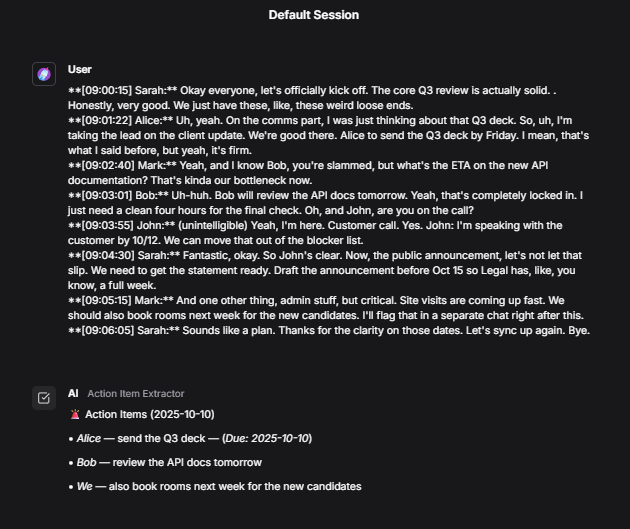
**[09:00:15] Sarah:** Okay everyone, let's officially kick off. The core Q3 review is actually solid. . Honestly, very good. We just have these, like, these weird loose ends.**[09:01:22] Alice:** Uh, yeah. On the comms part, I was just thinking about that Q3 deck. So, uh, I'm taking the lead on the client update. We're good there. Alice to send the Q3 deck by Friday. I mean, that's what I said before, but yeah, it's firm.**[09:02:40] Mark:** Yeah, and I know Bob, you're slammed, but what's the ETA on the new API documentation? That's kinda our bottleneck now.**[09:03:01] Bob:** Uh-huh. Bob will review the API docs tomorrow. Yeah, that's completely locked in. I just need a clean four hours for the final check. Oh, and John, are you on the call?**[09:03:55] John:** (unintelligible) Yeah, I'm here. Customer call. Yes. John: I'm speaking with the customer by 10/12. We can move that out of the blocker list.**[09:04:30] Sarah:** Fantastic, okay. So John's clear. Now, the public announcement, let's not let that slip. We need to get the statement ready. Draft the announcement before Oct 15 so Legal has, like, you know, a full week.**[09:05:15] Mark:** And one other thing, admin stuff, but critical. Site visits are coming up fast. We should also book rooms next week for the new candidates. I'll flag that in a separate chat right after this.**[09:06:05] Sarah:** Sounds like a plan. Thanks for the clarity on those dates. Let's sync up again. Bye.
Example
**Action Items Summary** (2025-10-07)• *Alice* — send the Q3 deck — (*Due: 2025-10-10*)• *Bob* — review the API docs tomorrow• *We* — also book rooms next week for the new candidates
Langflow chat example
5
Import your Langflow flow into watsonx Orchestrate
To import your Langflow flow as a tool into watsonx Orchestrate, run:
After importing your Langflow flow as a tool, add it to an agent.
Copy the following agent definition to create a new agent that uses the Langflow flow tool. Save it as langflow_agent.yml in your agents folder.
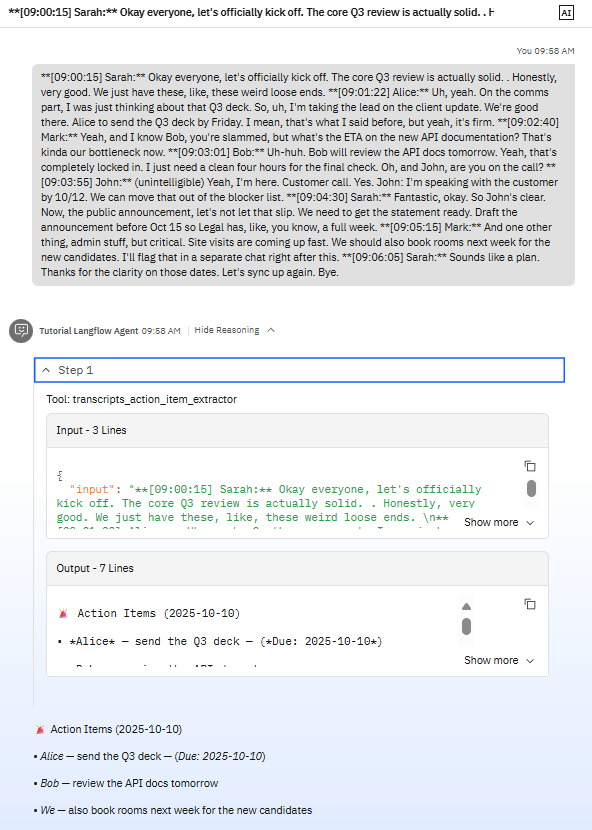
To use your Langflow tool in the chat UI, go to the langflow_agent.
Input
Output
Example
**[09:00:15] Sarah:** Okay everyone, let's officially kick off. The core Q3 review is actually solid. . Honestly, very good. We just have these, like, these weird loose ends.**[09:01:22] Alice:** Uh, yeah. On the comms part, I was just thinking about that Q3 deck. So, uh, I'm taking the lead on the client update. We're good there. Alice to send the Q3 deck by Friday. I mean, that's what I said before, but yeah, it's firm.**[09:02:40] Mark:** Yeah, and I know Bob, you're slammed, but what's the ETA on the new API documentation? That's kinda our bottleneck now.**[09:03:01] Bob:** Uh-huh. Bob will review the API docs tomorrow. Yeah, that's completely locked in. I just need a clean four hours for the final check. Oh, and John, are you on the call?**[09:03:55] John:** (unintelligible) Yeah, I'm here. Customer call. Yes. John: I'm speaking with the customer by 10/12. We can move that out of the blocker list.**[09:04:30] Sarah:** Fantastic, okay. So John's clear. Now, the public announcement, let's not let that slip. We need to get the statement ready. Draft the announcement before Oct 15 so Legal has, like, you know, a full week.**[09:05:15] Mark:** And one other thing, admin stuff, but critical. Site visits are coming up fast. We should also book rooms next week for the new candidates. I'll flag that in a separate chat right after this.**[09:06:05] Sarah:** Sounds like a plan. Thanks for the clarity on those dates. Let's sync up again. Bye.
Example
**Action Items Summary** (2025-10-07)• *Alice* — send the Q3 deck — (*Due: 2025-10-10*)• *Bob* — review the API docs tomorrow• *We* — also book rooms next week for the new candidates