> ## Documentation Index
> Fetch the complete documentation index at: https://developer.watson-orchestrate.ibm.com/llms.txt
> Use this file to discover all available pages before exploring further.
# Binding global variables to connections
During Langflow flow creation, you might find fields that require dynamic inputs—such as API keys, user credentials, among others. These inputs typically depend on user-specific configuration to run the Langflow flow properly.
To handle this, configure these inputs as global variables in Langflow. These variables and their values are stored in your local environment.
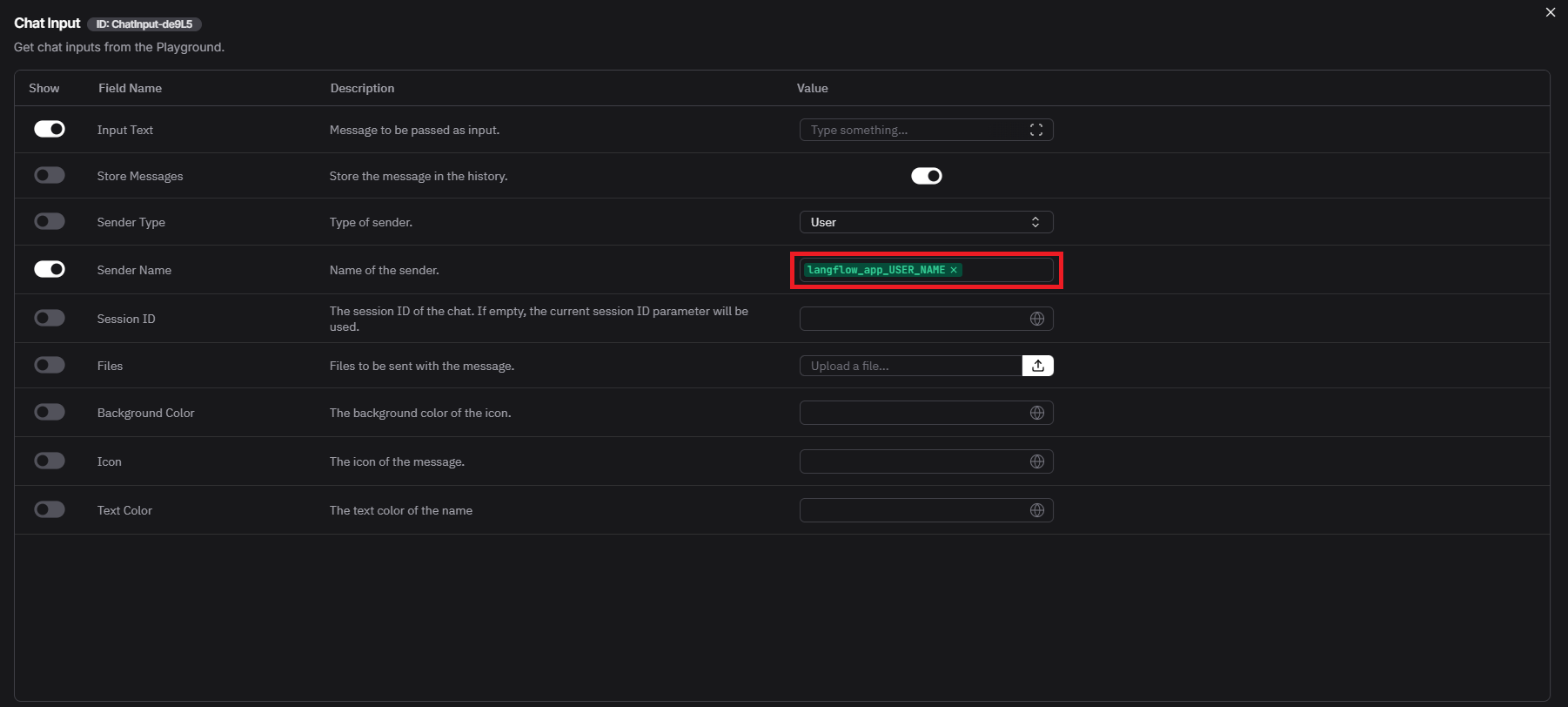 Global variable names in Langflow must follow the format `_`, where:
* ``: the connection ID defined in watsonx Orchestrate.
* ``: the environment key defined in the connection.
**Example:**
* `langflow_app_USER_NAME`
In this case, `langflow_app` is the connection ID, and `USER_NAME` is the environment key.
When you share a Langflow flow that includes global variables, Langflow stores the variable names. You can then bind these names to a watsonx Orchestrate connection to make the Langflow flow work correctly in your Orchestrate environment.
```json Example: Global variable example in shared Langflow flow JSON {24} [expandable] theme={null}
{
...
"sender_name": {
"_input_type": "MessageTextInput",
"advanced": false,
"display_name": "Sender Name",
"dynamic": false,
"info": "Name of the sender.",
"input_types": [
"Message"
],
"list": false,
"list_add_label": "Add More",
"load_from_db": true,
"name": "sender_name",
"placeholder": "",
"required": false,
"show": true,
"title_case": false,
"tool_mode": false,
"trace_as_input": true,
"trace_as_metadata": true,
"type": "str",
"value": "langflow_app_USER_NAME"
},
...
}
```
Follow these steps to bind global variables to a watsonx Orchestrate connection:
Add and configure a key-value connection. Currently, only key-value for "team" is supported. You can do this using a file import or the CLI. For more information, see [Adding and configuring connections](../connections/build_connections#adding-and-configuring-connections).
```bash Example theme={null}
orchestrate connections add -a
orchestrate connections configure -a --env draft -t team -k key_value
```
Configure the global variables and their values in your key-value connection. Use the orchestrate connections set-credentials command with the --entries (-e) flag to define each variable. For more information, see [Key Value Connections](../connections/build_connections#key-value-connections).
```bash Example theme={null}
orchestrate connections set-credentials -a --env draft -e =
```
**TIP:**
If your environment already defines the global variables as environment variables, you can use them to set values in your watsonx Orchestrate connection. Instead of manually entering each value, reference the variable using the `$` syntax. This allows Orchestrate to automatically retrieve the value from your system at runtime.
```bash Example theme={null}
orchestrate connections set-credentials -a langflow_app --env draft -e USER_NAME=$USER_NAME
```
After binding your global variables to a watsonx Orchestrate connection, use that connection when importing your Langflow flow into watsonx Orchestrate.
Global variable names in Langflow must follow the format `_`, where:
* ``: the connection ID defined in watsonx Orchestrate.
* ``: the environment key defined in the connection.
**Example:**
* `langflow_app_USER_NAME`
In this case, `langflow_app` is the connection ID, and `USER_NAME` is the environment key.
When you share a Langflow flow that includes global variables, Langflow stores the variable names. You can then bind these names to a watsonx Orchestrate connection to make the Langflow flow work correctly in your Orchestrate environment.
```json Example: Global variable example in shared Langflow flow JSON {24} [expandable] theme={null}
{
...
"sender_name": {
"_input_type": "MessageTextInput",
"advanced": false,
"display_name": "Sender Name",
"dynamic": false,
"info": "Name of the sender.",
"input_types": [
"Message"
],
"list": false,
"list_add_label": "Add More",
"load_from_db": true,
"name": "sender_name",
"placeholder": "",
"required": false,
"show": true,
"title_case": false,
"tool_mode": false,
"trace_as_input": true,
"trace_as_metadata": true,
"type": "str",
"value": "langflow_app_USER_NAME"
},
...
}
```
Follow these steps to bind global variables to a watsonx Orchestrate connection:
Add and configure a key-value connection. Currently, only key-value for "team" is supported. You can do this using a file import or the CLI. For more information, see [Adding and configuring connections](../connections/build_connections#adding-and-configuring-connections).
```bash Example theme={null}
orchestrate connections add -a
orchestrate connections configure -a --env draft -t team -k key_value
```
Configure the global variables and their values in your key-value connection. Use the orchestrate connections set-credentials command with the --entries (-e) flag to define each variable. For more information, see [Key Value Connections](../connections/build_connections#key-value-connections).
```bash Example theme={null}
orchestrate connections set-credentials -a --env draft -e =
```
**TIP:**
If your environment already defines the global variables as environment variables, you can use them to set values in your watsonx Orchestrate connection. Instead of manually entering each value, reference the variable using the `$` syntax. This allows Orchestrate to automatically retrieve the value from your system at runtime.
```bash Example theme={null}
orchestrate connections set-credentials -a langflow_app --env draft -e USER_NAME=$USER_NAME
```
After binding your global variables to a watsonx Orchestrate connection, use that connection when importing your Langflow flow into watsonx Orchestrate.