> ## Documentation Index
> Fetch the complete documentation index at: https://developer.watson-orchestrate.ibm.com/llms.txt
> Use this file to discover all available pages before exploring further.

# Installing watsonx Orchestrate Developer Edition

<Warning>
  **Important:**

  * **If you installed watsonx Orchestrate Developer Edition before ADK version 2.0**, remove all containers before upgrading. Run orchestrate server reset to clear them. The Developer Edition no longer depends on an external container engine. If you skip the reset, you create multiple installations that consume unnecessary system resources and cause port conflicts.

  * **If you want to use watsonx Orchestrate Developer Edition on Windows and you already have Docker installed**, remove it from your system before you continue. Then install watsonx Orchestrate Developer Edition directly on Windows and let the ADK installer create the Docker environment for you. You cannot install watsonx Orchestrate Developer Edition inside a Docker environment that you created on your own. The installation needs a clean environment to run without issues.
</Warning>

You can install or uninstall watsonx Orchestrate Developer Edition using ADK CLI commands. To get started make sure your .env file is properly configured.

Use ADK CLI commands to install or uninstall watsonx Orchestrate Developer Edition. Before you start, configure the environment variables that give you access to your watsonx Orchestrate Developer Edition instance. Define these variables in an `.env` file.

## Installation prerequisites

Before installing watsonx Orchestrate Developer Edition, make sure you meet the following requirements:

<AccordionGroup>
  <Accordion title="Hardware requirements">
    Your computer needs to meet the following requirements:

    | Component | Minimum | Recommended |
    | --------- | ------- | ----------- |
    | CPU       | 8-core  | 8-core      |
    | RAM       | 16 GB   | 32 GB       |

    When running `--with-doc-processing`

    | Component | Minimum | Recommended |
    | --------- | ------- | ----------- |
    | CPU       | 8-core  | 8-core      |
    | RAM       | 24 GB   | 32 GB       |
  </Accordion>

  <Accordion title="LLM Inference Provider">
    You must have access to at least one of the following services:

    * watsonx Orchestrate on SaaS
    * watsonx.ai
    * Groq
    * A custom llm provider provisioned through the AI Gateway
  </Accordion>

  <Accordion title="watsonx Orchestrate Developer Edition license">
    You need a valid license for watsonx Orchestrate Developer Edition. You can obtain a license by:

    * Purchasing a SaaS license for watsonx Orchestrate on either IBM Cloud or AWS
    * Purchasing an On-premises license for watsonx Orchestrate. The myIBM option uses your entitlement key to watsonx Orchestrate.
    * Contacting IBM Sales for a direct purchase
  </Accordion>
</AccordionGroup>

## Configuring .env file

The `.env` file is a plain text file that stores environment variables. The ADK uses the variables you define in this file to authenticate your user and install watsonx Orchestrate Developer Edition.

The variables you need to configure depend on the authentication method you choose. You can authenticate using one of the following methods:

* **watsonx Orchestrate account**

  Use this method if you have a watsonx Orchestrate account or if you're using a 30-day trial.

* **myIBM**

  Use this method if you purchased a watsonx Orchestrate Developer Edition license through sales or if you're using an on-premises version.

* **Custom Image Registry**

  Use this method if you’ve already copied the required Docker images to an image registry. For example, an Artifactory repository.

Click the tabs below to view instructions for configuring the `.env` file based on your authentication method.

<Tabs>
  <Tab title="watsonx Orchestrate account">
    To authenticate using a watsonx Orchestrate account:

    <Steps>
      <Step title="Create a .env file">
        Create a file named `.env`.
      </Step>

      <Step title="Configure watsonx Orchestrate instance variables in the .env file">
        Add the following variables to your `.env` file:

        <ParamField path="WO_DEVELOPER_EDITION_SOURCE">
          The source ID for the watsonx Orchestrate Developer Edition. Set `orchestrate`.
        </ParamField>

        <ParamField path="WO_INSTANCE">
          The watsonx Orchestrate service instance URL.

          <Expandable title="more details">
            To obtain the service instance URL, follow these steps:

            1. [Log in](https://www.ibm.com/docs/en/watsonx/watson-orchestrate/current?topic=orchestrate-logging-in-watsonx) to your watsonx Orchestrate account.

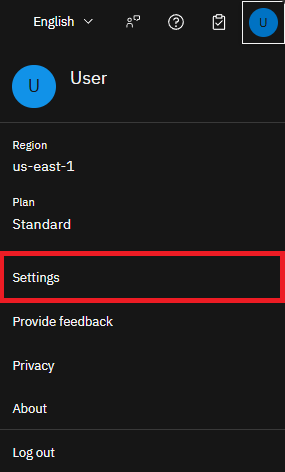
            2. Click your user profile and open the **Settings** page.

                           <Frame>
                             <img src="https://mintcdn.com/ibm-2e3153bf/CUC4--rm2jCi7sPV/assets/developer_edition/install/click_settings.png?fit=max&auto=format&n=CUC4--rm2jCi7sPV&q=85&s=f17dafdccac87e72826df5e1d657ac38" width="285" height="472" data-path="assets/developer_edition/install/click_settings.png" />
                           </Frame>

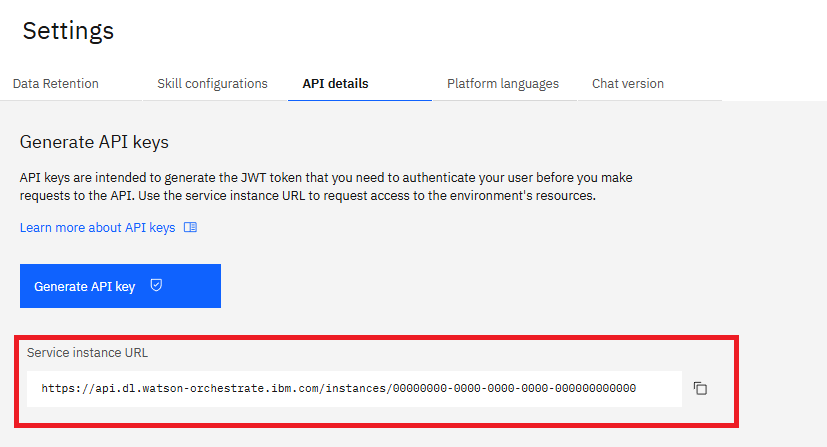
            3. Open the **API details** tab.

            4. Copy your service instance URL.
                           <Frame>
                             <img src="https://mintcdn.com/ibm-2e3153bf/CUC4--rm2jCi7sPV/assets/developer_edition/install/get_instance_url.png?fit=max&auto=format&n=CUC4--rm2jCi7sPV&q=85&s=80a79e43feea9bc84f79915e89a6fdb0" width="827" height="447" data-path="assets/developer_edition/install/get_instance_url.png" />
                           </Frame>
          </Expandable>
        </ParamField>

        <ParamField path="WO_API_KEY">
          The watsonx Orchestrate API key.

          <Expandable title="more details">
            To obtain the API key, follow these steps:

            1. [Log in](https://www.ibm.com/docs/en/watsonx/watson-orchestrate/current?topic=orchestrate-logging-in-watsonx) to your watsonx Orchestrate account.

            2. Click your user profile and open the **Settings** page.

                           <Frame>
                             <img src="https://mintcdn.com/ibm-2e3153bf/CUC4--rm2jCi7sPV/assets/developer_edition/install/click_settings.png?fit=max&auto=format&n=CUC4--rm2jCi7sPV&q=85&s=f17dafdccac87e72826df5e1d657ac38" width="285" height="472" data-path="assets/developer_edition/install/click_settings.png" />
                           </Frame>

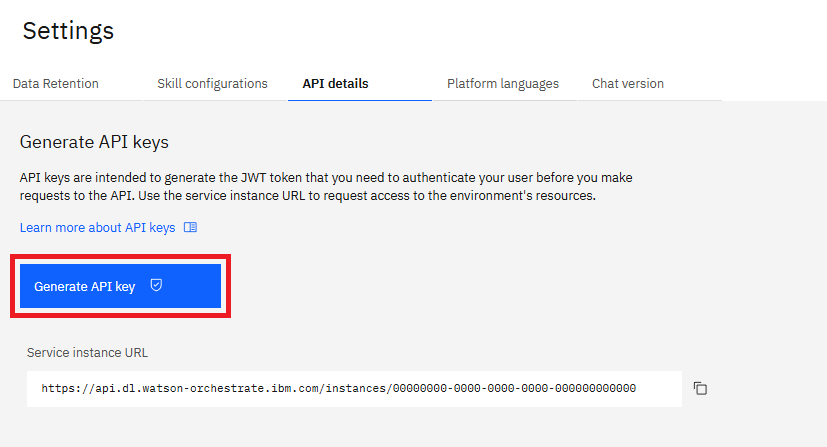
            3. Open the **API details** tab.

            4. Click **Generate API key**.
                           <Frame>
                             <img src="https://mintcdn.com/ibm-2e3153bf/CUC4--rm2jCi7sPV/assets/developer_edition/install/get_api_key.png?fit=max&auto=format&n=CUC4--rm2jCi7sPV&q=85&s=787b0bb386ff278c31ee19cb57115f4a" width="827" height="447" data-path="assets/developer_edition/install/get_api_key.png" />
                           </Frame>

                           <Warning>
                             Your API key is unique and can't be edited or deleted in the settings page. You must save the API key in a safe location.
                           </Warning>
          </Expandable>
        </ParamField>

        ```txt .env Example theme={null}
        WO_DEVELOPER_EDITION_SOURCE=orchestrate
        WO_INSTANCE=<service_instance_url>
        WO_API_KEY=<wxo_api_key>
        ```
      </Step>

      <Step title="Configure services credentials for watsonx Orchestrate Developer Edition in the .env file">
        <div id="configure-services-credentials">
          watsonx Orchestrate Developer Edition uses several services. You configure their credentials manually in the `.env` file.

          <Note>
            **Note:**

            If you already configured service credentials, setting these variables replaces your previous credentials when you start the server.
          </Note>

          <ParamField path="MINIO_ROOT_USER">
            The root user for the Minio object storage service.
          </ParamField>

          <ParamField path="LANGFUSE_USERNAME">
            The username for the Langfuse service used for observability and tracing.
          </ParamField>

          <ParamField path="MCP_GATEWAY_BASIC_USER">
            The basic authentication username for the MCP Gateway service.
          </ParamField>

          <ParamField path="CLICKHOUSE_USER">
            The username for the ClickHouse analytical database service.
          </ParamField>

          <ParamField path="POSTGRES_PASSWORD">
            The password for the PostgreSQL database used by the platform.
          </ParamField>

          <ParamField path="MINIO_ROOT_PASSWORD">
            The root password for the Minio object storage service.
          </ParamField>

          <ParamField path="LANGFUSE_PASSWORD">
            The password for the Langfuse service.
          </ParamField>

          <ParamField path="MCP_GATEWAY_BASIC_PASSWORD">
            The basic authentication password for the MCP Gateway service.
          </ParamField>

          <ParamField path="MCP_GATEWAY_ADMIN_PASSWORD">
            The administrator password for the MCP Gateway service.
          </ParamField>

          <ParamField path="CLICKHOUSE_PASSWORD">
            The password for the ClickHouse analytical database service.
          </ParamField>

          <ParamField path="ES_PASSWORD">
            The password for the Elasticsearch or OpenSearch service used for indexing and search.
          </ParamField>

          <ParamField path="MILVUS_PASSWORD">
            The password for the Milvus vector database service.
          </ParamField>

          <ParamField path="DB_ENCRYPTION_KEY">
            The encryption key you use to secure sensitive database fields.
          </ParamField>

          ```txt .env Example theme={null}
          MINIO_ROOT_USER=minioadmin
          LANGFUSE_USERNAME=orchestrate
          MCP_GATEWAY_BASIC_USER=admin
          CLICKHOUSE_USER=clickhouse

          POSTGRES_PASSWORD=postgres
          MINIO_ROOT_PASSWORD=watsonxorchestrate
          LANGFUSE_PASSWORD=orchestrate
          MCP_GATEWAY_BASIC_PASSWORD=MCPbasic
          MCP_GATEWAY_ADMIN_PASSWORD=MCPadmin
          CLICKHOUSE_PASSWORD=clickhouse
          ES_PASSWORD=Elasticsearch
          MILVUS_PASSWORD=Milvus
          DB_ENCRYPTION_KEY=db_encryption_key
          ```
        </div>
      </Step>

      <Step title="For on-premises: Configure on-premises variables in the .env file">
        If you're using an on-premises setup, you also need to set the following environment variables:

        <ParamField path="DOCKER_IMAGE_PULL_LAYERS_PARALLELISM">
          Boolean environment variable that controls whether image layers are pulled in parallel. Defaults to `true`.

          Treated as `false` if `DOCKER_IMAGE_PULL_PARALLEL_WORKERS_COUNT` is set to `1`.
        </ParamField>

        <ParamField path="DOCKER_IMAGE_PULL_PARALLEL_WORKERS_COUNT">
          Integer value that defines how many Docker image layers are pulled in parallel. Accepts values from `1` to `10`.

          Values outside this range trigger a fallback to the default value. Defaults to `7`.
        </ParamField>

        <ParamField path="USE_RANGE_REQUESTS_IN_DOCKER_IMAGE_PULLS">
          Boolean environment variable that enables ranged requests when pulling large layers. Defaults to `true`.

          <Note>
            **Note:**

            Only takes effect when `DOCKER_IMAGE_PULL_LAYERS_PARALLELISM` is enabled.
          </Note>
        </ParamField>

        <ParamField path="WO_VERIFY_SSL">
          ADK uses SSL authentication by default to connect to a registry proxy in your watsonx Orchestrate on-premises environment. Use this variable to enable or disable SSL authentication. Possible values:

          * `True`: To enable SSL security using the system’s default SSL certificate.
          * `False`: To disable SSL authentication.
          * SSL file path: To use a custom SSL certificate.
        </ParamField>

        <ParamField path="IGNORE_DOCKER_LAYER_CACHING">
          Boolean environment variable that determines whether CPD Docker image layers are cached in the local orchestrate cache during pulls. Defaults to `false`.

          <Expandable title="more details">
            Caching layers speed up Docker image downloads for on-premises instances. This setup creates a cache in the ADK watsonx Orchestrate folder and stores all pulled layers. With caching enabled, each layer downloads only once during the cache period, which you control. You can reuse these layers whenever needed. All cached layers appear in the folder located at `<home>/.cache/orchestrate`.

            <Note>
              To clean up cached image layers, use the ADK CLI. For more information, see [Cleaning on-premises cache layers](./manage_local_server#cleaning-on-premises-cache-layers).
            </Note>
          </Expandable>
        </ParamField>

        ```txt .env Example theme={null}
        DOCKER_IMAGE_PULL_LAYERS_PARALLELISM=true
        DOCKER_IMAGE_PULL_PARALLEL_WORKERS_COUNT=7
        USE_RANGE_REQUESTS_IN_DOCKER_IMAGE_PULLS=true
        WO_VERIFY_SSL=True
        IGNORE_DOCKER_LAYER_CACHING=false
        ```
      </Step>

      <Step title="For regions other than us-south: Configure region variables in the .env file">
        Additionally, if you operate in a region other than us-south, configure the region variables. Set the following variables:

        <ParamField path="ASSISTANT_LLM_API_BASE">
          The assistant LMM API endpoint for your region
        </ParamField>

        <ParamField path="ASSISTANT_EMBEDDINGS_API_BASE">
          The assistant embedding API endpoint for your region.
        </ParamField>

        <ParamField path="ROUTING_LLM_API_BASE">
          The routing LLM API endpoint for your region.
        </ParamField>

        <ParamField path="WATSONX_URL">
          The watsonx endpoint for your region.
        </ParamField>

        ```txt .env Example theme={null}
        ASSISTANT_LLM_API_BASE=https://<region-code>.ml.cloud.ibm.com/
        ASSISTANT_EMBEDDINGS_API_BASE=https://<region-code>.ml.cloud.ibm.com/
        ROUTING_LLM_API_BASE=https://<region-code>.ml.cloud.ibm.com/
        WATSONX_URL=https://<region-code>.ml.cloud.ibm.com/
        ```
      </Step>
    </Steps>
  </Tab>

  <Tab title="myIBM">
    To authenticate using myIBM:

    <Steps>
      <Step title="Create a .env file">
        Create a file named `.env`.
      </Step>

      <Step title="Configure watsonx Orchestrate instance variables in the .env file">
        Add the following variables to your `.env` file:

        <ParamField path="WO_DEVELOPER_EDITION_SOURCE">
          The source ID for the watsonx Orchestrate Developer Edition. Set `myibm`.
        </ParamField>

        <ParamField path="WO_ENTITLEMENT_KEY">
          An entitlement key from a valid watsonx.ai instance.

          <Expandable title="more details">
            To obtain the entitlement key, follow these steps:

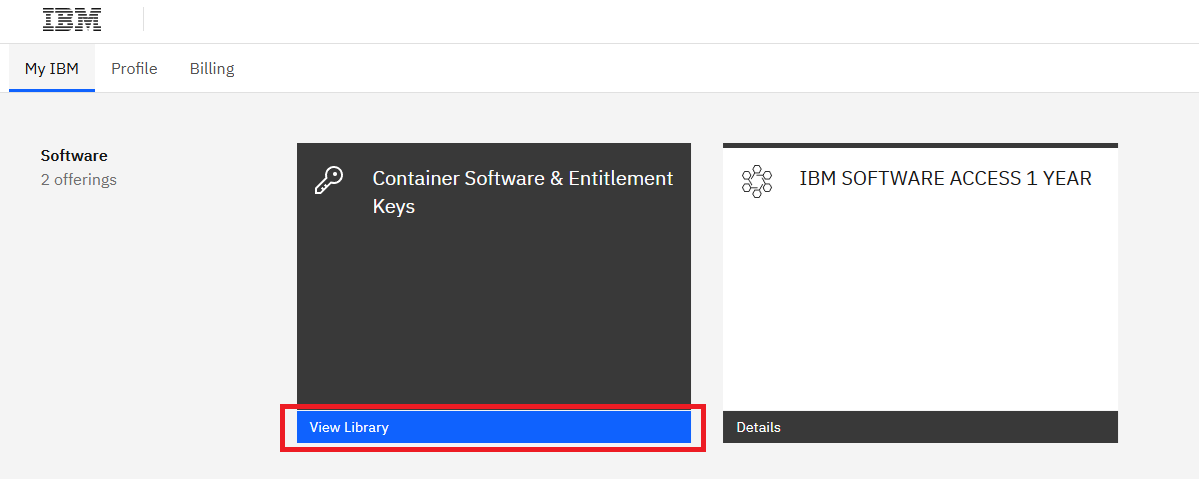
            1. Access [My IBM](https://myibm.ibm.com/).

            2. Click **View Library**.

                           <Frame>
                             <img src="https://mintcdn.com/ibm-2e3153bf/CUC4--rm2jCi7sPV/assets/developer_edition/install/view_library.png?fit=max&auto=format&n=CUC4--rm2jCi7sPV&q=85&s=d09ebda0ac33e617aaad386edb6b7b79" width="1199" height="479" data-path="assets/developer_edition/install/view_library.png" />
                           </Frame>

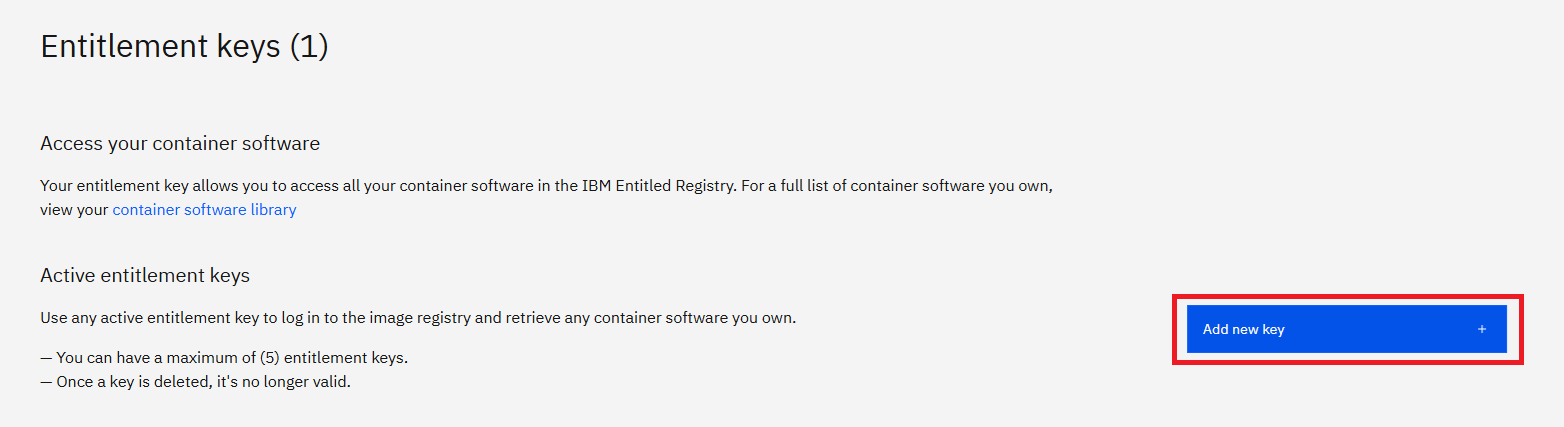
            3. Click **Add a new key +**.

                           <Frame>
                             <img src="https://mintcdn.com/ibm-2e3153bf/CUC4--rm2jCi7sPV/assets/developer_edition/install/new_key.png?fit=max&auto=format&n=CUC4--rm2jCi7sPV&q=85&s=147b63d4f57f61fa34ab5350d247e546" width="1564" height="427" data-path="assets/developer_edition/install/new_key.png" />
                           </Frame>

            4. Copy the entitlement key.
          </Expandable>
        </ParamField>

        <ParamField path="GROQ_API_KEY">
          A Groq instance. To get your API key, see [Keys](https://console.groq.com/keys).
        </ParamField>

        <ParamField path="WATSONX_APIKEY">
          The API key of your instance. To get your API Key, see [Managing API Keys](https://cloud.ibm.com/docs/account?topic=account-userapikey\&interface=ui#create_user_key).
        </ParamField>

        <ParamField path="WATSONX_SPACE_ID">
          A watsonx.ai instance on IBM Cloud. This instance is required to setting up the Deployment Space for the watsonx Orchestrate Developer Edition. If you don’t have one, create it and locate your `space ID`. You can create a new instance and get the `space ID` in the [Developer access](https://dataplatform.cloud.ibm.com/developer-access?context=wx) page on IBM Cloud.
        </ParamField>

        ```txt .env Example theme={null}
        WO_DEVELOPER_EDITION_SOURCE=myibm
        WO_ENTITLEMENT_KEY=<my_entitlement_key>
        WATSONX_APIKEY=<my_watsonx_api_key>
        WATSONX_SPACE_ID=<my_space_id>
        ```
      </Step>

      <Step title="Configure services credentials for watsonx Orchestrate Developer Edition in the .env file">
        <div id="configure-services-credentials">
          watsonx Orchestrate Developer Edition uses several services. You configure their credentials manually in the `.env` file.

          <Note>
            **Note:**

            If you already configured service credentials, setting these variables replaces your previous credentials when you start the server.
          </Note>

          <ParamField path="MINIO_ROOT_USER">
            The root user for the Minio object storage service.
          </ParamField>

          <ParamField path="LANGFUSE_USERNAME">
            The username for the Langfuse service used for observability and tracing.
          </ParamField>

          <ParamField path="MCP_GATEWAY_BASIC_USER">
            The basic authentication username for the MCP Gateway service.
          </ParamField>

          <ParamField path="CLICKHOUSE_USER">
            The username for the ClickHouse analytical database service.
          </ParamField>

          <ParamField path="POSTGRES_PASSWORD">
            The password for the PostgreSQL database used by the platform.
          </ParamField>

          <ParamField path="MINIO_ROOT_PASSWORD">
            The root password for the Minio object storage service.
          </ParamField>

          <ParamField path="LANGFUSE_PASSWORD">
            The password for the Langfuse service.
          </ParamField>

          <ParamField path="MCP_GATEWAY_BASIC_PASSWORD">
            The basic authentication password for the MCP Gateway service.
          </ParamField>

          <ParamField path="MCP_GATEWAY_ADMIN_PASSWORD">
            The administrator password for the MCP Gateway service.
          </ParamField>

          <ParamField path="CLICKHOUSE_PASSWORD">
            The password for the ClickHouse analytical database service.
          </ParamField>

          <ParamField path="ES_PASSWORD">
            The password for the Elasticsearch or OpenSearch service used for indexing and search.
          </ParamField>

          <ParamField path="MILVUS_PASSWORD">
            The password for the Milvus vector database service.
          </ParamField>

          <ParamField path="DB_ENCRYPTION_KEY">
            The encryption key you use to secure sensitive database fields.
          </ParamField>

          ```txt .env Example theme={null}
          MINIO_ROOT_USER=minioadmin
          LANGFUSE_USERNAME=orchestrate
          MCP_GATEWAY_BASIC_USER=admin
          CLICKHOUSE_USER=clickhouse

          POSTGRES_PASSWORD=postgres
          MINIO_ROOT_PASSWORD=watsonxorchestrate
          LANGFUSE_PASSWORD=orchestrate
          MCP_GATEWAY_BASIC_PASSWORD=MCPbasic
          MCP_GATEWAY_ADMIN_PASSWORD=MCPadmin
          CLICKHOUSE_PASSWORD=clickhouse
          ES_PASSWORD=Elasticsearch
          MILVUS_PASSWORD=Milvus
          DB_ENCRYPTION_KEY=db_encryption_key
          ```
        </div>
      </Step>

      <Step title="For regions other than us-south: Configure region variables in the .env file">
        Additionally, if you operate in a region other than us-south, configure the region variables. Set the following variables:

        <ParamField path="ASSISTANT_LLM_API_BASE">
          The assistant LMM API endpoint for your region
        </ParamField>

        <ParamField path="ASSISTANT_EMBEDDINGS_API_BASE">
          The assistant embedding API endpoint for your region.
        </ParamField>

        <ParamField path="ROUTING_LLM_API_BASE">
          The routing LLM API endpoint for your region.
        </ParamField>

        <ParamField path="WATSONX_URL">
          The watsonx endpoint for your region.
        </ParamField>

        ```txt .env Example theme={null}
        ASSISTANT_LLM_API_BASE=https://<region-code>.ml.cloud.ibm.com/
        ASSISTANT_EMBEDDINGS_API_BASE=https://<region-code>.ml.cloud.ibm.com/
        ROUTING_LLM_API_BASE=https://<region-code>.ml.cloud.ibm.com/
        WATSONX_URL=https://<region-code>.ml.cloud.ibm.com/
        ```
      </Step>
    </Steps>
  </Tab>

  <Tab title="Custom Image Registry">
    To authenticate using a custom image registry:

    <Steps>
      <Step title="Create a .env file">
        Create a file named `.env`.
      </Step>

      <Step title="Configure watsonx Orchestrate instance variables in the .env file">
        Add the following variables to your `.env` file:

        <ParamField path="WO_DEVELOPER_EDITION_SOURCE">
          The source ID for the watsonx Orchestrate Developer Edition. Set `custom`.
        </ParamField>

        <ParamField path="REGISTRY_URL">
          The URL of the image registry that hosts the watsonx Orchestrate Developer Edition images.
        </ParamField>

        <ParamField path="REGISTRY_USERNAME">
          The username for authenticating with the image registry. Leave it blank to skip login.
        </ParamField>

        <ParamField path="WATSONX_SPACE_ID">
          The password for authenticating with the image registry. Leave it blank to skip login.
        </ParamField>

        ```txt .env Example theme={null}
        WO_DEVELOPER_EDITION_SOURCE=custom
        REGISTRY_URL=<registry_url>
        REGISTRY_USERNAME=<registry_username>
        REGISTRY_PASSWORD=<registry_password>
        ```
      </Step>

      <Step title="Configure services credentials for watsonx Orchestrate Developer Edition in the .env file">
        <div id="configure-services-credentials">
          watsonx Orchestrate Developer Edition uses several services. You configure their credentials manually in the `.env` file.

          <Note>
            **Note:**

            If you already configured service credentials, setting these variables replaces your previous credentials when you start the server.
          </Note>

          <ParamField path="MINIO_ROOT_USER">
            The root user for the Minio object storage service.
          </ParamField>

          <ParamField path="LANGFUSE_USERNAME">
            The username for the Langfuse service used for observability and tracing.
          </ParamField>

          <ParamField path="MCP_GATEWAY_BASIC_USER">
            The basic authentication username for the MCP Gateway service.
          </ParamField>

          <ParamField path="CLICKHOUSE_USER">
            The username for the ClickHouse analytical database service.
          </ParamField>

          <ParamField path="POSTGRES_PASSWORD">
            The password for the PostgreSQL database used by the platform.
          </ParamField>

          <ParamField path="MINIO_ROOT_PASSWORD">
            The root password for the Minio object storage service.
          </ParamField>

          <ParamField path="LANGFUSE_PASSWORD">
            The password for the Langfuse service.
          </ParamField>

          <ParamField path="MCP_GATEWAY_BASIC_PASSWORD">
            The basic authentication password for the MCP Gateway service.
          </ParamField>

          <ParamField path="MCP_GATEWAY_ADMIN_PASSWORD">
            The administrator password for the MCP Gateway service.
          </ParamField>

          <ParamField path="CLICKHOUSE_PASSWORD">
            The password for the ClickHouse analytical database service.
          </ParamField>

          <ParamField path="ES_PASSWORD">
            The password for the Elasticsearch or OpenSearch service used for indexing and search.
          </ParamField>

          <ParamField path="MILVUS_PASSWORD">
            The password for the Milvus vector database service.
          </ParamField>

          <ParamField path="DB_ENCRYPTION_KEY">
            The encryption key you use to secure sensitive database fields.
          </ParamField>

          ```txt .env Example theme={null}
          MINIO_ROOT_USER=minioadmin
          LANGFUSE_USERNAME=orchestrate
          MCP_GATEWAY_BASIC_USER=admin
          CLICKHOUSE_USER=clickhouse

          POSTGRES_PASSWORD=postgres
          MINIO_ROOT_PASSWORD=watsonxorchestrate
          LANGFUSE_PASSWORD=orchestrate
          MCP_GATEWAY_BASIC_PASSWORD=MCPbasic
          MCP_GATEWAY_ADMIN_PASSWORD=MCPadmin
          CLICKHOUSE_PASSWORD=clickhouse
          ES_PASSWORD=Elasticsearch
          MILVUS_PASSWORD=Milvus
          DB_ENCRYPTION_KEY=db_encryption_key
          ```
        </div>
      </Step>

      <Step title="For regions other than us-south: Configure region variables in the .env file">
        Additionally, if you operate in a region other than us-south, configure the region variables. Set the following variables:

        <ParamField path="ASSISTANT_LLM_API_BASE">
          The assistant LMM API endpoint for your region
        </ParamField>

        <ParamField path="ASSISTANT_EMBEDDINGS_API_BASE">
          The assistant embedding API endpoint for your region.
        </ParamField>

        <ParamField path="ROUTING_LLM_API_BASE">
          The routing LLM API endpoint for your region.
        </ParamField>

        <ParamField path="WATSONX_URL">
          The watsonx endpoint for your region.
        </ParamField>

        ```txt .env Example theme={null}
        ASSISTANT_LLM_API_BASE=https://<region-code>.ml.cloud.ibm.com/
        ASSISTANT_EMBEDDINGS_API_BASE=https://<region-code>.ml.cloud.ibm.com/
        ROUTING_LLM_API_BASE=https://<region-code>.ml.cloud.ibm.com/
        WATSONX_URL=https://<region-code>.ml.cloud.ibm.com/
        ```
      </Step>
    </Steps>
  </Tab>
</Tabs>

## Installing watsonx Orchestrate Developer Edition

Once you have configured the environment variables in your `.env` file, install the watsonx Orchestrate server by running:

```bash BASH theme={null}
orchestrate server start -e <path-.env-file>
```

Use additional flags to enable optional services such as Langfuse by adding with-langfuse.

<Expandable title="command flags">
  <ResponseField name="--env-file / -e" type="string" required={true}>
    Path to your `.env` file.
  </ResponseField>

  <ResponseField name="--with-langfuse / -l" type="boolean">
    Enable Langfuse support.
  </ResponseField>

  <ResponseField name="--with-ibm-telemetry / -i" type="boolean">
    Enable IBM's native observability framework.
  </ResponseField>

  <ResponseField name="--accept-terms-and-conditions" type="boolean">
    Accept the terms and conditions shown in the logs when the server starts.
  </ResponseField>

  <ResponseField name="--compose-file / -f" type="boolean">
    Provide the path to a custom docker-compose file to use instead of the default compose file.
  </ResponseField>

  <ResponseField name="--persist-env-secrets / -p" type="boolean">
    Option to store secret values from the provided env file in the config file (`~/.config/orchestrate/config.yaml`).
  </ResponseField>

  <ResponseField name="--with-doc-processing / -d" type="boolean">
    Enable IBM Document Processing to extract information from business documents. This activates the Watson Document Understanding service.
  </ResponseField>

  <ResponseField name="--with-connections-ui / -c" type="boolean">
    Enables connections UI to facilitate OAuth connections and credential management via a UI.
  </ResponseField>

  <ResponseField name="--with-voice / -v" type="boolean">
    Enable voice support.
  </ResponseField>

  <ResponseField name="--with-langflow" type="boolean">
    Enable Langflow support. For more information about Langflow, see [Authoring Langflow tools](../langflow/overview).
  </ResponseField>

  <ResponseField name="--with-ai-builder" type="boolean">
    Enable support for AI assisted builder features. For more information about AI Builder, see [AI Builder Overview](../ai_builder/overview.mdx).
  </ResponseField>

  <ResponseField name="--service-username" type="string" required={false}>
    The username you configure for watsonx Orchestrate Developer Edition services. If you do not provide a username, the system generates one by using your OS username. If that attempt fails, the system sets the name orchestrate. This applies to Langfuse, Minio, MCP Gateway, and ClickHouse. The username must contain at least three characters.

    <Note>
      **Note:**

      For users who update from earlier versions to 2.6.0. If you have any server configured by an older version, whether it is running or stopped, your database uses the old default credentials because the database was created before the new configuration. You need to reset and start the environment to ensure the database container uses the newest credentials.

      If you want to keep your existing data after the update, you can override the service credentials for each service by configuring them in the .env file. For more information, see the related documentation section. For more information, see [Configure services credentials for watsonx Orchestrate Developer Edition in the .env file](./wxOde_setup#configure-services-credentials).
    </Note>
  </ResponseField>

  <ResponseField name="--service-password" type="string" required={false}>
    The password you configure for watsonx Orchestrate Developer Edition services. If you do not provide a password, the system prompts you to enter one during the first setup. This applies to PostgreSQL, Langfuse, Minio, MCP Gateway, ElasticSearch, Milvus, and Clickhouse. The password must contain at least eighteen characters.

    <Note>
      **Note:**

      For users who update from earlier versions to 2.6.0. If you have any server configured by an older version, whether it is running or stopped, your database uses the old default credentials because the database was created before the new configuration. You need to reset and start the environment to ensure the database container uses the newest credentials.

      If you want to keep your existing data after the update, you can override the service credentials for each service by configuring them in the .env file. For more information, see the related documentation section. For more information, see [Configure services credentials for watsonx Orchestrate Developer Edition in the .env file](./wxOde_setup#configure-services-credentials).
    </Note>
  </ResponseField>
</Expandable>

<Note>
  By default, the following features are disabled:

  * Agent Knowledge - Upload files
  * Agentic Workflow - Document Processing

  To enable these features, you have two options:

  1. Provide **WO\_INSTANCE** and **WO\_API\_KEY** in your `.env` file. For more information, see [Configuring .env file using watsonx Orchestrate account](#watsonx-orchestrate-account).
  2. Run the `orchestrate server start -e <path-.env-file> --with-doc-processing` command. This command starts the server with document processing enabled. Make sure you allocate at least 24 GB of memory to your server for stable operation.
</Note>

Once installed, the following services become available:

* **OpenAPI Docs**: `http://localhost:4321/docs`. This API documentation is also available in the [watsonx Orchestrate Developer Edition APIs](../apis/agent-release-environments/create-an-environment-for-an-agent).
* **API Base URL**: `http://localhost:4321/api`

<Note>
  **Note:**
  Installing watsonx Orchestrate Developer Edition starts only the server, not the UI. To start the UI, run `orchestrate chat start`. For more information, see [Starting watsonx Orchestrate Developer Edition UI](./manage_ui#starting-watsonx-orchestrate-developer-edition-ui).
</Note>

In addition, you can install watsonx Orchestrate Developer Edition by using a custom docker-compose file or a custom image repository. For more information, see [Using custom watsonx Orchestrate Developer Edition docker file](./custom_yaml) and [Creating custom Developer Edition image registry](./custom_registry).

## Uninstalling watsonx Orchestrate Developer Edition

If you no longer want to use watsonx Orchestrate Developer Edition, remove it and all its data from your computer. To do this, run:

```bash BASH theme={null}
orchestrate server purge
```

## What's Next?

After installing watsonx Orchestrate Developer Edition, you can use it as a local server with the `orchestrate env activate local` command.

You can also start the watsonx Orchestrate UI. In addition, you can manage watsonx Orchestrate Developer Edition with the ADK CLI. For more information, see [Managing Developer Edition](./manage_ui).