> ## Documentation Index
> Fetch the complete documentation index at: https://developer.watson-orchestrate.ibm.com/llms.txt
> Use this file to discover all available pages before exploring further.
# Using custom watsonx Orchestrate Developer Edition docker file
watsonx Orchestrate Developer Edition runs inside Docker containers. These containers start automatically when you run the `orchestrate server start` command. If you're familiar with Docker and Docker Compose, you can customize the setup to fit your machine or specific use case.
**Important:**
Before starting watsonx Orchestrate Developer Edition with a custom Docker Compose file, make sure you understand every change in your configuration. **The ADK doesn't offers official support to custom Compose setups**, so you're responsible for troubleshooting any issues that arise.
## Exporting docker compose file
To export the watsonx Orchestrate Developer Edition Docker Compose file, start by configuring your `.env` file. For more information about how to configure a `.env` file, see [Installing the watsonx Orchestrate Developer Edition](./wxOde_setup).
Then, run the following command to export the Docker Compose file using your configured `.env` file:
```bash BASH theme={null}
orchestrate server eject -e
```
| Flag | Type | Required | Description |
| ------------------- | ------ | -------- | ------------------------ |
| `--env-file` (`-e`) | string | Yes | Path to your `.env` file |
This command creates two files in your current directory:
* `docker-compose.yml`
Contains the container configurations for watsonx Orchestrate Developer Edition.
* `server.env`
Stores the environment variable values used in `docker-compose.yml`. You can use this file if you choose to run watsonx Orchestrate Developer Edition without the ADK.
## Using the custom docker compose file
Use the `orchestrate server start` command to launch watsonx Orchestrate Developer Edition with your custom Docker Compose configuration. Pass the path to your `.env` file using the `-e` flag, and the path to your custom Compose file using the `-f` flag:
```bash BASH theme={null}
orchestrate server start -e -f
```
If you omit the `-f` flag, the default configuration launches, and your custom settings won’t be applied. For more information about the `orchestrate server start` comamnd, see [Installing watsonx Orchestrate Developer Edition: watsonx Orchestrate server](./wxOde_setup#installing-watsonx-orchestrate-developer-edition%3A-watsonx-orchestrate-server).
## Example: Customizing the UI Port in Docker Compose
You can modify the default configuration of watsonx Orchestrate Developer Edition to better suit your environment. For instance, the following example changes the default UI port from `3000` to `3002` by updating the ports section in the Compose file:
```py docker-compose.yml {6,7} theme={null}
ui:
image: ${UI_REGISTRY:-us.icr.io/watson-orchestrate-private}/wxo-chat:${UITAG:-latest}
platform: linux/amd64
restart: unless-stopped
...
ports:
- "3002:4002"
...
```
This change allows the UI to run on port `3002` locally. However, it's important to understand the implications of modifying the Compose file. The watsonx Orchestrate Developer Kit (ADK) does not provide official support for custom Docker configurations. Any changes you make are your responsibility, including troubleshooting resulting issues.
In this example, after starting the Developer Edition with the custom Compose file, the CLI still attempts to access the default port (`3000`). This mismatch can lead to errors, such as:
```bash CLI output [expandable] theme={null}
[INFO] - local tenant found
[INFO] - Auto-detecting local IP address for async tool callbacks...
[DEBUG] - IP detection failed on Linux: [Errno 2] No such file or directory: 'ifconfig'
[INFO] - Using Docker internal URL: http://host.docker.internal:4321
[INFO] - For external tools, consider using ngrok or similar tunneling service.
[INFO] - Waiting for orchestrate server to be fully started and ready...
[INFO] - Starting docker-compose UI service...
WARN[0000] The "USE_SAAS_ML_TOOLS_RUNTIME" variable is not set. Defaulting to a blank string.
WARN[0000] The "USE_SAAS_ML_TOOLS_RUNTIME" variable is not set. Defaulting to a blank string.
WARN[0000] The "USE_SAAS_ML_TOOLS_RUNTIME" variable is not set. Defaulting to a blank string.
WARN[0000] The "WATSONX_PROJECT_ID" variable is not set. Defaulting to a blank string.
[+] Running 1/1
✔ Container docker-ui-1 Running 0.0s
[INFO] - Chat UI Service started successfully.
[INFO] - Waiting for UI component to be initialized...
[INFO] - UI component is initialized
[ERROR] - The Chat UI service did not initialize within the expected time. Check the logs for any errors.
[INFO] - Opening chat interface at http://localhost:3000/chat-lite
[WARNING] - When using local chat, requests that the user 'Connect Apps' must be resolved by running `orchestrate connections set-credentials`
gio: http://localhost:3000/chat-lite: Operation not supported
```
Despite the error, the UI runs successfully on the custom port (`3002`), as shown below:
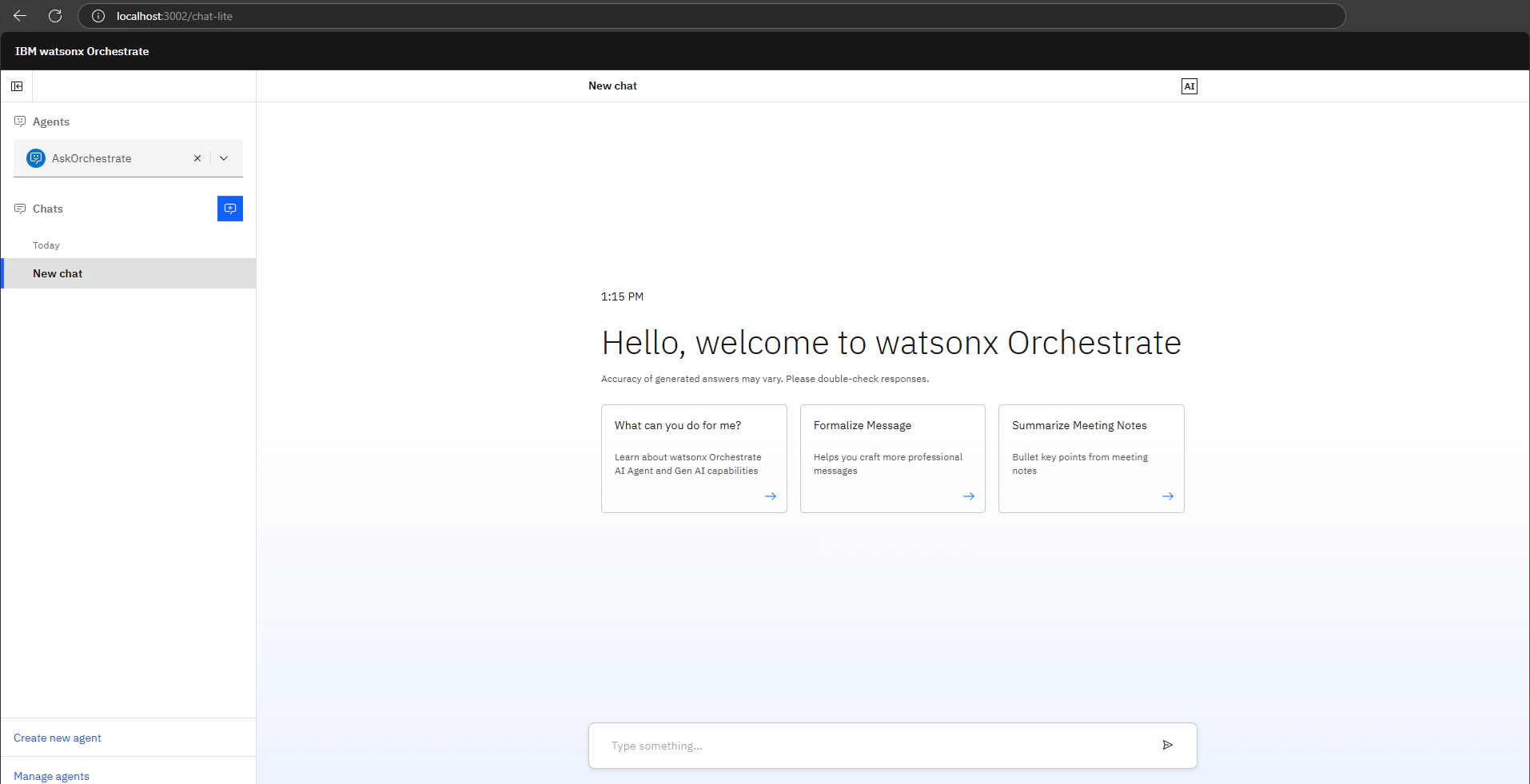 This scenario highlights both the flexibility and the risks of customizing the Docker Compose file. You can tailor the configuration to meet specific requirements, but you must carefully validate your changes and be prepared to resolve any issues independently.