> ## Documentation Index
> Fetch the complete documentation index at: https://developer.watson-orchestrate.ibm.com/llms.txt
> Use this file to discover all available pages before exploring further.
# Authoring native agents
You create and import native agents into **watsonx Orchestrate**. Use YAML, JSON, or Python files to build agents for watsonx Orchestrate.
## Configuring native agents
Each native agent includes these components:
Specifies the large language model (LLM) that powers the agent’s ability to understand and respond to queries. For more information, see [Managing custom LLMs with the AI gateway](../llm/managing_llm).
Provides advanced configuration options for the Large Language Model (LLM) used by the agent.
These settings allow you to control decoding behavior, output format, safety parameters,
model‑specific behavior, and provider‑specific extensions. If omitted, defaults from the AI gateway
or model provider are used.
Overrides the model ID for this agent. If not provided, the value from the top‑level `llm` field is used.
Specifies the decoding strategy (for example, `greedy`, `sample`, or provider‑specific methods).
Adds a custom prompt or prompt sequence to each model request.
Maximum number of tokens the model can generate.
Alternative output token limit used by some providers.
Controls randomness. Higher values increase creativity; lower values produce more deterministic output.
Uses nucleus sampling to restrict generation to tokens within a cumulative probability threshold.
Number of completion candidates to generate.
Enables streaming responses when supported by the model provider.
Returns log probabilities for top tokens.
Provides detailed log probability information for generated tokens.
When set to `true`, the model returns both the prompt and the completion.
One or more stop sequences that end the model’s output.
Penalizes repeated subject matter to encourage exploration of new topics.
Reduces repeated words or phrases by penalizing frequent tokens.
Generates multiple completions and returns the best scoring result.
Adjusts model probability distributions for specific tokens.
Identifier associated with the end user for logging or safety purposes.
Additional context sent to the model for each request.
Few-shot examples demonstrating the desired input-output behavior.
Restricts sampling to the `k` most probable next tokens.
Defines the required structure of the model output (for example, JSON schema mode).
Ensures repeatable outputs when supported.
Indicates whether requests or responses are stored by the model provider.
Custom metadata passed to the model provider.
Modalities supported for the request (for example, `text`, `audio`, `vision`).
Configuration for generating or processing audio.
Specifies the service tier or quality level for supported providers.
Prediction parameters used by specific model providers.
Safety configuration for providers such as Google's Gemini Enterprise AI.
Anthropic‑specific beta feature settings.
Overrides the Anthropic model version.
Configures advanced reasoning or chain-of-thought features for supported models.
watsonx.ai space associated with the model execution.
watsonx.ai project bound to the request.
Controls reasoning depth for models that support variable reasoning levels.
Enables the model to call multiple tools in parallel.
Disables schema validation for tool calls (specific for Groq models).
Defines the prompting structure the agent uses. This structure determines how the LLM interprets and responds to instructions. For more information, see [Choosing the agent style](./agent_styles).
Defines whether the agent's reasoning appears to the end user. When set to `True`, the agent hides its reasoning from the user. When set to `False`, the agent displays its reasoning. The default value is `False`.
Enables the agent to retain conversation history and context across multiple interactions within a session. When set to `True`, the agent can recall information from previous messages in the conversation to provide more contextual and personalized responses. When set to `False`, each interaction is treated independently. The default value is `False`.
Provides natural language guidance to the LLM. These instructions shape the agent’s behavior, such as adopting a specific persona like a customer service representative and explaining how to use tools and collaborators. For more information, see [Writing instructions for agents](../agents/descriptions#writing-instructions-for-agents).
Extends the LLM’s capabilities by enabling access to external functions and services. Examples include:
* OpenAPI definitions for external APIs
* Python functions for scripting more complex interactions with external systems
* Agentic workflows for orchestrating operations across tools and agents
* Toolkit-exposed tools such as an MCP server
Lists other agents this agent interacts with to solve complex problems. Collaborators can include native watsonx Orchestrate agents, external agents, or watsonx Assistants. For more information, see [Connect to external agents](/agents/connect_agent).
Provides a human-readable summary of the agent’s purpose, visible in the Manage Agents UI. It also helps other agents understand its role when used as a collaborator. The description does not affect responses unless invoked as a collaborator. For more information, see [Writing descriptions for agents](../agents/descriptions#writing-descriptions-for-agents).
Represents domain-specific knowledge that is acquired by the LLM from uploaded files or connected vector data stores. Agent Knowledge allows you to provide information that the agent should inherently know and use to answer questions. This knowledge can come from documents you upload or from various data sources integrated with watsonx Orchestrate, such as Milvus, Elasticsearch, AstraDB, and others.
To learn more about setting up a knowledge base see the section on [Knowledge bases](/knowledge_base/overview).
Specifies whether the Agent remains editable after import. This field accepts one of the following options:
* `editable`
Sets the Agent as editable. This is the default value.
* `non_editable`
Sets the Agent as non-editable and prevents it from being exported.
An SVG-format string of an icon for the agent. The icon is used in the UI and in channels where the agent is connected to. It must follow these restrictions:
* SVG format
* Square shape
* Width and height between 64 and 100
* Maximum file size: 200 KB
Controls whether you can schedule the agent to run at specific times or intervals. When set to `True`, scheduling is enabled and you can create schedules for this agent through Chat UI. When set to `False`, scheduling is disabled. The default value is `None` (scheduling disabled).
```yaml YAML theme={null}
spec_version: v1
kind: native
name: agent_name
llm: watsonx/ibm/granite-3-8b-instruct # watsonx Orchestrate (watsonx) model provider followed by the model id: ibm/granite-3-8b-instruct
style: default
hide_reasoning: False
memory_enabled: False
description: |
A description of what the agent should be used for when used as a collaborator.
instructions: |
These instructions control the behavior of the agent and provide
context for how to use its tools and agents.
collaborators:
- name_of_collaborator_agent_1
- name_of_collaborator_agent_2
tools:
- name_of_tool_1
- name_of_tool_2
knowledge_base:
- name_of_knowledge_base
restrictions: editable
is_schedulable: false # Enable scheduling for this agent
icon: "" # SVG icon string for the agent
```
```json JSON theme={null}
{
"spec_version": "v1",
"kind": "native",
"name": "test_native_agent",
"llm": "test_llm",
"style": "default",
"hide_reasoning": "False",
"memory_enabled": "False",
"description": "A description of what the agent should be used for when used as a collaborator.",
"instructions": "These instructions control the behavior of the agent and provide context for how to use its tools and agents.",
"collaborators": [
"name_of_collaborator_agent_1",
"name_of_collaborator_agent_2"
],
"tools": [
"name_of_tool_1",
"name_of_tool_2"
],
"knowledge_base": [
"name_of_knowledge_base"
],
"restrictions": "editable",
"is_schedulable": false,
"icon": ""
}
```
```python Python theme={null}
from ibm_watsonx_orchestrate.agent_builder.agents import Agent, AgentKind, AgentStyle
name_of_collaborator_agent_1 = Agent(
# omitted for brevity
)
@tool
def name_of_tool_1(input: str) -> str:
"""Returns the string output.
Args:
input (str): The input string.
Returns:
str: The string output.
"""
return 'output'
my_agent = Agent(
name="test_native_agent"
kind=AgentKind.NATIVE,
llm=DEFAULT_LLM,
style=AgentStyle.DEFAULT,
hide_reasoning=False,
memory_enabled=False,
description="A description of what the should be used for when used as a collaborator.",
instructions="These instructions control the behavior of the agent and provide context for how to use its tools and agents.",
collaborators=[
name_of_collaborator_agent_1, # collaborators can given by reference or by string name
"name_of_collaborator_agent_2",
],
tools=[
name_of_tool_1 # tools can be given by reference of string name
"name_of_tool_2",
],
restrictions=AgentRestrictionType.EDITABLE,
is_schedulable=False, # Enable scheduling for this agent
icon="" # SVG icon string for the agent
)
```
## Additional features of native agents
Customize your agent with extra features to match your needs.
### Guidelines
Use guidelines to control agent behavior. Guidelines create predictable, rule-based responses. Apply them when you need consistent actions.
* Define guidelines using the following format:
**When** `condition` **then** `perform an action` **and/or** `invoke a tool`.
* Include only guidelines relevant to the current user request in the agent prompt. This reduces complexity for the LLM.
* Configure the guidelines in priority order. Guidelines execute it, based on their position in the list.
To configure guidelines, add a guidelines section and define each guideline with these fields:
A list of guidelines the agent should follow. Each guideline uses the format:
* **When** `condition` **then** `perform an action` **and/or** `invoke a tool`.
Provide at least one of action or tool.
The name of the condition shown in the UI. This field is no longer used.
The condition that triggers the guideline.
The action the agent performs when the condition is met.
The tool to invoke when the condition is met, as listed by `orchestrate tools list`.
```yaml YAML [expandable] theme={null}
spec_version: v1
kind: native # Optional, Default=native, Valid options ['native', 'external', 'assistant']
name: finance_agent
style: default # Optional, Valid options ['default', 'react', 'react_intrinsic']
llm: groq/openai/gpt-oss-120b
description: |
You are a helpful calculation agent that assists the user in performing math.
This includes performing mathematical operations and providing practical use cases for math in everyday life.
instructions: |
Always solve the mathematical equations using the correct order of operations (PEMDAS):
Parentheses
Exponents (including roots, powers, and so on)
Multiplication and Division (from left to right)
Addition and Subtraction (from left to right)
Make sure to include decimal points when the user's input includes a float.
guidelines:
- display_name: "User Dissatisfaction"
condition: "The Customer expresses dissatisfaction with the agents response."
action: "Acknowledge their frustration and ask for details about their experience so it can be addressed properly."
- display_name: "Joy check"
condition: "If the customer expresses joy or happiness about the response"
action: "Respond by making chicken noises like 'bock bock' and then take no further action"
- display_name: "Check user"
condition: "If the customer expresses the need to check a user in the system."
action: "Use the 'get_user' tool to check the user in the system"
tool: "get_user"
tools:
- get_user
collaborators: []
```
```json JSON [expandable] theme={null}
{
"spec_version": "v1",
"kind": "native",
"name": "finance_agent",
"style": "default",
"llm": "groq/openai/gpt-oss-120b",
"description": "You are a helpful calculation agent that assists the user in performing math. This includes performing mathematical operations and providing practical use cases for math in everyday life.",
"instructions": "Always solve the mathematical equations using the correct order of operations (PEMDAS):\n Parentheses\n Exponents (including roots, powers, etc.)\n Multiplication and Division (from left to right)\n Addition and Subtraction (from left to right)\n\nMake sure to include decimal points when the user's input includes a float.\n",
"guidelines": [
{
"display_name": "User Dissatisfaction",
"condition": "The Customer expresses dissatisfaction with the agents response.",
"action": "Acknowledge their frustration and ask for details about their experience so we it can be addressed properly."
},
{
"display_name": "Joy check",
"condition": "If the customer expresses joy or happiness about the response",
"action": "Respond by making chicken noises like 'bock bock' and then take no further action"
},
{
"display_name": "Check user",
"condition": "If the customer expresses the need to check a user in the system.",
"action": "Use the 'get_user' tool to check the user in the system",
"tool": "get_user"
}
],
"tools": [
"get_user"
],
"collaborators": []
}
```
### Web chat configuration
Adjust web chat settings to control how your agent behaves in the web chat UI. Set up a [welcome message](#welcome-message) and [starter prompts](#starter-prompts) to guide users from the start.
#### Welcome message
The welcome message is the first thing users see when they start interacting with your agent. Personalize this message to reflect your agent’s purpose. To configure it, define the `welcome_content` schema in your agent file:
Configures the welcome content.
Specifies the welcome message shown to the user.
The text shown in light gray under the welcome message.
**Example:**
```yaml YAML [expandable] theme={null}
spec_version: v1
style: react
name: service_now_agent
llm: groq/openai/gpt-oss-120b
description: 'Agent description'
instructions: ''
collaborators: []
tools: []
hidden: false
welcome_content:
welcome_message: "Hello, I'm Agent. Welcome to watsonx Orchestrate!"
description: "How can I help you today?"
```
```json JSON [expandable] theme={null}
{
"spec_version": "v1",
"style": "react",
"name": "service_now_agent",
"llm": "groq/openai/gpt-oss-120b",
"description": "Agent description",
"instructions": "",
"collaborators": [],
"tools": [],
"hidden": false,
"welcome_content": {
"welcome_message": "Hello, I'm Agent. Welcome to watsonx Orchestrate!",
"description": "How can I help you today?"
}
}
```
#### Starter prompts
Starter prompts are predefined messages that help users start a conversation with your agent. Configure these prompts in the `starter_prompts` section of your agent file.
First, define whether these prompts are the default set. Then, for each prompt, specify these details:
Configures starter prompts shown to the user.
A list of starter prompt tiles shown to the user. You can define up to three tiles.
The unique ID of the tile. It is auto-generated if not provided.
The bold title text displayed at the top of the starter prompt tile.
The light gray text below the title.
The text sent to the agent as if entered by the user when the tile is clicked.
**Example:**
```yaml YAML [expandable] theme={null}
spec_version: v1
style: react
name: service_now_agent
llm: groq/openai/gpt-oss-120b
description: 'Agent description'
instructions: ''
collaborators: []
tools: []
hidden: false
starter_prompts:
prompts:
- id: "hello1"
title: "Hello1"
subtitle: ""
prompt: "This is the messages for Hello prompt"
```
```json JSON [expandable] theme={null}
{
"spec_version": "v1",
"style": "react",
"name": "service_now_agent",
"llm": "groq/openai/gpt-oss-120b",
"description": "Agent description",
"instructions": "",
"collaborators": [],
"tools": [],
"hidden": false,
"starter_prompts": {
"prompts": [
{
"id": "hello1",
"title": "Hello1",
"subtitle": "",
"prompt": "This is the messages for Hello prompt"
}
]
}
}
```
### Chat with documents
Enable **Chat with Documents** to let users upload a document during a conversation and ask questions about its content. The document is available only within that session and is temporarily stored to support the interaction.
**Important:**
When you enable this feature, users can upload documents during chat interactions. The agent uses the file name to route prompts to the correct document. Make sure file names are **unique and meaningful** to avoid confusion.
Configures the Chat with Documents feature.
Activates Chat with Documents and allows users to upload documents at run time.
Configures citation display settings.
Maximum number of citations to display. Use `-1` to display all citations.
Fine-tune how your agent uses chat with documents.
Defines the fallback message sent to the user when the chat with documents feature cannot provide an answer.
Starting in version 2.2.0, the `supports_full_document` field is removed. Agents always receive the full documents that users upload by default, so you no longer need to configure or manage this setting.
Enables the Agent to request full documents instead of performing a search when it determines that full documents provide better support for answering the query. This option improves performance for tasks where search is less effective, such as summarization, proofreading, and extracting key points. The default value is `True`.
Configures document processing settings for Chat with Documents.
Controls text extraction from documents. By default, Chat with Documents uses the `express` strategy, which does not support Optical Character Recognition (OCR). The system cannot extract text from scanned images or image-based PDFs. To enable OCR support, set this parameter to `standard`. Accepted values:
* `express` (default): Processes documents faster without OCR support. The system cannot extract text from scanned images.
* `standard`: Enables OCR support and extracts text from scanned images and image-based content. This option increases document processing times.
```yaml YAML [expandable] theme={null}
spec_version: v1
style: react
name: service_now_agent
llm: groq/openai/gpt-oss-120b
description: 'Agent description'
instructions: ''
collaborators: []
tools: []
chat_with_docs:
enabled: true
citations:
citations_shown: -1
generation:
idk_message: 'Your I don't know message'
supports_full_document: true
vector_index:
extraction_strategy: express # Use 'standard' to enable OCR for scanned documents
```
```json JSON [expandable] theme={null}
{
"spec_version": "v1",
"style": "react",
"name": "service_now_agent",
"llm": "groq/openai/gpt-oss-120b",
"description": "Agent description",
"instructions": "",
"collaborators": [],
"tools": [],
"chat_with_docs": {
"enabled": true,
"citations": {
"citations_shown": -1
},
"generation": {
"idk_message": "Your I don't know message"
},
"supports_full_document": true,
"vector_index": {
"extraction_strategy": "express"
}
}
}
```
### Providing access to context variables
Use context variables to inject user-specific identifiers—such as username, user ID, or tenant ID—from upstream systems into your agent. This creates personalized, context-aware interactions during execution.
Your agent includes these variables by default:
* `wxo_email_id` - The email address of the user who invoked the agent or tool
* `wxo_user_name` - The username of the user who invoked the agent or tool
* `wxo_tenant_id` - The unique tenant ID for the request
* `wxo_thread_id` - A unique identifier for a complete conversation session (chat thread) that groups all related messages.
* `wxo_run_id` - A unique identifier for each individual run within a thread, generated for every message to track each interaction step.
**Naming convention for context variables:**
This list outlines standard rules for naming context variables to ensure clarity, consistency, and maintainability.
* Do not use the `wxo_` prefix in your custom context variable names. This prefix is reserved for system variables. Use different naming conventions for custom variables to avoid conflicts.
* Do not use hyphens **(-)** because they can cause errors. Use underscores **(\_)** instead.
* The values for context variables available on the JSON Web Token (JWT) takes precedence over the `/runs` API values and they cannot be modified.
Specifies if the agent can access context variables set by the Runs API.
Lists the context variables the agent can access.
```yaml YAML [expandable] theme={null}
kind: native
name: context_variables_sample
display_name: Context Variables Agent
description: I'm able to deal with context variables
llm: groq/openai/gpt-oss-120b
style: react
instructions: |
You have access to additional information :
- wxo_email_id - {wxo_email_id}
- wxo_user_name - {wxo_user_name}
- wxo_tenant_id - {wxo_tenant_id}
Help users by returning the values to you so you can respond back to user with these values.
guidelines: []
collaborators: []
tools: []
knowledge_base: []
spec_version: v1
context_access_enabled: true
context_variables:
- wxo_email_id
- wxo_tenant_id
- wxo_user_name
```
```json JSON [expandable] theme={null}
{
"kind": "native",
"name": "context_variables_sample",
"display_name": "Context Variables Agent",
"description": "I'm able to deal with context variables",
"llm": "groq/openai/gpt-oss-120b",
"style": "react",
"instructions": "You have access to additional information :\n - wxo_email_id - {wxo_email_id} \n - wxo_user_name - {wxo_user_name} \n - wxo_tenant_id - {wxo_tenant_id} \nHelp users by returning the values to you so you can respond back to user with these values.\n",
"guidelines": [],
"collaborators": [],
"tools": [],
"knowledge_base": [],
"spec_version": "v1",
"context_access_enabled": true,
"context_variables": [
"wxo_email_id",
"wxo_tenant_id",
"wxo_user_name"
]
}
```
**Note:**
For [scheduled workflows](/tools/flows/scheduler), the email address and username belong to the user who scheduled the workflow.
To **set** context variables, **pass a dictionary as context in the request body instead of `context_variables`** when you use these endpoints:
* [Runs API](/apis/orchestrate-agent/chat-with-orchestrate-assistant)
* [Chat Completions API](/apis/orchestrate-agent/chat-with-agents)
* [Streaming Chat Completions API](/apis/orchestrate-agent/chat-with-orchestrate-assistant-as-stream)
By default, agents invoked during a run **cannot access context variables**. To enable access, set `context_access_enabled` to `true`.
After enabling access, specify the `context_variables` your agent uses. These variables define which contextual details—such as user identifiers or session data—are available during execution.
You can reference these variables in descriptions, guidelines, or instructions by using curly braces like `{my_context_variable}`. You can also pass them as arguments to a Python function. When you pass them to a function, the agent runtime fills the values automatically without asking the user.
```yaml YAML [expandable] theme={null}
spec_version: v1
style: react
name: service_now_agent
llm: groq/openai/gpt-oss-120b
description: 'Agent description'
instructions: |
You have access to clientID: {clientID}
collaborators: []
tools: []
context_access_enabled: true
context_variables:
- clientID
- channel # Use it to get access to channel integration (embedded chat)
```
```json JSON [expandable] theme={null}
{
"spec_version": "v1",
"style": "react",
"name": "service_now_agent",
"llm": "groq/openai/gpt-oss-120b",
"description": "Agent description",
"instructions": "You have access to clientID: {clientID}\n",
"collaborators": [],
"tools": [],
"context_access_enabled": true,
"context_variables": [
"clientID",
"channel" // Use it to get access to channel integration (embedded chat)
]
}
```
### Conversation compaction settings
Configure conversation compaction to prevent context overflow in long conversations or when tools return large amounts of data. This feature maintains optimal performance by intelligently managing conversation history through a multi-level compaction strategy and specialized large message handling.
**Important:**
* Conversation compaction is not enabled by default. Enable it explicitly in your agent YAML file by setting `context_compaction_enabled` to `true`.
* If you enable compaction after a conversational thread encounters a context limit error, compaction does not resolve the issue for that existing thread. Compaction becomes active only for new conversational threads that you create after enabling it.
* Carefully adjust the large message threshold. Large messages can trigger context length errors if you set the threshold to a high value because of the asynchronous nature of compaction. Extremely large messages can hit context length errors before compaction triggers.
Configure conversation compaction to prevent context overflow.
**Main switch** to enable or disable context compaction for the agent. Set this explicitly to `true` to activate compaction. The default value is `false`.
**Required for**: All compaction levels (Level 1, Level 2, Level 3)
Token count threshold that triggers Level 1 compaction. When conversation history exceeds this limit, the agent summarizes conversation segments automatically. The default value is `20000` tokens.
**Required for**: Level 1 and Level 2 compaction
**Considerations**:
* Lower values = more frequent compaction, less context per summary
* Higher values = less frequent compaction, more context per summary
* Should be less than your LLM's max context window
Maximum number of compacted messages to retain in the sliding window fallback (Level 3). This prevents unbounded growth in extremely long conversations. The default value is `10` messages.
**Required for**: Level 3 compaction fallback for extremely long conversations
**Recommended Range**: 5-20 messages
Token count threshold for identifying individual large messages that require special handling. The system processes messages exceeding this limit synchronously before adding them to conversation history. The default value is `50000` tokens.
**Required for**: Large message handling strategy
**Recommended Range**: 30,000-50,000 tokens
Size of chunks when splitting large unstructured messages for parallel Map-Reduce processing. Only applicable to unstructured data such as text, logs, and prose. The default value is `30000` tokens.
**Required for**: Large message Map-Reduce summarization for unstructured data
**Recommended Range**: 20,000-50,000 tokens
Target token count for the truncated large message. This determines the truncation point for structured data. The default value is `10000` tokens.
**Required for**: Large message handling for structured data
**Recommended Range**: 5,000-20,000 tokens
Enables automatic detection of structured data formats in large messages. When `true`, the system uses truncation for structured data such as JSON, XML, CSV, and YAML to preserve data integrity.
**Required for**: Structured data preservation in large messages
**Detected Formats**: JSON, XML, CSV, TSV, YAML, Python literals (dicts/lists)
#### Compaction Architecture
Context compaction uses a three-level strategy to manage conversation history:
**Level 1 Compaction (Async)**:
When conversation history exceeds `context_compaction_threshold`, the system summarizes conversation segments into CompactedMessages automatically. This runs asynchronously as a background job without blocking the agent loop.
**Level 2 Compaction (Async)**:
As multiple Level 1 summaries accumulate, the system combines them into a single Level 2 summary. This provides a higher-level overview of the conversation while maintaining recent context.
**Level 3 - Sliding Window (Fallback)**:
For extremely long conversations, the `compaction_sliding_window` setting keeps only the N most recent compacted messages, preventing unbounded growth.
##### **Processing Characteristics:**
**Level 1 and Level 2 compaction** run as background jobs without blocking the agent loop:
* Compaction is triggered when thresholds are exceeded
* Summarization happens asynchronously
* Agent continues processing while compaction runs
* No impact on response latency
* Ideal for maintaining conversation flow
**Large message handling** processes messages inline before adding to conversation history:
* Triggered when individual messages exceed `large_message_threshold`
* Processes message synchronously (blocks until complete)
* Reduces token size before message enters conversation
* Prevents large messages from overwhelming context
* Essential for tools returning extensive data
##### **Large Message Handling**
In addition to conversation-level compaction, the system handles individual large messages such as extensive tool outputs through **synchronous** processing that reduces token size inline before adding to conversation history.
The system uses different strategies based on content type:
**Strategy**: Map-Reduce Summarization
**Process**:
1. Split content into chunks (`large_message_chunk_size`)
2. Summarize each chunk in parallel
3. Combine summaries into final result
**Use Cases**:
* Long conversation logs
* Extensive documentation
* Verbose tool outputs
* Error messages and stack traces
**Settings Used**:
* `large_message_threshold`
* `large_message_chunk_size`
**Strategy**: Truncation
**Process**:
1. Detect structured format (JSON, XML, CSV, YAML)
2. Truncate to preserve data integrity
3. Add truncation notice
**Use Cases**:
* Large JSON API responses
* Database query results
* XML configuration files
* CSV data exports
**Settings Used**:
* `large_message_threshold`
* `large_message_target_summary`
* `large_message_detect_structured`
#### Configuration Examples
Basic compaction for most use cases. Enable Level 1 and Level 2 compaction without sliding window fallback.
```yaml YAML theme={null}
compaction_settings:
context_compaction_enabled: true
context_compaction_threshold: 20000
```
```json JSON theme={null}
{
"compaction_settings": {
"context_compaction_enabled": true,
"context_compaction_threshold": 20000
}
}
```
Full compaction with sliding window for extremely long conversations.
```yaml YAML theme={null}
compaction_settings:
context_compaction_enabled: true
context_compaction_threshold: 20000
compaction_sliding_window: 15
```
```json JSON theme={null}
{
"compaction_settings": {
"context_compaction_enabled": true,
"context_compaction_threshold": 20000,
"compaction_sliding_window": 15
}
}
```
Complete configuration including large message handling for tools that return extensive data.
```yaml YAML theme={null}
compaction_settings:
context_compaction_enabled: true
context_compaction_threshold: 20000
compaction_sliding_window: 10
large_message_threshold: 50000
large_message_chunk_size: 30000
large_message_target_summary: 10000
large_message_detect_structured: true
```
```json JSON theme={null}
{
"compaction_settings": {
"context_compaction_enabled": true,
"context_compaction_threshold": 20000,
"compaction_sliding_window": 10,
"large_message_threshold": 50000,
"large_message_chunk_size": 30000,
"large_message_target_summary": 10000,
"large_message_detect_structured": true
}
}
```
Complete agent configuration with conversation compaction.
```yaml YAML [expandable] theme={null}
spec_version: v1
kind: native
name: customer_support_agent
llm: watsonx/ibm/granite-3-8b-instruct
style: react
description: Customer support agent with conversation compaction
instructions: |
You are a helpful customer support agent. Assist users with their inquiries
and maintain context throughout long conversations.
collaborators: []
tools:
- customer_lookup
- order_status
compaction_settings:
context_compaction_enabled: true
context_compaction_threshold: 20000
compaction_sliding_window: 10
large_message_threshold: 50000
large_message_chunk_size: 30000
large_message_target_summary: 10000
large_message_detect_structured: true
```
```json JSON [expandable] theme={null}
{
"spec_version": "v1",
"kind": "native",
"name": "customer_support_agent",
"llm": "watsonx/ibm/granite-3-8b-instruct",
"style": "react",
"description": "Customer support agent with conversation compaction",
"instructions": "You are a helpful customer support agent. Assist users with their inquiries\nand maintain context throughout long conversations.\n",
"collaborators": [],
"tools": [
"customer_lookup",
"order_status"
],
"compaction_settings": {
"context_compaction_enabled": true,
"context_compaction_threshold": 20000,
"compaction_sliding_window": 10,
"large_message_threshold": 50000,
"large_message_chunk_size": 30000,
"large_message_target_summary": 10000,
"large_message_detect_structured": true
}
}
```
#### Best practices for conversation compaction
* **Enable for long conversations**:
Activate compaction for agents handling extended interactions or processing large tool outputs
* **Match LLM context window**:
Set `context_compaction_threshold` below your LLM's maximum context window. For example, use 20K for models with 32K context.
* **Use sliding window for extreme cases**:
Enable `compaction_sliding_window` (Level 3) only for conversations that may run indefinitely
* **Preserve structured data**:
Keep `large_message_detect_structured` enabled by default to maintain data integrity in JSON, XML, and other structured formats
* **Tune for your use case**:
* Lower thresholds = more frequent compaction, better for memory-constrained scenarios
* Higher thresholds = less frequent compaction, better for context-rich conversations
* **Monitor performance**:
Track compaction frequency and adjust thresholds based on actual usage patterns
* **Consider tool outputs**:
If your tools return large datasets, configure large message handling appropriately
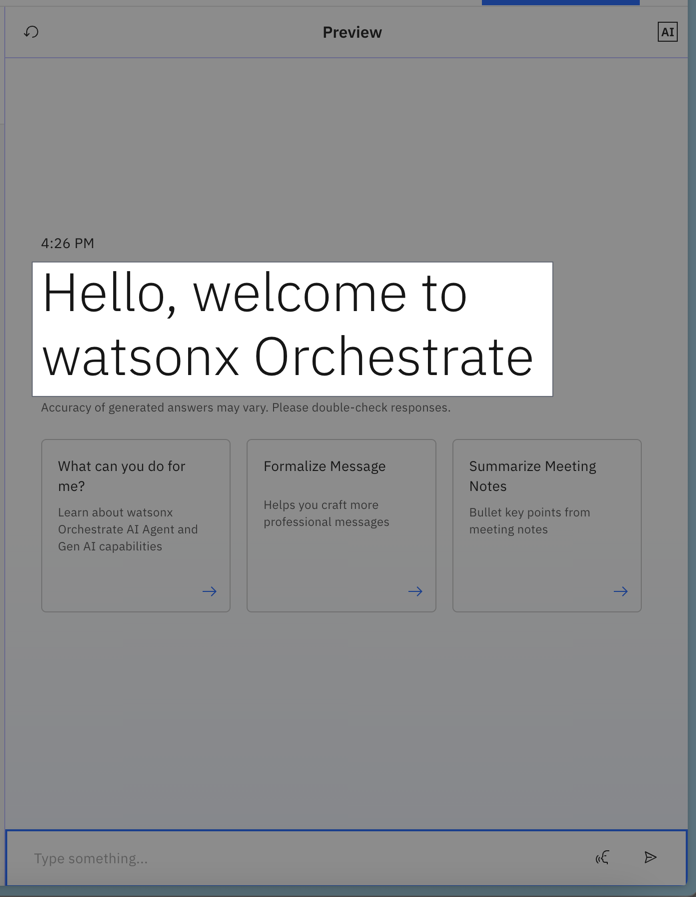 The welcome message is the first thing users see when they start interacting with your agent. Personalize this message to reflect your agent’s purpose. To configure it, define the `welcome_content` schema in your agent file:
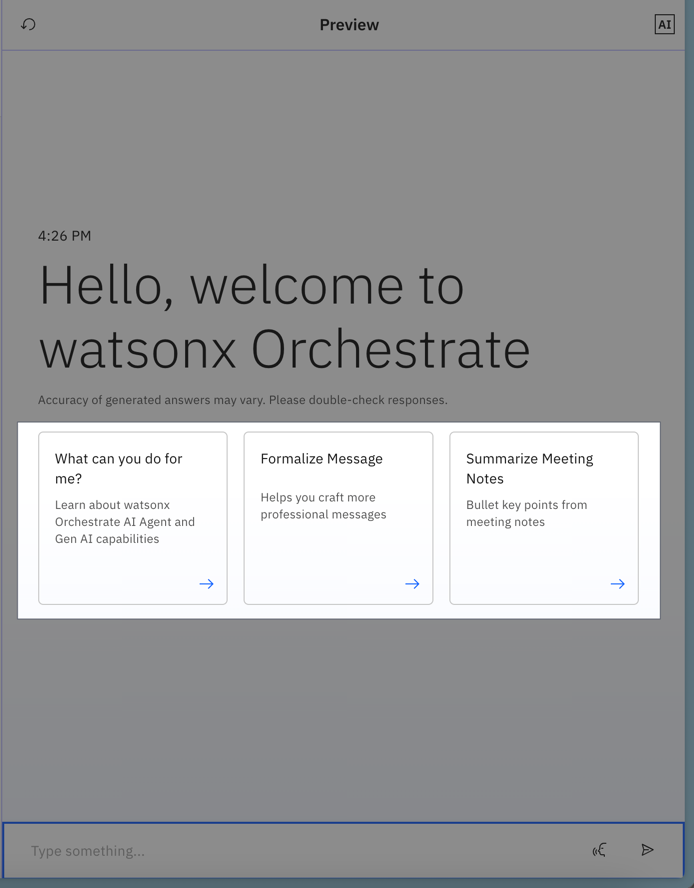 Starter prompts are predefined messages that help users start a conversation with your agent. Configure these prompts in the `starter_prompts` section of your agent file.
First, define whether these prompts are the default set. Then, for each prompt, specify these details:
Starter prompts are predefined messages that help users start a conversation with your agent. Configure these prompts in the `starter_prompts` section of your agent file.
First, define whether these prompts are the default set. Then, for each prompt, specify these details: