> ## Documentation Index
> Fetch the complete documentation index at: https://developer.watson-orchestrate.ibm.com/llms.txt
> Use this file to discover all available pages before exploring further.
# Getting started with the ADK
The Agent Development Kit (ADK) gives you a set of developer-focused tools to build, test, and manage agents in watsonx Orchestrate. With the ADK, you take full control of agent design using a lightweight framework and a simple CLI.
Define agents in clear YAML or JSON files, create custom Python tools, and manage the entire agent lifecycle with just a few commands.
This guide walks you through installing the ADK, setting up your local development environment, and deploying your first agent to a watsonx Orchestrate SaaS instance. Start building flexible, reusable AI agents right away.
## Before you begin
### Required software
Make sure you have **Python 3.11** or later installed on your system. To check your current Python version, open a terminal and run:
```bash theme={null}
python --version
```
If you have an older version of Python, you have a few options to install a newer Python version:
To install a newer version of Python on Windows, download the installer from the [official Python website](https://www.python.org/downloads/windows/) and run the setup. During installation, enable the option to **Add PYTHONPATH to the environment variables**. This step ensures you can use the latest Python version directly from your terminal.
The installer also includes the **pip** package manager, so you don’t need to install it separately.
As an alternative, use a Python version manager like [**uv**](https://docs.astral.sh/uv/guides/install-python/) or [**pyenv**](https://github.com/pyenv/pyenv) to install and manage multiple Python versions on your system.
Most Linux distributions include Python by default. If your version is older than 3.11, check your distribution’s package repositories for newer versions:
```bash Ubuntu theme={null}
sudo apt-get update -y
sudo apt-get install -y python3 python3-pip
```
```bash Fedora theme={null}
sudo dnf update -y
sudo dnf install -y python3 python3-pip
```
```bash Arch Linux theme={null}
sudo pacman -Syu
sudo pacman -S python python-pip
```
If your distribution does not include newer packages, you can use [**pyenv**](https://github.com/pyenv/pyenv) or [**uv**](https://docs.astral.sh/uv/guides/install-python/) to install a newer version of Python:
1. Install uv with the following command:
```bash theme={null}
curl -LsSf https://astral.sh/uv/install.sh | sh
```
2. Verify that uv is installed:
```bash theme={null}
uv --version
```
3. Install Python 3.11 with the following command:
```bash theme={null}
uv python install 3.11
```
4. And verify that Python 3.11 is installed:
```bash theme={null}
uv python list
```
5. Close your terminal and open it again to reload the `PATH` environment variable. Then run the following command to check your current Python version:
```bash theme={null}
python --version
```
1. [Install all of the distribution's dependencies before you install pyenv](https://github.com/pyenv/pyenv/wiki#suggested-build-environment).
2. Install pyenv:
```bash theme={null}
curl -fsSL https://pyenv.run | bash
```
3. Add this to your `~/.bashrc`:
```bash theme={null}
echo 'export PYENV_ROOT="$HOME/.pyenv"' >> ~/.bashrc
echo '[[ -d $PYENV_ROOT/bin ]] && export PATH="$PYENV_ROOT/bin:$PATH"' >> ~/.bashrc
echo 'eval "$(pyenv init - bash)"' >> ~/.bashrc
```
4. Run this code to add `pyenv` to your `~/.profile`. If you don't have a `~/.profile`, create one:
```bash theme={null}
echo 'export PYENV_ROOT="$HOME/.pyenv"' >> ~/.profile
echo '[[ -d $PYENV_ROOT/bin ]] && export PATH="$PYENV_ROOT/bin:$PATH"' >> ~/.profile
echo 'eval "$(pyenv init - bash)"' >> ~/.profile
```
If you have a `~/.bash_profile` instead, you must run the following code to add `pyenv` to your `.bash_profile` file:
```bash theme={null}
echo 'export PYENV_ROOT="$HOME/.pyenv"' >> ~/.bash_profile
echo '[[ -d $PYENV_ROOT/bin ]] && export PATH="$PYENV_ROOT/bin:$PATH"' >> ~/.bash_profile
echo 'eval "$(pyenv init - bash)"' >> ~/.bash_profile
```
If you don't use `bash`, check out alternative setups in the [pyenv documentation](https://github.com/pyenv/pyenv?tab=readme-ov-file#b-set-up-your-shell-environment-for-pyenv).
5. Restart your shell:
```bash theme={null}
exec "$SHELL"
```
6. Check if pyenv was successfully installed:
```bash theme={null}
pyenv --help
```
7. Install Python 3.11 and make it the global version:
```bash theme={null}
pyenv install 3.11
pyenv global 3.11
```
Python usually comes pre-installed on macOS. If your version is older than 3.11, install a newer version using [**Homebew**](https://brew.sh/).
To install Homebrew, run the following command:
```bash theme={null}
/bin/bash -c "$(curl -fsSL https://raw.githubusercontent.com/Homebrew/install/HEAD/install.sh)"
```
And then install Python by running:
```bash theme={null}
brew install python@3.11
```
This installation also comes with the **pip** package manager, so you don't have to install it yourself.
Alternatively, you can use a Python version manager such as [**uv**](https://docs.astral.sh/uv/guides/install-python/) or [**pyenv**](https://github.com/pyenv/pyenv) to install different Python versions in your system.
### watsonx Orchestrate account
* To use the ADK, you must connect it to an existing watsonx Orchestrate environment. If you don't have a watsonx Orchestrate account, you can [sign up for a free 30-day trial](https://www.ibm.com/account/reg/us-en/signup?formid=urx-52753).
* If you already have a watsonx Orchestrate account, you can use your existing account to provide an environment to use with the ADK.
## Setting up and installing the ADK
Use the following command to install the ADK with pip:
```bash BASH theme={null}
pip install --upgrade ibm-watsonx-orchestrate
```
You can optionally use a **virtual environment** (venv) or a version manager like **uv** to control the packages you install. This setup makes it easier to share and distribute your agents and tools with others.
To learn how to install the ADK in these situations, see the following steps:
Install the ADK on your system with the following command:
```bash theme={null}
pip install --upgrade ibm-watsonx-orchestrate
```
1. Create your virtual environment:
```bash BASH theme={null}
python -m venv .venv
```
2. Activate your virtual environment:
```bash macOS & Linux theme={null}
source ./.venv/bin/activate
```
```powershell Windows theme={null}
.\.venv\Scripts\activate
```
3. Install the ADK with the following command:
```bash theme={null}
pip install ibm-watsonx-orchestrate
```
**uv** is a new Python package and environment manager written in Rust that replaces many common tools such as **pip**, **pip-tools**, **pipx**, **poetry**, **pyenv**, **twine**, **virtualenv** in a single tool.
1. After you [install uv](https://docs.astral.sh/uv/getting-started/installation/#standalone-installer), initialize your project with the following command:
```bash theme={null}
uv init
```
2. Add the ADK to your list of dependencies:
```bash theme={null}
uv add ibm-watsonx-orchestrate
```
3. Activate your virtual environment:
```bash macOS & Linux theme={null}
source ./.venv/bin/activate
```
```powershell Windows theme={null}
.\venv\Scripts\activate.ps1
```
Configure your watsonx Orchestrate environment in the ADK. Use this environment to create your agents.
In this step, you need access to specific credentials for your environment. If you don't know the type of environment you have, see [Logging in to IBM watsonx Orchestrate](https://www.ibm.com/docs/en/watsonx/watson-orchestrate/base?topic=orchestrate-logging-in-watsonx).
To connect to IBM Cloud, you need both the **service instance URL** and an **API key** of your watsonx Orchestrate instance.
Don't use the credentials that you get from the IBM Cloud resources page. Use the following procedure to get the appropriate API key and service instance URL.
Log in to your watsonx Orchestrate instance.
Click your user icon on the top right and click **Settings**.
 Go to the **API details** tab.
Copy the service instance URL.
Click the **Generate API key** button.
Go to the **API details** tab.
Copy the service instance URL.
Click the **Generate API key** button.
 The page redirects you to the IBM Cloud Identity Access Management center. Click **Create** to create a new API Key.
 Enter a name and a description for your API Key.
 Copy the API key and store it in a safe vault.
 Add and activate your environment with the ADK CLI:
```bash BASH theme={null}
orchestrate env add -n -u --type ibm_iam --activate
```
**Note:**
You can set any name you prefer for the environment.
For more information, see [Configuring your environments](https://developer.watson-orchestrate.ibm.com/environment/initiate_environment).
To connect to an instance hosted on AWS, follow these steps:
Log in to your watsonx Orchestrate instance.
Click your user icon on the top right and click **Settings**.
Add and activate your environment with the ADK CLI:
```bash BASH theme={null}
orchestrate env add -n -u --type ibm_iam --activate
```
**Note:**
You can set any name you prefer for the environment.
For more information, see [Configuring your environments](https://developer.watson-orchestrate.ibm.com/environment/initiate_environment).
To connect to an instance hosted on AWS, follow these steps:
Log in to your watsonx Orchestrate instance.
Click your user icon on the top right and click **Settings**.
 Go to the **API details** tab.
Copy the service instance URL.
Click the **Generate API key** button and copy the key.
Go to the **API details** tab.
Copy the service instance URL.
Click the **Generate API key** button and copy the key.
 * API keys are not retrievable and can't be edited or deleted. Make sure to store your API keys in a safe location after you generate a new API key.
* You are limited to 10 API keys in this environment. If you have no more available keys, contact [IBM Support](https://ibm.com/mysupport) for further assistance.
Add and activate your environment with the ADK CLI:
```bash BASH theme={null}
orchestrate env add -n -u --type mcsp --activate
```
**Note:**
You can set any name you prefer for the environment.
For more information, see [Configuring your environments](https://developer.watson-orchestrate.ibm.com/environment/initiate_environment).
For on-premises environments, you can authenticate using one of two methods:
* **API Key**
Use the API key that authenticates your user in the on-premises watsonx Orchestrate environment.
* **Username** and **Password**
Use your username and password credentials to authenticate in the on-premises watsonx Orchestrate environment.
**Note:**
You can only use one authentication method at a time. If you try to authenticate using both methods simultaneously, an authentication error occurs.
To add your environment, run the following.
```bash BASH theme={null}
orchestrate env add -n -u
```
**Note:**
You can set any name you prefer for the environment.
In the rare case when the watsonx Orchestrate ADK does not automatically infer the correct authentication type for
your url please add the following to the `orchestrate env add` command:
* IBM Cloud: `--type ibm_iam`
* AWS: `--type mcsp`
* On-premises: `--type cpd`
Run the following command to activate the environment you created:
```bash theme={null}
orchestrate env activate
```
If you need to change your environment, see [Configuring your environments](../environment/initiate_environment).
**Note:**
You can also activate a local development environment. This environment is provided by the **watsonx Orchestrate Developer Edition**, a stripped-down version of watsonx Orchestrate that runs under a Docker container to be used as a development server. To learn more about it, see [watsonx Orchestrate Developer Edition](../developer_edition/wxOde_overview).
## Creating your first agent
With your ADK connected to your watsonx Orchestrate instance, you're ready to test your setup by publishing a simple agent.
In watsonx Orchestrate, you define agents using YAML or JSON files. The agent specification file includes key details like the agent’s name, kind, instructions for the LLM, and the tools it can use.
When you build agents with the ADK, you write this specification yourself. This approach gives you full control over your agent’s behavior and capabilities. You can create advanced agents with custom tools, collaborators, or integrations. For now, start with a minimal Hello World agent to verify your setup.
As a Python project, it's a good practice to create a folder that stores your agents, tools, and other resources.
**Example of folder structure:**
```
.
└── adk-project/
├── agents/
├── tools/
├── knowledge/
├── flows/
└── ...
```
```bash macOS & Linux theme={null}
mkdir -p adk-project/{agents,tools,knowledge,flows}
```
```powershell Windows theme={null}
$folders = "agents", "tools", "knowledge", "flows"
New-Item -Path "adk-project" -ItemType Directory
foreach ($folder in $folders) {
New-Item -Path "adk-project\$folder" -ItemType Directory
}
```
Start by creating the YAML file for the agent and name the file as `hello-world-agent.yaml`. Open the created file with the text editor of your choice, then copy and paste the following code.
```yaml hello-world-agent.yaml [expandable] theme={null}
spec_version: v1
kind: native
name: Hello_World_Agent
description: A simple Hello World agent
instructions: "You are a test agent created for a tutorial on how to get started with watsonx Orchestrate ADK. When the user asks 'who are you', respond with: I'm the Hello World Agent. Congratulations on completing the Getting Started with watsonx Orchestrate ADK tutorial!"
llm: groq/openai/gpt-oss-120b
style: default
collaborators: []
tools: []
```
And save the file in the `agents` folder.
Open your terminal and navigate to the folder where you created the YAML file. Then run the following command to publish your agent:
```bash theme={null}
orchestrate agents import -f hello-world-agent.yaml
```
If the import is successful, you get the following confirmation message:
```bash theme={null}
[INFO] - Agent 'Hello World Agent' imported successfully
```
Log in to your watsonx Orchestrate instance and open the **Agent Builder**:
* API keys are not retrievable and can't be edited or deleted. Make sure to store your API keys in a safe location after you generate a new API key.
* You are limited to 10 API keys in this environment. If you have no more available keys, contact [IBM Support](https://ibm.com/mysupport) for further assistance.
Add and activate your environment with the ADK CLI:
```bash BASH theme={null}
orchestrate env add -n -u --type mcsp --activate
```
**Note:**
You can set any name you prefer for the environment.
For more information, see [Configuring your environments](https://developer.watson-orchestrate.ibm.com/environment/initiate_environment).
For on-premises environments, you can authenticate using one of two methods:
* **API Key**
Use the API key that authenticates your user in the on-premises watsonx Orchestrate environment.
* **Username** and **Password**
Use your username and password credentials to authenticate in the on-premises watsonx Orchestrate environment.
**Note:**
You can only use one authentication method at a time. If you try to authenticate using both methods simultaneously, an authentication error occurs.
To add your environment, run the following.
```bash BASH theme={null}
orchestrate env add -n -u
```
**Note:**
You can set any name you prefer for the environment.
In the rare case when the watsonx Orchestrate ADK does not automatically infer the correct authentication type for
your url please add the following to the `orchestrate env add` command:
* IBM Cloud: `--type ibm_iam`
* AWS: `--type mcsp`
* On-premises: `--type cpd`
Run the following command to activate the environment you created:
```bash theme={null}
orchestrate env activate
```
If you need to change your environment, see [Configuring your environments](../environment/initiate_environment).
**Note:**
You can also activate a local development environment. This environment is provided by the **watsonx Orchestrate Developer Edition**, a stripped-down version of watsonx Orchestrate that runs under a Docker container to be used as a development server. To learn more about it, see [watsonx Orchestrate Developer Edition](../developer_edition/wxOde_overview).
## Creating your first agent
With your ADK connected to your watsonx Orchestrate instance, you're ready to test your setup by publishing a simple agent.
In watsonx Orchestrate, you define agents using YAML or JSON files. The agent specification file includes key details like the agent’s name, kind, instructions for the LLM, and the tools it can use.
When you build agents with the ADK, you write this specification yourself. This approach gives you full control over your agent’s behavior and capabilities. You can create advanced agents with custom tools, collaborators, or integrations. For now, start with a minimal Hello World agent to verify your setup.
As a Python project, it's a good practice to create a folder that stores your agents, tools, and other resources.
**Example of folder structure:**
```
.
└── adk-project/
├── agents/
├── tools/
├── knowledge/
├── flows/
└── ...
```
```bash macOS & Linux theme={null}
mkdir -p adk-project/{agents,tools,knowledge,flows}
```
```powershell Windows theme={null}
$folders = "agents", "tools", "knowledge", "flows"
New-Item -Path "adk-project" -ItemType Directory
foreach ($folder in $folders) {
New-Item -Path "adk-project\$folder" -ItemType Directory
}
```
Start by creating the YAML file for the agent and name the file as `hello-world-agent.yaml`. Open the created file with the text editor of your choice, then copy and paste the following code.
```yaml hello-world-agent.yaml [expandable] theme={null}
spec_version: v1
kind: native
name: Hello_World_Agent
description: A simple Hello World agent
instructions: "You are a test agent created for a tutorial on how to get started with watsonx Orchestrate ADK. When the user asks 'who are you', respond with: I'm the Hello World Agent. Congratulations on completing the Getting Started with watsonx Orchestrate ADK tutorial!"
llm: groq/openai/gpt-oss-120b
style: default
collaborators: []
tools: []
```
And save the file in the `agents` folder.
Open your terminal and navigate to the folder where you created the YAML file. Then run the following command to publish your agent:
```bash theme={null}
orchestrate agents import -f hello-world-agent.yaml
```
If the import is successful, you get the following confirmation message:
```bash theme={null}
[INFO] - Agent 'Hello World Agent' imported successfully
```
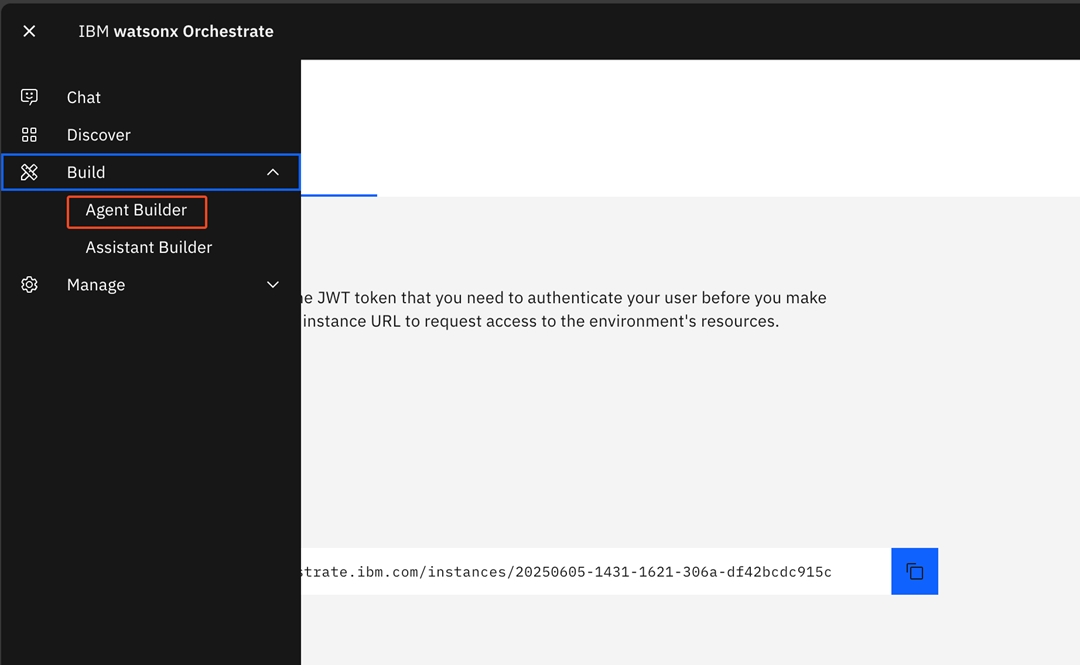
Log in to your watsonx Orchestrate instance and open the **Agent Builder**:
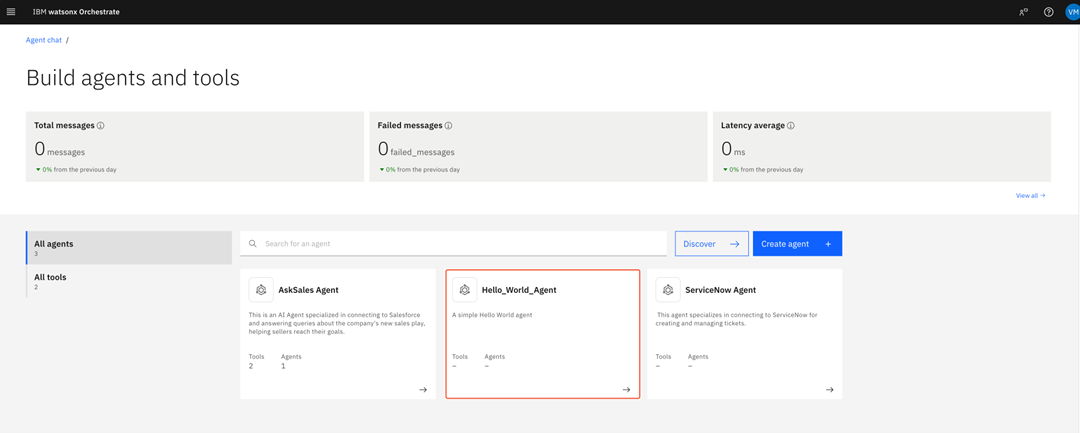
 In the **Build agents and tools** page, select the **Hello\_World\_Agent**.
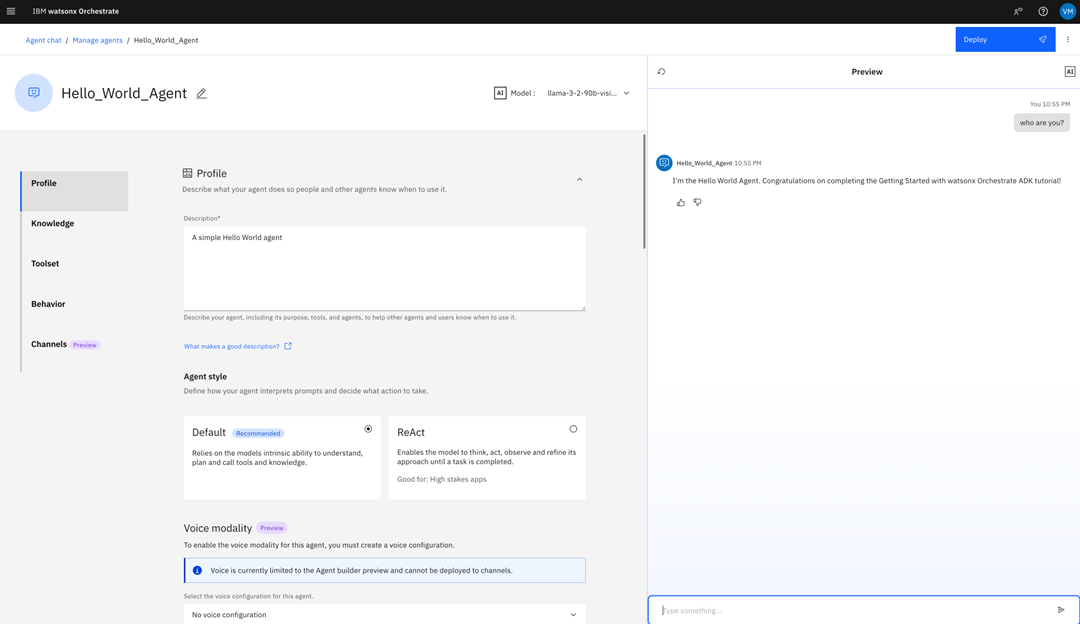
 In this page, you can customize your agent's behavior. Use the test chat to test your agent.
 ## What's next?
You have now created your first agent with the ADK and successfully imported it into your watsonx Orchestrate instance.
To extend your agent's behavior, you can use [**tools**](../tools/overview), [**knowledge bases**](../knowledge_base/overview) and [**agentic workflows**](../tools/flows/overview). To connect to services, you must create [**Connections**](../connections/overview) to safely store credentials and sensitive data. You can also change the agent's [**large language model**](../llm/managing_llm) and [**style**](../agents/overview) by changing the [**agent specification**](../agents/build_agent), and you can test and evaluate the agent with the [**Evaluation Framework**](../evaluate/overview).
See the following cards to learn more about what you can do with the ADK:
Learn more about what you can do with agents, how you can change your agent style and how to customize your agent's large language model.
Learn how to change your watsonx Orchestrate environments to import your agents developed with the ADK.
Learn more about how to use tools to extend your agent's capabilities and how to integrate with external services.
Learn more about how to safely store credentials and connect to external services.
Learn how to use knowledge bases to provide more accurate responses and improve your agent's knowledge in specific situations.
Assess your agent's behavior by comparing simulated agent interactions with a predefined set of reference data.
## What's next?
You have now created your first agent with the ADK and successfully imported it into your watsonx Orchestrate instance.
To extend your agent's behavior, you can use [**tools**](../tools/overview), [**knowledge bases**](../knowledge_base/overview) and [**agentic workflows**](../tools/flows/overview). To connect to services, you must create [**Connections**](../connections/overview) to safely store credentials and sensitive data. You can also change the agent's [**large language model**](../llm/managing_llm) and [**style**](../agents/overview) by changing the [**agent specification**](../agents/build_agent), and you can test and evaluate the agent with the [**Evaluation Framework**](../evaluate/overview).
See the following cards to learn more about what you can do with the ADK:
Learn more about what you can do with agents, how you can change your agent style and how to customize your agent's large language model.
Learn how to change your watsonx Orchestrate environments to import your agents developed with the ADK.
Learn more about how to use tools to extend your agent's capabilities and how to integrate with external services.
Learn more about how to safely store credentials and connect to external services.
Learn how to use knowledge bases to provide more accurate responses and improve your agent's knowledge in specific situations.
Assess your agent's behavior by comparing simulated agent interactions with a predefined set of reference data.