> ## Documentation Index
> Fetch the complete documentation index at: https://developer.watson-orchestrate.ibm.com/llms.txt
> Use this file to discover all available pages before exploring further.
# Authoring agents
With the ADK, you can create native agents, external agents, and external watsonx Assistants agents. Each of these agent types requires its own set of configurations.
Use YAML, JSON, or Python files to create your agents for watsonx Orchestrate.
## Native Agents
Native agents are developed and imported into the **watsonx Orchestrate** platform. Each agent is composed of several key components:
The large language model (LLM) that powers the agent's ability to understand and respond to user queries.
Defines the prompting structure that the agent uses. This determines how the LLM interprets and responds to instructions. For more information, see [Agent styles](#agent-styles).
Defines whether the agent's reasoning appears to the end user. When set to `True`, the agent hides its reasoning from the user. When set to `False`, the agent displays its reasoning. The default value is `False`.
Natural language guidance that is provided to the LLM. These instructions shape the agent's behavior, such as adopting a specific persona (for example, a customer service representative) and explaining how to use tools and collaborators to solve tasks. For more information, see [Writing instructions for agents](../getting_started/guidelines#writing-instructions-for-agents).
Extend the LLM's capabilities by enabling access to external functions and services. Examples include:
* OpenAPI definitions for external APIs
* Python functions for scripting more complex interactions with external systems
* Agentic workflows that orchestrate complex operations across multiple tools and agents
* Toolkit-exposed tools such as an MCP server
Other agents that this agent can interact with to solve more complex problems. Collaborators might be native watsonx Orchestrate agents, external agents, or watsonx Assistants. To learn how to connect external agents, see [Connect to external agents](/agents/connect_agent).
A human-readable summary of the agent's purpose, visible in the Manage Agents UI. It also helps other agents understand its role when used as a collaborator. Note: The description does not influence how the agent responds unless it is invoked as a collaborator. For guidance, see [Writing descriptions for agents](../getting_started/guidelines#writing-descriptions-for-agents).
Represents domain-specific knowledge that is acquired by the LLM from uploaded files or connected vector data stores.
Specifies whether the Agent remains editable after import. This field accepts one of the following options:
* `editable`
Sets the Agent as editable. This is the default value.
* `non_editable`
Sets the Agent as non-editable and prevents it from being exported.
```yaml YAML theme={null}
spec_version: v1
kind: native
name: agent_name
llm: watsonx/ibm/granite-3-8b-instruct # watsonx Orchestrate (watsonx) model provider followed by the model id: ibm/granite-3-8b-instruct
style: default
hide_reasoning: False
description: |
A description of what the agent should be used for when used as a collaborator.
instructions: |
These instructions control the behavior of the agent and provide
context for how to use its tools and agents.
collaborators:
- name_of_collaborator_agent_1
- name_of_collaborator_agent_2
tools:
- name_of_tool_1
- name_of_tool_2
knowledge_base:
- name_of_knowledge_base
restrictions: editable
```
```json JSON theme={null}
{
"spec_version": "v1",
"kind": "native",
"name": "test_native_agent",
"llm": "test_llm",
"style": "default",
"hide_reasoning": "False"
"description": "A description of what the agent should be used for when used as a collaborator.",
"instructions": "These instructions control the behavior of the agent and provide context for how to use its tools and agents.",
"collaborators": [
"name_of_collaborator_agent_1",
"name_of_collaborator_agent_2"
],
"tools": [
"name_of_tool_1",
"name_of_tool_2"
],
"knowledge_base": [
"name_of_knowledge_base"
],
"restrictions": "editable"
}
```
```python Python theme={null}
from ibm_watsonx_orchestrate.agent_builder.agents import Agent, AgentKind, AgentStyle
name_of_collaborator_agent_1 = Agent(
# omitted for brevity
)
@tool
def name_of_tool_1(input: str) -> str:
"""Returns the string output.
Args:
input (str): The input string.
Returns:
str: The string output.
"""
return 'output'
my_agent = Agent(
name="test_native_agent"
kind=AgentKind.NATIVE,
llm=DEFAULT_LLM,
style=AgentStyle.DEFAULT,
hide_reasoning=False,
description="A description of what the should be used for when used as a collaborator.",
instructions="These instructions control the behavior of the agent and provide context for how to use its tools and agents.",
collaborators=[
name_of_collaborator_agent_1, # collaborators can given by reference or by string name
"name_of_collaborator_agent_2",
],
tools=[
name_of_tool_1 # tools can be given by reference of string name
"name_of_tool_2",
],
restrictions=AgentRestrictionType.EDITABLE
)
```
## Additional features of native agents
Customize your agent by configuring additional features to better match your specific needs.
### Web chat configuration
Use web chat configurations to customize how your agent behaves in the web chat UI. Set up a [welcome message](#welcome-message) and [starter prompts](#starter-prompts) to guide users from the start.
#### Welcome message
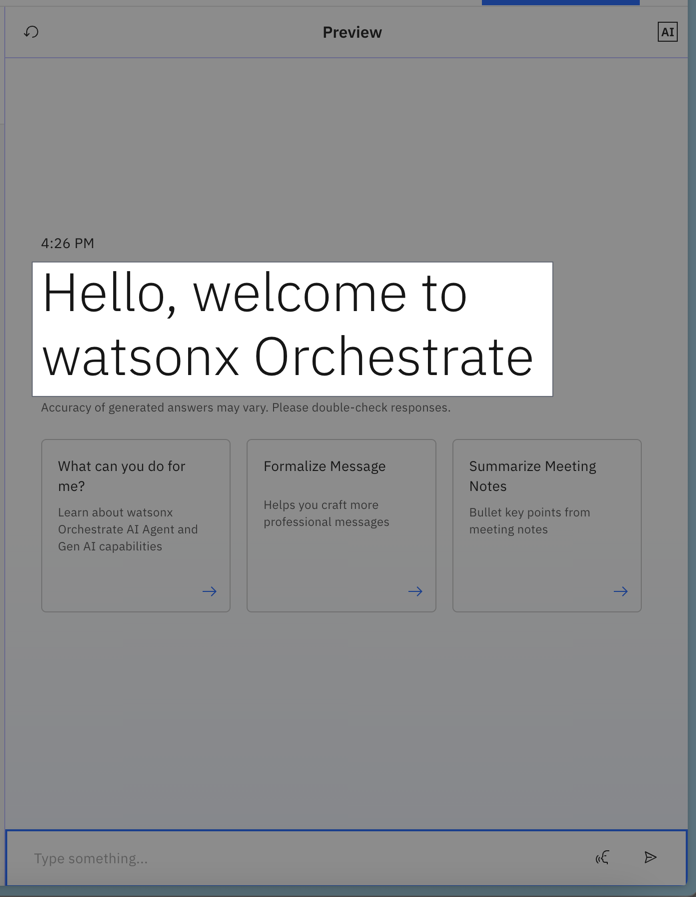 The welcome message is the first message users see when they start interacting with your agent. You can personalize this message to match your agent’s purpose. To configure it, define the `welcome_content` schema in your agent file by using the following:
**Example:**
```yaml YAML [expandable] theme={null}
spec_version: v1
style: react
name: service_now_agent
llm: groq/openai/gpt-oss-120b
description: 'Agent description'
instructions: ''
collaborators: []
tools: []
hidden: false
welcome_content:
welcome_message: "Hello, I'm Agent. Welcome to watsonx Orchestrate!"
description: "How can I help you today?"
```
```json JSON [expandable] theme={null}
{
"spec_version": "v1",
"style": "react",
"name": "service_now_agent",
"llm": "groq/openai/gpt-oss-120b",
"description": "Agent description",
"instructions": "",
"collaborators": [],
"tools": [],
"hidden": false,
"welcome_content": {
"welcome_message": "Hello, I'm Agent. Welcome to watsonx Orchestrate!",
"description": "How can I help you today?"
}
}
```
The configuration for the welcome content
The contents of the message to show to the user.
The light gray text below the welcome message.
#### Starter prompts
The welcome message is the first message users see when they start interacting with your agent. You can personalize this message to match your agent’s purpose. To configure it, define the `welcome_content` schema in your agent file by using the following:
**Example:**
```yaml YAML [expandable] theme={null}
spec_version: v1
style: react
name: service_now_agent
llm: groq/openai/gpt-oss-120b
description: 'Agent description'
instructions: ''
collaborators: []
tools: []
hidden: false
welcome_content:
welcome_message: "Hello, I'm Agent. Welcome to watsonx Orchestrate!"
description: "How can I help you today?"
```
```json JSON [expandable] theme={null}
{
"spec_version": "v1",
"style": "react",
"name": "service_now_agent",
"llm": "groq/openai/gpt-oss-120b",
"description": "Agent description",
"instructions": "",
"collaborators": [],
"tools": [],
"hidden": false,
"welcome_content": {
"welcome_message": "Hello, I'm Agent. Welcome to watsonx Orchestrate!",
"description": "How can I help you today?"
}
}
```
The configuration for the welcome content
The contents of the message to show to the user.
The light gray text below the welcome message.
#### Starter prompts
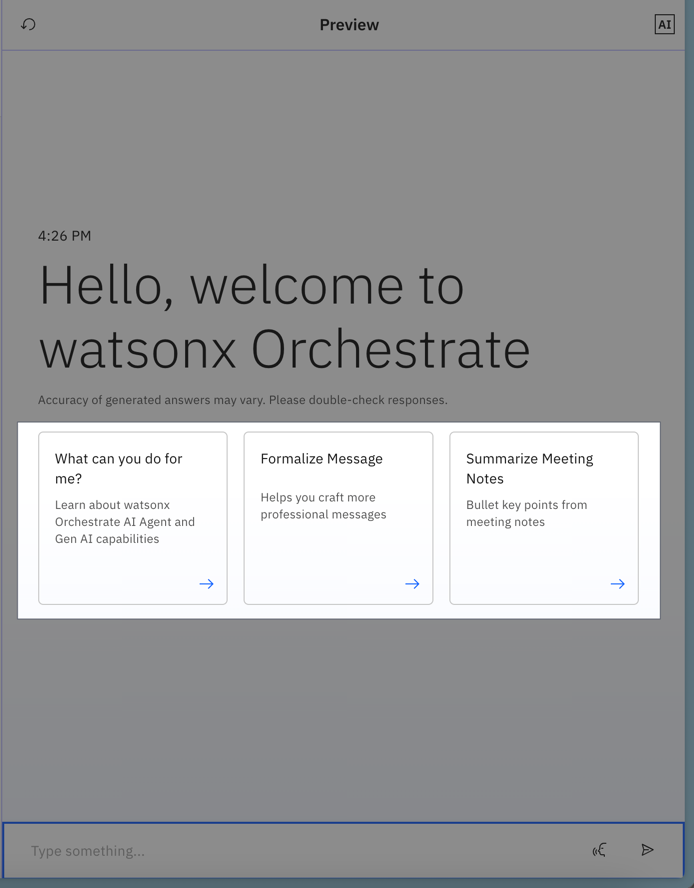 Starter prompts are predefined messages that help users begin a conversation with your agent. You can configure these prompts in the `starter_prompts` section of your agent file.
Start by defining whether these prompts are the default set. Then, for each prompt, configure the following:
**Example:**
```yaml YAML [expandable] theme={null}
spec_version: v1
style: react
name: service_now_agent
llm: groq/openai/gpt-oss-120b
description: 'Agent description'
instructions: ''
collaborators: []
tools: []
hidden: false
starter_prompts:
prompts:
- id: "hello1"
title: "Hello1"
subtitle: ""
prompt: "This is the messages for Hello prompt"
```
```json JSON [expandable] theme={null}
{
"spec_version": "v1",
"style": "react",
"name": "service_now_agent",
"llm": "groq/openai/gpt-oss-120b",
"description": "Agent description",
"instructions": "",
"collaborators": [],
"tools": [],
"hidden": false,
"starter_prompts": {
"prompts": [
{
"id": "hello1",
"title": "Hello1",
"subtitle": "",
"prompt": "This is the messages for Hello prompt"
}
]
}
}
```
Configuration for starter prompts that are displayed to the user.
A list of starter prompt tiles that are shown to the user. You can define up to three tiles.
The unique ID of the tile. It is auto-generated if not provided.
The bold title text displayed at the top of the starter prompt tile.
The light gray text below the title.
The text is sent to the agent as if entered by the user when the tile is clicked.
### Agent styles
Agent styles dictate how the agents follow instructions and the way that the agents behave. Currently, you can choose from three available styles:
* [Default (`default`)](#default-style)
* [ReAct (`react`)](#react-style)
* [Plan-Act (`planner`)](#plan-act-style).
#### Default style
The **Default** (`default`) style is a streamlined, tool-centric reasoning mode ideal for straightforward tasks. It relies on the LLM's prompt-driven decision-making to decide which tool to use, how to use it, and when to respond. This style is excellent when the logic is mostly linear, like retrieving a report or checking a ticket, because the agent uses the LLM's intrinsic capabilities to orchestrate tool calls on the fly.
It is ideal for:
* Single-step or lightly sequential tasks
* Scenarios where flexibility and adaptability are needed
* Tasks that might require multiple tools but don't need strict sequencing
**Behavior**
* Iteratively prompts the LLM to:
* Identify which tool or collaborator agent to invoke
* Determine what inputs to use
* Decide whether to call more tools or finalize a response
* Continues the prompting loop as needed until it gathers sufficient context for a final answer.
**Tool Compatibility**
* Python tools
* OpenAPI tools
* MCP tools
**Example use cases:**
* Extract information from the web or from a system
* Check the status of a task or ticket
* Perform tasks that require well-defined steps
#### ReAct style
The **ReAct** (`react`) style (Reasoning and Acting) is an iterative loop where the agent thinks, acts, and observes continuously. It is designed for complex or ambiguous problems where each outcome influences the next action. Inspired by the [ReAct methodology](https://arxiv.org/abs/2210.03629), this pattern surfaces the agent's [chain of thought](https://www.ibm.com/think/topics/chain-of-thoughts), supporting validation, step-by-step reasoning, and interactive confirmation.
A ReAct agent breaks the task into smaller parts, and starts reasoning through each step before taking an action and deciding on which tools to use. The agent then adjusts its actions based on what it learns along the way, and it might ask the user for confirmation to continue working on the given task.
It is ideal for:
* Exploratory or research-intensive tasks
* Scenarios requiring iterative validation or hypothesis testing
* Tasks with unclear or evolving requirements
* Situations where transparent reasoning and reflection are valuable
**Behavior**
* **Think**: Assess the user's request and decide on a tool, collaborator, or reasoning step.
* **Act**: Execute the tool or collaborator.
* **Observe**: Evaluate the outcome and adjust reasoning.
* Repeat until the goal is achieved.
**Tool Compatibility**
* Knowledge-intensive tools
* Data-intensive tools
* Collaborator agents
**Example use cases**
* Coding an application or tool by generating code snippets or refactoring existing code
* Answering complex questions by searching the web, synthesizing information, and citing sources
* Handling support tickets that require complex interactions with users
#### Plan-Act style
The **Plan-Act** (`planner`) style agent emphasizes upfront planning followed by stepwise execution. Initially, the agent uses the LLM to create a structured action plan, a sequence of tasks to execute, with all the tools and collaborator agents to invoke. Once the plan is in place, it carries out each step in order. This approach supports dynamic replanning if unexpected changes occur, leveraging the agent's oversight over multi-step workflows.
A `planner` style agent is capable of customizing the response output.
By default, the `planner` style generates a summary of the tasks planned and executed by the planner agent if you don't provide a custom response output.
It is ideal for:
* Multi-step, structured workflows
* Business processes needing transparency and traceability
* Automations involving multiple domains or collaborator agents
**Tool Compatibility**
* Python tools
* OpenAPI tools
* MCP tools
* Collaborator agents
**Example use cases:**
* Creating structured reports
* Agents that use multiple tools (for example, search, calculator, code execution) and need to combine results
* Drafting contracts, policies, or compliance checklists
##### Customizing the response output with the Plan-Act agent
To customize the output, you can define either a `structured_output` field or a `custom_join_tool` field, as follows:
`structured_output` and `custom_join_tool` are mutually exclusive. If you provide one of them, do not provide the other.
```yaml structured_output.yaml [expandable] theme={null}
spec_version: v1
style: planner
structured_output: {type: "object", additionalProperties: false, properties: {}} # if no custom_join_tool is provided, provide a structured output
name: customer_care_agent
llm: groq/openai/gpt-oss-120b
description: |
You are an agent who specializes in customer care for a large healthcare institution. You should be compassionate
to the user. ...
collaborators:
- service_now_agent
tools:
- search_healthcare_providers
- get_healthcare_benefits
- get_my_claims
```
```yaml custom_join_tool.yaml [expandable] theme={null}
spec_version: v1
style: planner
custom_join_tool: my_join_tool # if no structured_output is provided, provide a custom_join_tool
name: customer_care_agent
llm: groq/openai/gpt-oss-120b
description: |
You are an agent who specializes in customer care for a large healthcare institution. You should be compassionate
to the user. ...
collaborators:
- service_now_agent
tools:
- search_healthcare_providers
- get_healthcare_benefits
- get_my_claims
```
The `structured_output` defines the schema of how the data should be returned from the agent.
The `custom_join_tool` is a normal Python tool that dictates how the output of the agent should look like, giving you total control of how the output looks instead of being generated by the LLM. You can see the following example of a `custom_join_tool`:
````python custom_join_tool.py [expandable] theme={null}
from typing import Dict, List, Any
from ibm_watsonx_orchestrate.agent_builder.tools import tool, ToolPermission
from ibm_watsonx_orchestrate.agent_builder.tools.types import PythonToolKind
@tool(permission=ToolPermission.READ_ONLY, kind=PythonToolKind.JOIN_TOOL)
def format_task_results(original_query: str, task_results: Dict[str, Any], messages: List[Dict[str, Any]]) -> str:
"""
Format the results from various tasks executed by a planner agent into a cohesive response.
Args:
original_query (str): The initial query submitted by the user.
task_results (Dict[str, Any]): A dictionary containing the outcomes of each task executed within the agent's plan.
messages (List[Dict[str, Any]]): The history of messages in the current conversation.
Returns:
str: A formatted string containing the consolidated results.
"""
# Create a summary header
output = f"## Results for: {original_query}\n\n"
# Add each task result in a structured format
for task_name, result in task_results.items():
output += f"### {task_name}\n"
# Handle different result types appropriately
if isinstance(result, dict):
# Pretty format dictionaries
output += "```json\n"
output += json.dumps(result, indent=2)
output += "\n```\n\n"
elif isinstance(result, list):
# Format lists as bullet points
output += "\n".join([f"- {item}" for item in result])
output += "\n\n"
else:
# Plain text for other types
output += f"{result}\n\n"
# Add a summary section
output += "## Summary\n"
output += f"Completed {len(task_results)} tasks related to your query about {original_query.lower()}.\n"
return output
````
### Guidelines
You can configure guidelines to control agent behavior. Guidelines are similar to instructions but more structured, providing stronger guarantees about how the agent responds. Use guidelines when you need predictable, rule-based behavior.
1. Each guideline follows the format:
**When** `condition` **then** `perform an action` **and/or** `invoke a tool`.
2. Only guidelines relevant to the current user utterance are included in the agent prompt. This reduces complexity for the LLM.
3. Guidelines execute in priority order, based on their position in the list.
4. Only guidelines whose condition is relevant to the current user utterance will be injected into the agent prompt, reducing the
complexity of the task posed to the LLM.
5. Guidelines are invoked in priority order (the order they are listed).
To set up guidelines, add a guidelines section and define each guideline with the following fields:
```yaml YAML [expandable] theme={null}
spec_version: v1
kind: native # Optional, Default=native, Valid options ['native', 'external', 'assistant']
name: finance_agent
style: default # Optional, Valid options ['default', 'react', 'planner']
llm: groq/openai/gpt-oss-120b
description: |
You are a helpful calculation agent that assists the user in performing math.
This includes performing mathematical operations and providing practical use cases for math in everyday life.
instructions: |
Always solve the mathematical equations using the correct order of operations (PEMDAS):
Parentheses
Exponents (including roots, powers, and so on)
Multiplication and Division (from left to right)
Addition and Subtraction (from left to right)
Make sure to include decimal points when the user's input includes a float.
guidelines:
- display_name: "User Dissatisfaction"
condition: "The Customer expresses dissatisfaction with the agents response."
action: "Acknowledge their frustration and ask for details about their experience so it can be addressed properly."
- display_name: "Joy check"
condition: "If the customer expresses joy or happiness about the response"
action: "Respond by making chicken noises like 'bock bock' and then take no further action"
- display_name: "Check user"
condition: "If the customer expresses the need to check a user in the system."
action: "Use the 'get_user' tool to check the user in the system"
tool: "get_user"
tools:
- get_user
collaborators: []
```
```json JSON [expandable] theme={null}
{
"spec_version": "v1",
"kind": "native",
"name": "finance_agent",
"style": "default",
"llm": "groq/openai/gpt-oss-120b",
"description": "You are a helpful calculation agent that assists the user in performing math. This includes performing mathematical operations and providing practical use cases for math in everyday life.",
"instructions": "Always solve the mathematical equations using the correct order of operations (PEMDAS):\n Parentheses\n Exponents (including roots, powers, etc.)\n Multiplication and Division (from left to right)\n Addition and Subtraction (from left to right)\n\nMake sure to include decimal points when the user's input includes a float.\n",
"guidelines": [
{
"display_name": "User Dissatisfaction",
"condition": "The Customer expresses dissatisfaction with the agents response.",
"action": "Acknowledge their frustration and ask for details about their experience so we it can be addressed properly."
},
{
"display_name": "Joy check",
"condition": "If the customer expresses joy or happiness about the response",
"action": "Respond by making chicken noises like 'bock bock' and then take no further action"
},
{
"display_name": "Check user",
"condition": "If the customer expresses the need to check a user in the system.",
"action": "Use the 'get_user' tool to check the user in the system",
"tool": "get_user"
}
],
"tools": [
"get_user"
],
"collaborators": []
}
```
A list of guidelines the agent should follow. Each guideline uses the format:
When `condition` then `perform an action` with `a tool`.
At least one of action or tool must be provided.
The name of the condition as shown in the UI. (No longer used.)
Free text describing the condition that must be met for this guideline to apply.
Free text describing what action should be performed by the agent when the condition is met.
The name of the tool to invoke when the condition is met, as listed by `orchestrate tools list`.
### Knowledge
Agent Knowledge allows you to provide information that the agent should inherently know and use to answer questions. This knowledge can come from documents you upload or from various data sources integrated with watsonx Orchestrate, such as Milvus, Elasticsearch, AstraDB, and others.
```yaml YAML [expandable] theme={null}
spec_version: v1
style: react
name: service_now_agent
llm: groq/openai/gpt-oss-120b
description: 'Agent description'
instructions: ''
collaborators: []
tools: []
knowledge_base:
- my_knowledge_base
```
```json JSON [expandable] theme={null}
{
"spec_version": "v1",
"style": "react",
"name": "service_now_agent",
"llm": "groq/openai/gpt-oss-120b",
"description": "Agent description",
"instructions": "",
"collaborators": [],
"tools": [],
"knowledge_base": ["my_knowledge_base"]
}
```
To learn more about setting up a knowledge base see the section on [Knowledge bases](/knowledge_base/overview).
### Chat with documents
In addition to **Knowledge**, builders can enable the **Chat with Documents** feature. This allows users to upload a document during a conversation and ask questions about its content—without permanently storing the document in watsonx Orchestrate. Unlike **Knowledge**, which persists documents, **Chat with Documents** handles them only for the duration of the session.
```yaml YAML [expandable] theme={null}
spec_version: v1
style: react
name: service_now_agent
llm: groq/openai/gpt-oss-120b
description: 'Agent description'
instructions: ''
collaborators: []
tools: []
chat_with_docs:
enabled: true
citations:
citations_shown: -1
generation:
idk_message: 'Your I don’t know message'
supports_full_document: true
```
```json JSON [expandable] theme={null}
{
"spec_version": "v1",
"style": "react",
"name": "service_now_agent",
"llm": "groq/openai/gpt-oss-120b",
"description": "Agent description",
"instructions": "",
"collaborators": [],
"tools": [],
"chat_with_docs": {
"enabled": true,
"citations": {
"citations_shown": -1
},
"generation": {
"idk_message": "Your I don’t know message"
},
"supports_full_document": true
}
}
```
Configuration block for the Chat with Documents feature.
Enables the Chat with Documents feature, allowing users to upload documents at run time.
Configures citation display settings.
The maximum number of citations to show (or -1 to show all).
Fine-tune how your agent uses chat with documents.
Defines the fallback message sent to the user when the chat with documents feature cannot provide an answer.
Enables the Agent to request full documents instead of performing a search when it determines that full documents provide better support for answering the query. This option improves performance for tasks where search is less effective, such as summarization, proofreading, and extracting key points. The default value is `True`.
**Note:**
When this feature is enabled, users can upload documents during chat interactions. The agent uses the file name to route prompts to the correct document, so ensure that uploaded file names are **unique and meaningful** to avoid confusion.
### Providing access to context variables
Context variables let builders inject user-specific identifiers, such as username, user ID, or tenant ID, from upstream systems into their agents. This enables personalized, context-aware interactions throughout the agent's execution.
Out of the box, the following variables are available to your agents:
* `wxo_email_id` - The email address used by the user that invoked the agent/tool
* `wxo_user_name` - The username of the user that invoked the agent/tool
* `wxo_tenant_id` - The wxo tenant id (unique wxo instance identifier) of the request
```yaml YAML [expandable] theme={null}
kind: native
name: context_variables_sample
display_name: Context Variables Agent
description: I'm able to deal with context variables
llm: groq/openai/gpt-oss-120b
style: react
instructions: |
You have access to additional information :
- wxo_email_id - {wxo_email_id}
- wxo_user_name - {wxo_user_name}
- wxo_tenant_id - {wxo_tenant_id}
Help users by returning the values to you so you can respond back to user with these values.
guidelines: []
collaborators: []
tools: []
knowledge_base: []
spec_version: v1
context_access_enabled: true
context_variables:
- wxo_email_id
- wxo_tenant_id
- wxo_user_name
```
```json JSON [expandable] theme={null}
{
"kind": "native",
"name": "context_variables_sample",
"display_name": "Context Variables Agent",
"description": "I'm able to deal with context variables",
"llm": "groq/openai/gpt-oss-120b",
"style": "react",
"instructions": "You have access to additional information :\n - wxo_email_id - {wxo_email_id} \n - wxo_user_name - {wxo_user_name} \n - wxo_tenant_id - {wxo_tenant_id} \nHelp users by returning the values to you so you can respond back to user with these values.\n",
"guidelines": [],
"collaborators": [],
"tools": [],
"knowledge_base": [],
"spec_version": "v1",
"context_access_enabled": true,
"context_variables": [
"wxo_email_id",
"wxo_tenant_id",
"wxo_user_name"
]
}
```
For [scheduled workflows](/tools/flows/scheduler), the email address and username will be that of the user who originally scheduled the workflow.
To **set** context variables, **pass a dictionary as the `context` within the request body (not context\_variables)** when using any of the following endpoints:
* [Runs API](/apis/orchestrate-agent/chat-with-orchestrate-assistant)
* [Chat Completions API](/apis/orchestrate-agent/chat-with-agents)
* [Streaming Chat Completions API](/apis/orchestrate-agent/chat-with-orchestrate-assistant-as-stream)
By default, agents invoked during a run **cannot access context variables**. To enable this, set the `context_access_enabled` field to `true`.
After enabling context access, you must specify the `context_variables` the agent will use. These variables define which contextual details, such as user identifiers or session data, are available during execution.
You can reference these variables in descriptions, guidelines, or instructions using curly braces (for example, `{my_context_variable}`), or pass them as arguments to a Python function. In the latter case, the agent runtime automatically fills the values without prompting the user.
```yaml YAML [expandable] theme={null}
spec_version: v1
style: react
name: service_now_agent
llm: groq/openai/gpt-oss-120b
description: 'Agent description'
instructions: |
You have access to clientID: {clientID}
collaborators: []
tools: []
context_access_enabled: true
context_variables:
- clientID
- channel # Use it to get access to channel integration (embedded chat)
```
```json JSON [expandable] theme={null}
{
"spec_version": "v1",
"style": "react",
"name": "service_now_agent",
"llm": "groq/openai/gpt-oss-120b",
"description": "Agent description",
"instructions": "You have access to clientID: {clientID}\n",
"collaborators": [],
"tools": [],
"context_access_enabled": true,
"context_variables": [
"clientID",
"channel" // Use it to get access to channel integration (embedded chat)
]
}
```
Whether this agent should have access to context variables set by the runs api.
The list of context\_variables this agent should have access to.
Starter prompts are predefined messages that help users begin a conversation with your agent. You can configure these prompts in the `starter_prompts` section of your agent file.
Start by defining whether these prompts are the default set. Then, for each prompt, configure the following:
**Example:**
```yaml YAML [expandable] theme={null}
spec_version: v1
style: react
name: service_now_agent
llm: groq/openai/gpt-oss-120b
description: 'Agent description'
instructions: ''
collaborators: []
tools: []
hidden: false
starter_prompts:
prompts:
- id: "hello1"
title: "Hello1"
subtitle: ""
prompt: "This is the messages for Hello prompt"
```
```json JSON [expandable] theme={null}
{
"spec_version": "v1",
"style": "react",
"name": "service_now_agent",
"llm": "groq/openai/gpt-oss-120b",
"description": "Agent description",
"instructions": "",
"collaborators": [],
"tools": [],
"hidden": false,
"starter_prompts": {
"prompts": [
{
"id": "hello1",
"title": "Hello1",
"subtitle": "",
"prompt": "This is the messages for Hello prompt"
}
]
}
}
```
Configuration for starter prompts that are displayed to the user.
A list of starter prompt tiles that are shown to the user. You can define up to three tiles.
The unique ID of the tile. It is auto-generated if not provided.
The bold title text displayed at the top of the starter prompt tile.
The light gray text below the title.
The text is sent to the agent as if entered by the user when the tile is clicked.
### Agent styles
Agent styles dictate how the agents follow instructions and the way that the agents behave. Currently, you can choose from three available styles:
* [Default (`default`)](#default-style)
* [ReAct (`react`)](#react-style)
* [Plan-Act (`planner`)](#plan-act-style).
#### Default style
The **Default** (`default`) style is a streamlined, tool-centric reasoning mode ideal for straightforward tasks. It relies on the LLM's prompt-driven decision-making to decide which tool to use, how to use it, and when to respond. This style is excellent when the logic is mostly linear, like retrieving a report or checking a ticket, because the agent uses the LLM's intrinsic capabilities to orchestrate tool calls on the fly.
It is ideal for:
* Single-step or lightly sequential tasks
* Scenarios where flexibility and adaptability are needed
* Tasks that might require multiple tools but don't need strict sequencing
**Behavior**
* Iteratively prompts the LLM to:
* Identify which tool or collaborator agent to invoke
* Determine what inputs to use
* Decide whether to call more tools or finalize a response
* Continues the prompting loop as needed until it gathers sufficient context for a final answer.
**Tool Compatibility**
* Python tools
* OpenAPI tools
* MCP tools
**Example use cases:**
* Extract information from the web or from a system
* Check the status of a task or ticket
* Perform tasks that require well-defined steps
#### ReAct style
The **ReAct** (`react`) style (Reasoning and Acting) is an iterative loop where the agent thinks, acts, and observes continuously. It is designed for complex or ambiguous problems where each outcome influences the next action. Inspired by the [ReAct methodology](https://arxiv.org/abs/2210.03629), this pattern surfaces the agent's [chain of thought](https://www.ibm.com/think/topics/chain-of-thoughts), supporting validation, step-by-step reasoning, and interactive confirmation.
A ReAct agent breaks the task into smaller parts, and starts reasoning through each step before taking an action and deciding on which tools to use. The agent then adjusts its actions based on what it learns along the way, and it might ask the user for confirmation to continue working on the given task.
It is ideal for:
* Exploratory or research-intensive tasks
* Scenarios requiring iterative validation or hypothesis testing
* Tasks with unclear or evolving requirements
* Situations where transparent reasoning and reflection are valuable
**Behavior**
* **Think**: Assess the user's request and decide on a tool, collaborator, or reasoning step.
* **Act**: Execute the tool or collaborator.
* **Observe**: Evaluate the outcome and adjust reasoning.
* Repeat until the goal is achieved.
**Tool Compatibility**
* Knowledge-intensive tools
* Data-intensive tools
* Collaborator agents
**Example use cases**
* Coding an application or tool by generating code snippets or refactoring existing code
* Answering complex questions by searching the web, synthesizing information, and citing sources
* Handling support tickets that require complex interactions with users
#### Plan-Act style
The **Plan-Act** (`planner`) style agent emphasizes upfront planning followed by stepwise execution. Initially, the agent uses the LLM to create a structured action plan, a sequence of tasks to execute, with all the tools and collaborator agents to invoke. Once the plan is in place, it carries out each step in order. This approach supports dynamic replanning if unexpected changes occur, leveraging the agent's oversight over multi-step workflows.
A `planner` style agent is capable of customizing the response output.
By default, the `planner` style generates a summary of the tasks planned and executed by the planner agent if you don't provide a custom response output.
It is ideal for:
* Multi-step, structured workflows
* Business processes needing transparency and traceability
* Automations involving multiple domains or collaborator agents
**Tool Compatibility**
* Python tools
* OpenAPI tools
* MCP tools
* Collaborator agents
**Example use cases:**
* Creating structured reports
* Agents that use multiple tools (for example, search, calculator, code execution) and need to combine results
* Drafting contracts, policies, or compliance checklists
##### Customizing the response output with the Plan-Act agent
To customize the output, you can define either a `structured_output` field or a `custom_join_tool` field, as follows:
`structured_output` and `custom_join_tool` are mutually exclusive. If you provide one of them, do not provide the other.
```yaml structured_output.yaml [expandable] theme={null}
spec_version: v1
style: planner
structured_output: {type: "object", additionalProperties: false, properties: {}} # if no custom_join_tool is provided, provide a structured output
name: customer_care_agent
llm: groq/openai/gpt-oss-120b
description: |
You are an agent who specializes in customer care for a large healthcare institution. You should be compassionate
to the user. ...
collaborators:
- service_now_agent
tools:
- search_healthcare_providers
- get_healthcare_benefits
- get_my_claims
```
```yaml custom_join_tool.yaml [expandable] theme={null}
spec_version: v1
style: planner
custom_join_tool: my_join_tool # if no structured_output is provided, provide a custom_join_tool
name: customer_care_agent
llm: groq/openai/gpt-oss-120b
description: |
You are an agent who specializes in customer care for a large healthcare institution. You should be compassionate
to the user. ...
collaborators:
- service_now_agent
tools:
- search_healthcare_providers
- get_healthcare_benefits
- get_my_claims
```
The `structured_output` defines the schema of how the data should be returned from the agent.
The `custom_join_tool` is a normal Python tool that dictates how the output of the agent should look like, giving you total control of how the output looks instead of being generated by the LLM. You can see the following example of a `custom_join_tool`:
````python custom_join_tool.py [expandable] theme={null}
from typing import Dict, List, Any
from ibm_watsonx_orchestrate.agent_builder.tools import tool, ToolPermission
from ibm_watsonx_orchestrate.agent_builder.tools.types import PythonToolKind
@tool(permission=ToolPermission.READ_ONLY, kind=PythonToolKind.JOIN_TOOL)
def format_task_results(original_query: str, task_results: Dict[str, Any], messages: List[Dict[str, Any]]) -> str:
"""
Format the results from various tasks executed by a planner agent into a cohesive response.
Args:
original_query (str): The initial query submitted by the user.
task_results (Dict[str, Any]): A dictionary containing the outcomes of each task executed within the agent's plan.
messages (List[Dict[str, Any]]): The history of messages in the current conversation.
Returns:
str: A formatted string containing the consolidated results.
"""
# Create a summary header
output = f"## Results for: {original_query}\n\n"
# Add each task result in a structured format
for task_name, result in task_results.items():
output += f"### {task_name}\n"
# Handle different result types appropriately
if isinstance(result, dict):
# Pretty format dictionaries
output += "```json\n"
output += json.dumps(result, indent=2)
output += "\n```\n\n"
elif isinstance(result, list):
# Format lists as bullet points
output += "\n".join([f"- {item}" for item in result])
output += "\n\n"
else:
# Plain text for other types
output += f"{result}\n\n"
# Add a summary section
output += "## Summary\n"
output += f"Completed {len(task_results)} tasks related to your query about {original_query.lower()}.\n"
return output
````
### Guidelines
You can configure guidelines to control agent behavior. Guidelines are similar to instructions but more structured, providing stronger guarantees about how the agent responds. Use guidelines when you need predictable, rule-based behavior.
1. Each guideline follows the format:
**When** `condition` **then** `perform an action` **and/or** `invoke a tool`.
2. Only guidelines relevant to the current user utterance are included in the agent prompt. This reduces complexity for the LLM.
3. Guidelines execute in priority order, based on their position in the list.
4. Only guidelines whose condition is relevant to the current user utterance will be injected into the agent prompt, reducing the
complexity of the task posed to the LLM.
5. Guidelines are invoked in priority order (the order they are listed).
To set up guidelines, add a guidelines section and define each guideline with the following fields:
```yaml YAML [expandable] theme={null}
spec_version: v1
kind: native # Optional, Default=native, Valid options ['native', 'external', 'assistant']
name: finance_agent
style: default # Optional, Valid options ['default', 'react', 'planner']
llm: groq/openai/gpt-oss-120b
description: |
You are a helpful calculation agent that assists the user in performing math.
This includes performing mathematical operations and providing practical use cases for math in everyday life.
instructions: |
Always solve the mathematical equations using the correct order of operations (PEMDAS):
Parentheses
Exponents (including roots, powers, and so on)
Multiplication and Division (from left to right)
Addition and Subtraction (from left to right)
Make sure to include decimal points when the user's input includes a float.
guidelines:
- display_name: "User Dissatisfaction"
condition: "The Customer expresses dissatisfaction with the agents response."
action: "Acknowledge their frustration and ask for details about their experience so it can be addressed properly."
- display_name: "Joy check"
condition: "If the customer expresses joy or happiness about the response"
action: "Respond by making chicken noises like 'bock bock' and then take no further action"
- display_name: "Check user"
condition: "If the customer expresses the need to check a user in the system."
action: "Use the 'get_user' tool to check the user in the system"
tool: "get_user"
tools:
- get_user
collaborators: []
```
```json JSON [expandable] theme={null}
{
"spec_version": "v1",
"kind": "native",
"name": "finance_agent",
"style": "default",
"llm": "groq/openai/gpt-oss-120b",
"description": "You are a helpful calculation agent that assists the user in performing math. This includes performing mathematical operations and providing practical use cases for math in everyday life.",
"instructions": "Always solve the mathematical equations using the correct order of operations (PEMDAS):\n Parentheses\n Exponents (including roots, powers, etc.)\n Multiplication and Division (from left to right)\n Addition and Subtraction (from left to right)\n\nMake sure to include decimal points when the user's input includes a float.\n",
"guidelines": [
{
"display_name": "User Dissatisfaction",
"condition": "The Customer expresses dissatisfaction with the agents response.",
"action": "Acknowledge their frustration and ask for details about their experience so we it can be addressed properly."
},
{
"display_name": "Joy check",
"condition": "If the customer expresses joy or happiness about the response",
"action": "Respond by making chicken noises like 'bock bock' and then take no further action"
},
{
"display_name": "Check user",
"condition": "If the customer expresses the need to check a user in the system.",
"action": "Use the 'get_user' tool to check the user in the system",
"tool": "get_user"
}
],
"tools": [
"get_user"
],
"collaborators": []
}
```
A list of guidelines the agent should follow. Each guideline uses the format:
When `condition` then `perform an action` with `a tool`.
At least one of action or tool must be provided.
The name of the condition as shown in the UI. (No longer used.)
Free text describing the condition that must be met for this guideline to apply.
Free text describing what action should be performed by the agent when the condition is met.
The name of the tool to invoke when the condition is met, as listed by `orchestrate tools list`.
### Knowledge
Agent Knowledge allows you to provide information that the agent should inherently know and use to answer questions. This knowledge can come from documents you upload or from various data sources integrated with watsonx Orchestrate, such as Milvus, Elasticsearch, AstraDB, and others.
```yaml YAML [expandable] theme={null}
spec_version: v1
style: react
name: service_now_agent
llm: groq/openai/gpt-oss-120b
description: 'Agent description'
instructions: ''
collaborators: []
tools: []
knowledge_base:
- my_knowledge_base
```
```json JSON [expandable] theme={null}
{
"spec_version": "v1",
"style": "react",
"name": "service_now_agent",
"llm": "groq/openai/gpt-oss-120b",
"description": "Agent description",
"instructions": "",
"collaborators": [],
"tools": [],
"knowledge_base": ["my_knowledge_base"]
}
```
To learn more about setting up a knowledge base see the section on [Knowledge bases](/knowledge_base/overview).
### Chat with documents
In addition to **Knowledge**, builders can enable the **Chat with Documents** feature. This allows users to upload a document during a conversation and ask questions about its content—without permanently storing the document in watsonx Orchestrate. Unlike **Knowledge**, which persists documents, **Chat with Documents** handles them only for the duration of the session.
```yaml YAML [expandable] theme={null}
spec_version: v1
style: react
name: service_now_agent
llm: groq/openai/gpt-oss-120b
description: 'Agent description'
instructions: ''
collaborators: []
tools: []
chat_with_docs:
enabled: true
citations:
citations_shown: -1
generation:
idk_message: 'Your I don’t know message'
supports_full_document: true
```
```json JSON [expandable] theme={null}
{
"spec_version": "v1",
"style": "react",
"name": "service_now_agent",
"llm": "groq/openai/gpt-oss-120b",
"description": "Agent description",
"instructions": "",
"collaborators": [],
"tools": [],
"chat_with_docs": {
"enabled": true,
"citations": {
"citations_shown": -1
},
"generation": {
"idk_message": "Your I don’t know message"
},
"supports_full_document": true
}
}
```
Configuration block for the Chat with Documents feature.
Enables the Chat with Documents feature, allowing users to upload documents at run time.
Configures citation display settings.
The maximum number of citations to show (or -1 to show all).
Fine-tune how your agent uses chat with documents.
Defines the fallback message sent to the user when the chat with documents feature cannot provide an answer.
Enables the Agent to request full documents instead of performing a search when it determines that full documents provide better support for answering the query. This option improves performance for tasks where search is less effective, such as summarization, proofreading, and extracting key points. The default value is `True`.
**Note:**
When this feature is enabled, users can upload documents during chat interactions. The agent uses the file name to route prompts to the correct document, so ensure that uploaded file names are **unique and meaningful** to avoid confusion.
### Providing access to context variables
Context variables let builders inject user-specific identifiers, such as username, user ID, or tenant ID, from upstream systems into their agents. This enables personalized, context-aware interactions throughout the agent's execution.
Out of the box, the following variables are available to your agents:
* `wxo_email_id` - The email address used by the user that invoked the agent/tool
* `wxo_user_name` - The username of the user that invoked the agent/tool
* `wxo_tenant_id` - The wxo tenant id (unique wxo instance identifier) of the request
```yaml YAML [expandable] theme={null}
kind: native
name: context_variables_sample
display_name: Context Variables Agent
description: I'm able to deal with context variables
llm: groq/openai/gpt-oss-120b
style: react
instructions: |
You have access to additional information :
- wxo_email_id - {wxo_email_id}
- wxo_user_name - {wxo_user_name}
- wxo_tenant_id - {wxo_tenant_id}
Help users by returning the values to you so you can respond back to user with these values.
guidelines: []
collaborators: []
tools: []
knowledge_base: []
spec_version: v1
context_access_enabled: true
context_variables:
- wxo_email_id
- wxo_tenant_id
- wxo_user_name
```
```json JSON [expandable] theme={null}
{
"kind": "native",
"name": "context_variables_sample",
"display_name": "Context Variables Agent",
"description": "I'm able to deal with context variables",
"llm": "groq/openai/gpt-oss-120b",
"style": "react",
"instructions": "You have access to additional information :\n - wxo_email_id - {wxo_email_id} \n - wxo_user_name - {wxo_user_name} \n - wxo_tenant_id - {wxo_tenant_id} \nHelp users by returning the values to you so you can respond back to user with these values.\n",
"guidelines": [],
"collaborators": [],
"tools": [],
"knowledge_base": [],
"spec_version": "v1",
"context_access_enabled": true,
"context_variables": [
"wxo_email_id",
"wxo_tenant_id",
"wxo_user_name"
]
}
```
For [scheduled workflows](/tools/flows/scheduler), the email address and username will be that of the user who originally scheduled the workflow.
To **set** context variables, **pass a dictionary as the `context` within the request body (not context\_variables)** when using any of the following endpoints:
* [Runs API](/apis/orchestrate-agent/chat-with-orchestrate-assistant)
* [Chat Completions API](/apis/orchestrate-agent/chat-with-agents)
* [Streaming Chat Completions API](/apis/orchestrate-agent/chat-with-orchestrate-assistant-as-stream)
By default, agents invoked during a run **cannot access context variables**. To enable this, set the `context_access_enabled` field to `true`.
After enabling context access, you must specify the `context_variables` the agent will use. These variables define which contextual details, such as user identifiers or session data, are available during execution.
You can reference these variables in descriptions, guidelines, or instructions using curly braces (for example, `{my_context_variable}`), or pass them as arguments to a Python function. In the latter case, the agent runtime automatically fills the values without prompting the user.
```yaml YAML [expandable] theme={null}
spec_version: v1
style: react
name: service_now_agent
llm: groq/openai/gpt-oss-120b
description: 'Agent description'
instructions: |
You have access to clientID: {clientID}
collaborators: []
tools: []
context_access_enabled: true
context_variables:
- clientID
- channel # Use it to get access to channel integration (embedded chat)
```
```json JSON [expandable] theme={null}
{
"spec_version": "v1",
"style": "react",
"name": "service_now_agent",
"llm": "groq/openai/gpt-oss-120b",
"description": "Agent description",
"instructions": "You have access to clientID: {clientID}\n",
"collaborators": [],
"tools": [],
"context_access_enabled": true,
"context_variables": [
"clientID",
"channel" // Use it to get access to channel integration (embedded chat)
]
}
```
Whether this agent should have access to context variables set by the runs api.
The list of context\_variables this agent should have access to.